
How to Fix Headphones Detected But No Sound on Windows 11 — The Audio Endpoint Switch That Fails Silently
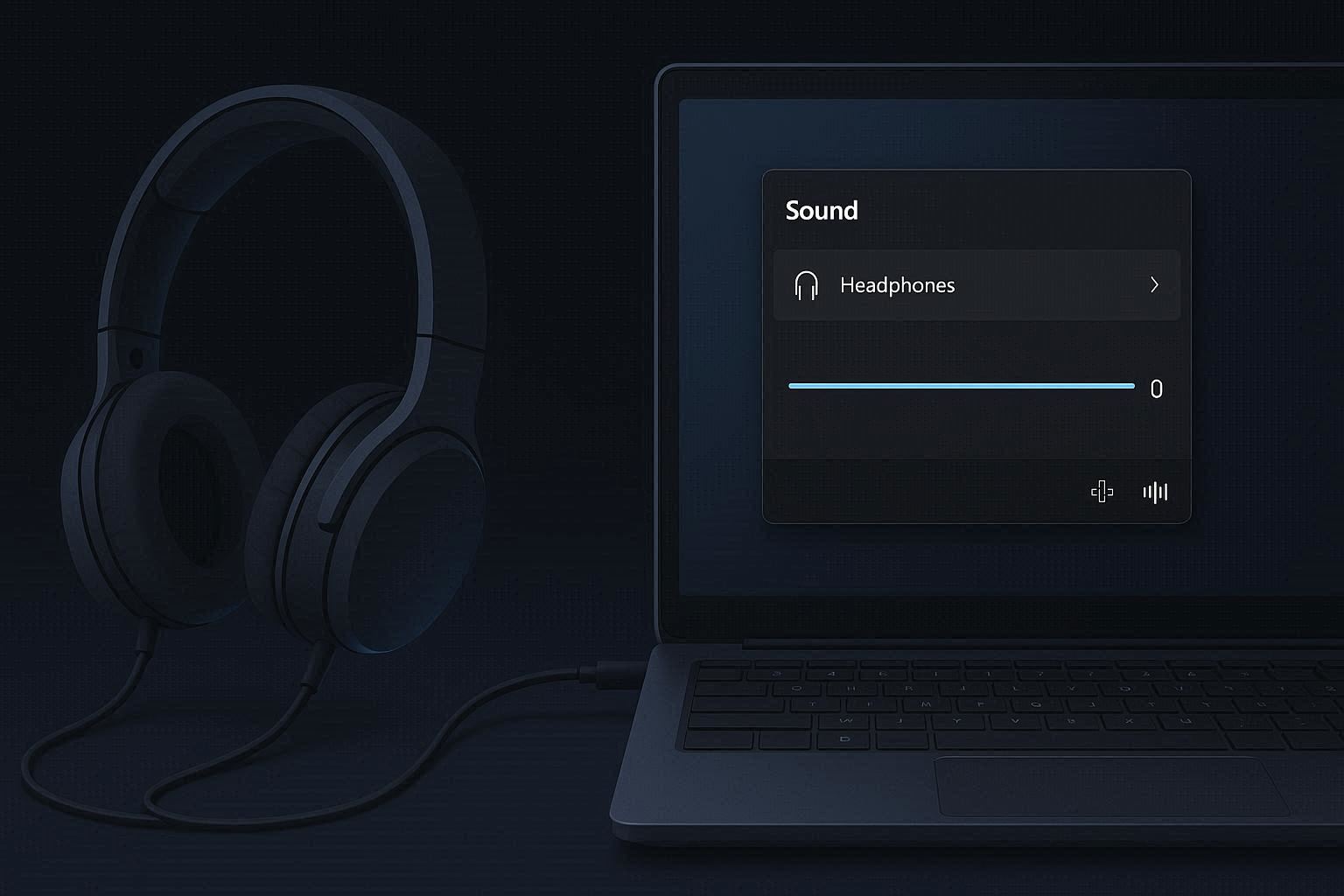
You plug in your headphones. The little sound notification plays — the subtle click that tells you Windows detected something in the headphone jack. The speaker icon in the taskbar changes to show headphones. In Sound settings, your headphones appear as the active output device.
Everything indicates that your headphones are connected and selected. But when you play music, watch a video, or start a call — silence. Total, complete silence. No sound from the headphones. And no sound from the speakers either, because Windows thinks it is routing audio to the headphones.
You unplug the headphones. Speakers come back to life immediately. Plug them back in. Silence again. The headphones are clearly being detected — Windows responds to the insertion every time — but no audio reaches them.
This is one of the most confusing audio problems because everything looks correct. The device is connected, selected, and shown as active. The volume is up. Nothing is muted. But the audio endpoint switch — the internal routing change from speakers to headphones — failed silently somewhere in the driver layer.
How Audio Routing Works on Windows
When you plug headphones into the 3.5mm jack, a sequence of events occurs:
- The jack’s physical detection mechanism (usually a microswitch or contact-based sensor) triggers
- The audio driver (typically Realtek) receives the detection signal
- The driver identifies the device type (headphones, headset, line-out) based on the connector impedance
- The driver notifies Windows that a new audio endpoint is available
- Windows switches the default audio output from “Speakers” to “Headphones”
- The driver reroutes the audio signal from the speaker amplifier to the headphone amplifier
- Audio plays through the headphones
A failure at steps 3, 6, or anywhere between detection and actual audio routing produces the “detected but no sound” symptom. The physical detection works (steps 1-2), Windows receives the notification and switches the UI (steps 4-5), but the actual audio signal never reaches the headphone output (step 6 fails).
Step 1: Force the Output Device Manually
Sometimes Windows detects the headphones but does not actually switch the active output:
- Right-click the speaker icon in the system tray → Sound settings
- Under Output, check which device is currently selected
- You might see: “Speakers (Realtek Audio)” still selected even with headphones plugged in
- Click on your Headphones to make them the active output
- Adjust the volume slider — Windows maintains separate volume per device; the headphone volume might be at zero from a previous session
Also check the Volume Mixer (right-click speaker icon → Volume mixer) to ensure individual applications are not muted or routed to a different device.
If headphones do not appear in the output list at all despite being plugged in, the audio driver is not detecting the insertion properly — skip to Step 4 for the driver fix.
Step 2: The Realtek Panel (The Hidden Audio Control Layer)
Most laptops use Realtek audio hardware, and Realtek installs its own audio control panel alongside the Windows Sound settings. This Realtek panel has its own volume controls, mute toggles, and jack configuration settings that operate independently of — and can override — Windows settings.
Search for “Realtek Audio Console” or “Realtek HD Audio Manager” in the Start menu. If neither appears, look in the system tray for a small speaker icon that is separate from the Windows speaker icon.
In the Realtek panel, check:
Jack detection: some Realtek configurations have an option for how the headphone jack is handled — automatic detection, or manual assignment. If set to manual, you need to tell Realtek what kind of device is plugged in.
Headphone output volume: Realtek has its own headphone volume slider. If this is at zero or muted, headphones will be silent even when Windows shows them as active and at full volume.
Audio device separation: some Realtek drivers create separate audio endpoints for the headphone jack and the speaker output. Make sure the headphone endpoint is not disabled.
Connector retasking: Realtek panels on some laptops allow you to change what the 3.5mm jack does — headphone output, microphone input, line-out, or line-in. If it is set to microphone input, plugging in headphones will detect them but route no audio because the jack is configured as an input, not an output.
Step 3: Disable Audio Enhancements
Windows 11 includes audio enhancement features — spatial sound, loudness equalization, bass boost, virtual surround — that process the audio stream before sending it to the output device. When these enhancements malfunction, they can produce silence instead of enhanced sound.
- Go to Settings → System → Sound
- Click on your headphones under Output
- Find “Audio enhancements” or “Enhanced audio”
- Toggle it Off
If sound returns, the enhancement processing was the problem. You can try re-enabling enhancements one at a time (Settings → Sound → Headphones → Spatial sound, and the individual enhancement options) to identify which specific feature caused the silence.
Also check for third-party audio enhancement software: Dolby Atmos, Nahimic, Sonic Studio, Waves MaxxAudio, and similar tools add their own processing layers. If any of these are installed, try disabling them to test.
Step 4: Reinstall the Audio Driver
If the headphones are detected (the jack physically registers the insertion) but no audio endpoint appears or audio does not route correctly, the audio driver’s headphone routing is broken.
Clean reinstall:
- Open Device Manager → expand Sound, video and game controllers
- Right-click Realtek® Audio (or your audio device) → Uninstall device
- Check “Delete the driver software for this device”
- Click Uninstall
- Restart the computer
Windows installs a generic “High Definition Audio” driver on restart. Plug in your headphones and test. If sound works with the generic driver, the issue was with the Realtek driver specifically.
Now install the correct Realtek driver from your laptop manufacturer’s website — not from Realtek directly, because laptop manufacturers customize the Realtek driver for their specific hardware configuration. The manufacturer’s driver includes the correct jack detection settings, impedance thresholds, and output routing for your laptop’s specific audio hardware.
Step 5: The Physical Check
Before concluding that the problem is software, verify the hardware:
Test with different headphones. Your headphones might have a broken cable — they work on your phone because the phone’s amplifier is strong enough to push signal through a partially damaged wire, while the laptop’s weaker output is not.
Check the headphone plug type. Headphones can have a 3-pole TRS plug (two black rings — audio only) or a 4-pole TRRS plug (three black rings — audio plus microphone). Most laptop combo jacks expect TRRS. Using a TRS plug in a TRRS jack works in most cases but can occasionally cause detection or routing issues.
Clean the jack. Pocket lint, dust, and debris accumulate inside the 3.5mm headphone jack over time. This residue can prevent the plug from making full contact with all the connector rings, causing partial or no audio. A few short bursts of compressed air into the jack clear most debris.
Insert fully. Some headphone plugs require firm insertion to make contact with all rings. If the plug is 1 to 2mm short of full insertion, the jack may detect the physical presence (the first ring makes contact) but fail to route audio (the remaining rings do not make contact). Push the plug in firmly until you feel or hear a click.
Bluetooth headphones: if using Bluetooth, make sure the headphones are not simultaneously connected to another device (phone, tablet) that is stealing the connection. Most Bluetooth headphones can only maintain one active connection. Also verify the Bluetooth audio profile — A2DP for high-quality audio output, HFP for calls with microphone. If the headphones are connected in HFP mode only, audio quality will be low or nonexistent for media playback.
Headphones detected but no sound is maddening because every visual indicator tells you the headphones are working. The volume shows active. The device shows selected. The jack detected the insertion. But the actual audio signal never reaches the headphones because a silent failure in the driver’s routing layer diverted it into the void. Manual device selection, Realtek panel checks, enhancement disabling, and driver reinstallation fix this in virtually every case.