
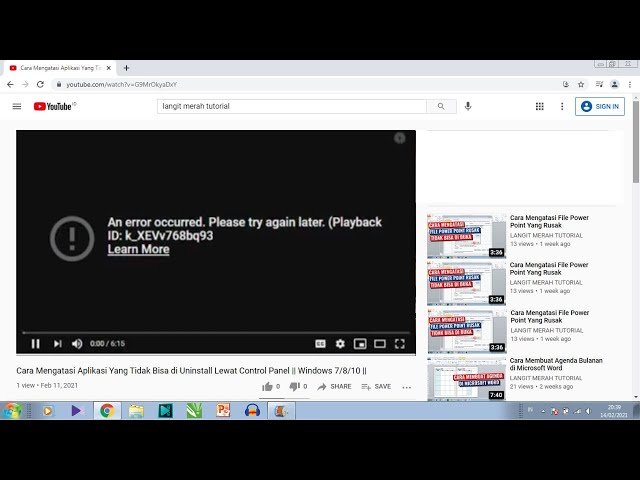
How to Fix YouTube Videos Stuttering or Lagging in Chrome on Windows
You click play on a YouTube video. It plays for like 5 seconds then stutters. Then it plays smoothly for 30 seconds. Then it stutters again. Sometimes the audio gets ahead of the video. Sometimes the video freezes for a second while audio keeps going. The video quality icon doesn’t show buffering. Your internet is fine. What’s going on?
If you’re dealing with youtube stuttering chrome issues specifically, you’re in good company. This problem has been around for years and Google has fixed it like 8 times then introduced new bugs each time. The frustrating part is that YouTube usually works fine in other browsers — it’s just Chrome being Chrome.
Let me walk you through every fix that’s actually worked for people, ordered from most likely to fix it to least likely.
Why YouTube Stutters in Chrome Specifically
Quick context. YouTube uses a video format called VP9 or AV1 in modern browsers. These formats are super efficient on bandwidth but they’re computationally expensive to decode. Chrome can either:
- Decode them on the GPU (called hardware acceleration) — fast and efficient
- Decode them on the CPU — slow and inefficient
When something goes wrong with hardware acceleration, Chrome falls back to CPU decoding. CPU decoding chokes on 4K video and even sometimes 1080p, causing stuttering. This is the root cause of like 70% of youtube stuttering chrome problems.
Other 30% is browser caching, extensions interfering, network protocol weirdness, or general Chrome bloat.
Fix 1: Toggle Hardware Acceleration
This is the first thing to try because it fixes the most cases. Counterintuitive but sometimes you have to turn hardware acceleration ON, sometimes OFF, depending on your specific issue.
Open Chrome. Click the three dots in the top right → Settings → System in the sidebar.
Find Use hardware acceleration when available. Toggle it. Restart Chrome. Test YouTube.
If videos play smoothly, you found your fix. If they’re still stuttering, toggle it back the other way and restart again.
Usually:
- Older laptops with weak integrated graphics — turn OFF hardware acceleration
- Modern laptops/desktops with decent GPUs — turn ON hardware acceleration
But try both because sometimes Windows or Chrome has weird configurations.
Fix 2: Update Your Graphics Driver
If hardware acceleration is on but YouTube still stutters, the GPU driver is probably outdated or buggy. This is THE most common fix.
Don’t trust Windows Update for graphics drivers. Go directly to:
Download the latest driver for your specific GPU model. Install it. Restart your PC. Test YouTube.
This fixed my youtube stuttering chrome issue last year. I had Intel integrated graphics and Windows Update had given me a driver from 2022. Updated to the 2026 version directly from Intel and YouTube became buttery smooth at 1080p60.
Fix 3: Clear Chrome’s Cache and Cookies
A bloated cache can cause weird playback issues. Especially if you’ve been using Chrome for years without ever clearing cache.
In Chrome, press Ctrl + Shift + Delete. The Clear browsing data dialog opens.
Set Time range to All time.
Check:
- Browsing history (optional but recommended)
- Cookies and other site data — this WILL log you out of websites
- Cached images and files
Click Clear data. Wait for it to finish (can take a few minutes if you have years of data).
Restart Chrome. Test YouTube. Fresh cache, no more weird state.
Note: This logs you out of every website you were logged into. Be ready to log back in to YouTube, Gmail, etc. Chrome remembers passwords if you have password sync on, so it’s not a huge deal.
Fix 4: Disable Extensions One at a Time
Extensions can mess with how Chrome handles video playback. Especially:
- Ad blockers (uBlock Origin is usually safe but some others cause issues)
- VPN extensions
- Video downloader extensions
- Privacy extensions like Ghostery
- Tampermonkey scripts that target YouTube
Go to chrome://extensions. Disable ALL extensions temporarily. Test YouTube. If stuttering stops, an extension is the culprit.
Now re-enable extensions one at a time, testing YouTube after each. When stuttering returns, the last extension you enabled is the problem. Either find a replacement or disable it permanently.
For my youtube stuttering chrome issue I had this Honey extension that was scanning every page and causing performance issues. Disabled it and YouTube was perfect.
Fix 5: Reset Chrome’s Network Settings
Chrome has its own network stack separate from Windows. Sometimes it gets in a bad state.
In Chrome’s address bar type:
chrome://net-internals/#sockets
Click Flush socket pools. Then click Close idle sockets. This resets Chrome’s network connections without affecting your Windows network.
Also try:
chrome://net-internals/#dns
Click Clear host cache. This clears Chrome’s DNS cache.
Restart Chrome. Test YouTube. Sometimes this fixes weird streaming issues caused by stuck network state.
Fix 6: Disable Smooth Scrolling and Effects
Chrome flags has experimental features that can cause stuttering. Type in address bar:
chrome://flags
Search for these flags and disable them:
- Smooth Scrolling
- GPU rasterization (try disabling if hardware acceleration is on)
- Override software rendering list
Click Relaunch when it appears at the bottom. Chrome restarts with the new settings.
Warning: Chrome flags are experimental. If you change something and Chrome breaks, you can reset all flags by typing chrome://flags/?reset and clicking the reset button.
Fix 7: Check Your Network Settings (Briefly)
Even though I said network is rarely the issue, sometimes it is. Quick checks:
-
Run a speed test at fast.com — this is Netflix’s tool that specifically tests video streaming speed. If it shows less than 25 Mbps, your network might genuinely not handle 1080p well.
-
Try YouTube on your phone using cellular data. If it works smoothly, your home WiFi has issues. If it stutters there too, your YouTube account or device is the issue.
-
Switch to a different DNS. In Windows: Settings → Network & internet → Advanced network settings → DNS server assignment → Manual. Set IPv4 DNS to 1.1.1.1 (Cloudflare) or 8.8.8.8 (Google). Sometimes ISP DNS is slow which causes initial buffering issues.
Fix 8: Disable Background Apps
If your CPU is busy doing something else, video decoding suffers. Especially on weaker laptops.
Open Task Manager (Ctrl + Shift + Esc). Look at the CPU column. Anything using more than 20% CPU while you’re trying to watch YouTube is causing issues.
Common culprits:
- Antivirus doing a scan
- Windows Search Indexer
- Microsoft Defender Antimalware Service
- Chrome itself with multiple tabs
- OneDrive syncing
Kill or pause whatever’s hogging CPU. YouTube should play smoothly after.
Fix 9: Try Lower Quality
This isn’t really a fix but a workaround. If your hardware genuinely can’t handle 1080p60 smoothly, drop to 1080p30 or 720p. Click the gear icon on the YouTube video → Quality.
Most people don’t actually need 1080p60. 1080p30 looks great and uses way less CPU. Some videos at 4K just won’t work on integrated graphics no matter what you do.
My YouTube Fix Combo That Always Works
For my own setup, this combo eliminates youtube stuttering chrome issues completely:
- Hardware acceleration: ON
- Latest Intel graphics driver from Intel.com directly
- uBlock Origin only (no Honey, no other ad blockers)
- Smooth Scrolling flag DISABLED
- Clear cache once a month
When all four are in place, YouTube plays at 1080p60 perfectly even with 10+ tabs open. When even one of these breaks (especially the driver), stuttering returns.
Your combo might be slightly different depending on your hardware. But the principles are the same — hardware acceleration + good driver + minimal extensions + occasional cache clear = no more stuttering.
When Nothing Works — Use Edge or Firefox
If YouTube literally won’t play smoothly in Chrome no matter what you try, try Microsoft Edge. It’s basically Chrome under the hood (both use Chromium engine) but Microsoft has different optimizations for Windows. Sometimes Edge plays YouTube smoothly when Chrome can’t.
Firefox is a different engine entirely and also worth trying. Firefox handles video differently and might work for you when Chrome doesn’t.
Bookmark this article — Chrome breaks YouTube every few months somehow. You’ll need it again. Almost guaranteed.
What About YouTube Premium and Stuttering?
Quick note — YouTube Premium subscribers sometimes still have youtube stuttering chrome issues even with no ads. Premium isn’t a magic fix. The stuttering is technical, not because of ads.
Though there’s an interesting quirk — without an ad blocker, ads themselves can cause stuttering during playback. Some video ads have heavy animations or weird codecs that struggle to play smoothly. Disabling ads (via Premium or uBlock Origin) eliminates that specific cause of stuttering.
Premium also enables higher quality audio (256kbps instead of 128kbps) and 4K streaming on some content. If your hardware is borderline for 4K, Premium might actually make stuttering worse on those videos by giving you higher quality you can’t smoothly play.
If Premium gives you stuttering specifically on 4K, drop quality to 1080p in the player settings. Premium just unlocks the option, you still control what plays.
Specific Codec Issues
YouTube primarily uses VP9 and AV1 codecs. Older Chrome versions and weaker GPUs struggle with these.
There’s a Chrome extension called “h264ify” that forces YouTube to use the older H.264 codec instead of VP9. H.264 is way easier to decode and almost any GPU/CPU can handle it efficiently.
The trade-off: H.264 streams use more bandwidth (because they’re less efficient compression). On unlimited home internet, no big deal. On metered or capped connections, it eats data faster.
Install h264ify from Chrome Web Store. Test YouTube. If stuttering disappears, your codec was the issue.
For AV1 specifically, only 2020+ GPUs decode it in hardware. Older GPUs fall back to CPU decoding which is brutal even on decent CPUs. AV1 is enabled for some YouTube content automatically. h264ify forces H.264 instead.
Disable Stats For Nerds
YouTube has a feature called “Stats for Nerds” which shows technical info about playback. It’s useful for diagnostics but enabling it slightly impacts performance because YouTube has to update those stats in real time.
Make sure it’s disabled when not actively troubleshooting. Right click the video → uncheck Stats for Nerds.
For diagnostic purposes, enable it once. Look at “Codecs” — shows which codec you’re using. “Optimal Res” — what resolution YouTube thinks your screen can handle. “Buffer Health” — how much video is downloaded ahead. If buffer health is constantly low (under 5 seconds), you have network issues. If it’s high (30+ seconds) but still stuttering, you have decoding issues.
The Picture-in-Picture Workaround
If YouTube stutters in fullscreen but plays smoothly in a small window, the issue is rendering at high resolution. Try Picture-in-Picture.
Right click the video TWICE (first right click brings YouTube’s menu, second brings Chrome’s menu). Choose Picture in Picture. Video pops out into a small floating window that you can resize and move.
The smaller render size requires less GPU/CPU. Plays smoothly even on weak hardware. Drag it to whatever size feels comfortable.
Great workaround for laptops with weak integrated graphics that can’t do fullscreen 1080p smoothly. Especially if you’re multitasking and don’t need full-size video anyway.
Chrome Variants Worth Trying
Chrome has several variants:
- Chrome Stable — the regular one
- Chrome Beta — early access to new features
- Chrome Dev — even earlier access
- Chrome Canary — daily builds, can be unstable
If youtube stuttering chrome is consistent in Stable, sometimes Beta has fixed it already. Worth trying. Each variant is a separate app — you can install Beta alongside Stable.
Brave Browser is also worth trying. Built on Chromium so it’s basically Chrome but with built-in ad blocking and privacy features. Sometimes Brave handles YouTube better than vanilla Chrome.
Vivaldi is another Chromium-based browser with more customization. Some users report better video playback on Vivaldi than Chrome.
Final Reality Check
If you’ve tried everything — hardware acceleration toggling, driver updates, cache clears, extension audits — and YouTube still stutters in Chrome but works perfectly in Edge or Firefox, just use Edge or Firefox for YouTube.
No shame in that. Use Chrome for the things it’s good at, use Edge for video. They both sync your bookmarks via Google account anyway. Browser-based file separation is fine.
The fight to make Chrome stop stuttering is sometimes more trouble than it’s worth. Pick the right tool for the job.