
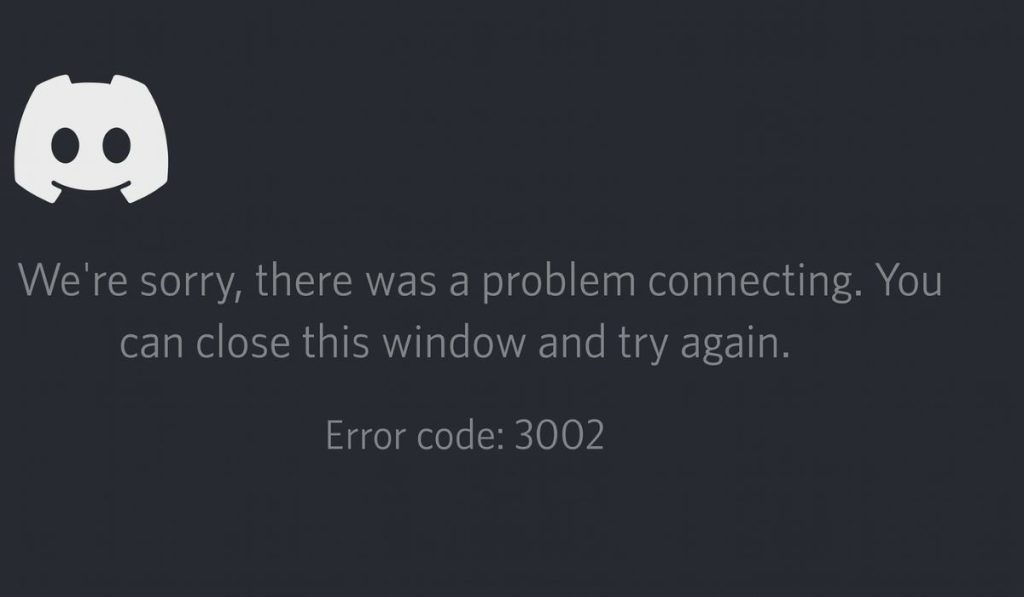
Why Does Discord Keep Crashing on Windows 11? Real Fixes for 2026
Discord crashes are the worst because they always happen at the worst possible moment. You’re in the middle of a voice call. You’re typing a long message. You’re streaming to your friends. And boom — Discord just dies. The window vanishes. Sometimes you get an error, usually you don’t.
If you’re having discord crashing windows 11 issues, you’re definitely not alone. This has been a thing for years and despite Discord pushing constant updates, the crashes never quite go away. They just shift to different causes.
I’ve been dealing with Discord crashes off and on since like 2020. Different causes each time. Let me walk you through every fix I’ve used over the years that actually worked.
Discord Crashes Have Like 7 Different Causes
First thing to understand — there isn’t one fix for discord crashing windows 11 because there isn’t one cause. Different versions of Discord crash for different reasons. Different system configurations trigger different bugs. Some crashes are from corrupted local files, some are from driver issues, some are from Windows updates breaking compatibility.
So if the first fix doesn’t work for you, don’t give up. Move to the next one. Eventually you’ll find what’s causing your specific crash.
Step 1: Clear Discord’s Cache
This fixes maybe 40% of crash issues. Discord caches a TON of data locally — chat history, images, server data, voice settings. When this cache gets corrupted, Discord can crash on launch or during certain actions.
Close Discord completely. Right-click the system tray icon and choose Quit Discord (or kill it via Task Manager if needed).
Press Win + R to open Run. Type:
%appdata%\discord
Hit Enter. You’ll see Discord’s data folder. Look for these subfolders and DELETE them:
- Cache
- Code Cache
- GPUCache
You can leave the other folders alone — those contain settings and stuff you don’t want to lose. Just delete the three cache folders.
Relaunch Discord. It’ll rebuild the cache from scratch. Most weird crashes from corrupted cache disappear after this.
Step 2: Disable Hardware Acceleration
Discord uses your GPU to render the interface for smoother performance. But on some hardware configurations — especially laptops with switchable graphics or older GPUs — this causes crashes.
Open Discord. Go to User Settings (gear icon next to your username at the bottom). Scroll down to Voice & Video in the sidebar. Find Hardware Acceleration. Toggle it OFF.
Also check Advanced in the sidebar. Look for another Hardware Acceleration toggle. Toggle that off too.
Discord will ask you to restart. Restart it. The interface might feel slightly less smooth without GPU acceleration, but it’s a small price to pay for not crashing.
If you have a beefy GPU and you want to keep hardware acceleration on, make sure your GPU driver is up to date first (NVIDIA or AMD’s website, not Windows Update). Outdated drivers cause more discord crashing windows 11 issues than anything else.
Step 3: Run Discord as Administrator (Try as a Test)
Sometimes Discord crashes because it doesn’t have permission to access certain Windows features, especially audio-related ones. Right-click the Discord shortcut. Choose Properties. Go to the Compatibility tab. Check Run this program as an administrator. Click Apply, OK.
Launch Discord. If the crashes stop, you have a permissions issue. The fix might be deeper (UAC settings, antivirus blocking, etc.) but at least you’ve identified the cause.
Don’t leave Discord running as admin permanently if you don’t need to — it’s a security risk. Use it as a diagnostic step.
Step 4: Disable Discord’s Overlay
Discord’s in-game overlay is the feature that shows messages and call controls while you’re gaming. It hooks into games at a deep level. And it’s a known cause of crashes — both in Discord and in games.
User Settings → Game Overlay → toggle off Enable in-game overlay.
If you specifically need the overlay for certain games, you can keep it on globally and disable it per-game in the same settings page (scroll down to the Games list).
Also check the Overlay option for your installed games (User Settings → Registered Games). Disable overlay for any game where Discord crashes are happening.
Step 5: Reinstall Discord (The Right Way)
If cache clearing didn’t work, you might need to fully reinstall. But the trick is doing it cleanly so leftover files don’t recreate the crash.
- Quit Discord completely (Task Manager if needed)
- Open Settings → Apps → Installed apps
- Find Discord, click the three dots, Uninstall
- Go to %appdata% (Win + R, type %appdata%, Enter)
- Delete the entire discord folder
- Go to %localappdata% (Win + R, type %localappdata%, Enter)
- Delete the entire Discord folder there too
- Restart your PC
- Download fresh Discord from discord.com
- Install
This is a clean reinstall — completely removes Discord including all settings, cache, and configuration. You’ll have to log in again and reconfigure your preferences. But it eliminates any corrupted files that survived a normal uninstall.
Step 6: Update Your Audio Drivers
Discord’s voice chat is the most crash-prone feature. If your audio driver is outdated or buggy, Discord can crash specifically when you join voice channels or when audio settings change.
Open Device Manager (right click Start). Expand Sound, video and game controllers. Right click your audio device (Realtek, IDT, or whatever you have). Choose Update driver → Search automatically.
If Windows says you have the latest, that’s not always true. Go to your laptop manufacturer’s support site and download the audio driver for your exact model. Install manually.
For desktops with motherboards, go to your motherboard manufacturer’s site (ASUS, MSI, Gigabyte) and get the latest audio driver.
Updating audio drivers fixed my discord crashing windows 11 issue when nothing else worked. The crashes were happening every time I joined a voice channel and the buggy Realtek driver was the cause.
Step 7: Disable Windows Game Mode
Windows 11 has Game Mode which prioritizes gaming performance. But it has known compatibility issues with Discord, especially when Discord is running while you’re gaming.
Go to Settings → Gaming → Game Mode. Toggle it OFF.
Game Mode honestly doesn’t do much for performance on modern systems. Disabling it rarely costs you anything and can fix Discord crashes that happen specifically while gaming.
Step 8: Use the PTB or Canary Build
Discord has three branches:
- Stable — what most people use
- PTB (Public Test Build) — early access to new features
- Canary — bleeding edge, sometimes buggy but sometimes more stable than Stable
If the Stable build keeps crashing for you, try Canary. Sounds counterintuitive (Canary is supposed to be less stable) but Canary often has bug fixes that haven’t reached Stable yet. Download from Discord’s website.
You can run multiple Discord builds at the same time. Stable, PTB, and Canary are separate apps with separate logins. So you can test Canary without losing access to Stable.
Step 9: Check Antivirus Interference
Some antivirus programs flag Discord as suspicious because of how it injects into other processes (for the overlay) and how it handles network traffic. Check your antivirus quarantine and exception list.
For Windows Defender:
- Settings → Privacy & security → Windows Security
- Virus & threat protection → Manage settings
- Add an exclusion → Folder
- Add
C:\Users\YourName\AppData\Local\Discord - Add
C:\Users\YourName\AppData\Roaming\discord
For third-party antivirus, check their documentation for how to whitelist applications. Add Discord to the trusted apps list.
My Personal Discord Crash Story
So here’s what happened with me last summer. Discord started crashing literally every time I clicked on a specific server. Other servers fine, voice fine, DMs fine. ONE specific server would crash Discord 100% of the time.
Turns out the server had a custom emoji that was somehow corrupted (uploaded by someone weeks ago). Whenever Discord tried to load that server’s emoji list, it crashed trying to render the bad one.
The fix? Clear cache (deleted the corrupted emoji from local cache), then Discord loaded the server fine and re-cached emojis correctly.
Moral of the story: sometimes the discord crashing windows 11 issue isn’t even on your end at all. Sometimes it’s a bad asset somewhere in a server you’re in. Cache clearing is always worth trying first.
The Nuclear Option: Use Discord in Browser
If nothing fixes the desktop app, just use Discord in Chrome or Edge. Visit discord.com/app and log in. Browser version has slightly fewer features (no global hotkeys, no krisp noise suppression) but it’s basically the same Discord and uses different code so it bypasses whatever’s making the desktop app crash.
Weird workaround but it works. I’ve used it for months when the desktop app was being unusable. Hopefully you don’t have to go that far.
Most people will fix their discord crashing windows 11 issue with cache clearing or hardware acceleration toggling. If those don’t work, work down the list. There’s almost always a fix that nails it.
When Discord Crashes Specifically During Screen Share
Screen sharing has its own special class of crashes. Discord has to grab your screen pixels, encode them, and stream them in real time. This is GPU and CPU intensive.
If discord crashing windows 11 happens specifically during screen share:
-
Lower the share resolution. Discord lets you choose 720p, 1080p, or higher when sharing. 1080p at 60fps is intense — drop to 720p at 30fps for stability.
-
Disable hardware acceleration in Discord (covered above) — sometimes screen capture fights with hardware acceleration.
-
Check that Discord can access the screen. Settings → Privacy & security → Screenshots → make sure Discord is allowed.
-
If screen sharing a specific app keeps crashing Discord, try sharing the entire screen instead of a specific window. Window-specific capture has more bugs than full screen capture.
-
Update your GPU driver. Screen capture uses GPU and an outdated driver might not handle the encoding properly.
The “Discord Won’t Start at All” Variant
Different flavor of crash — Discord doesn’t even open. You click the icon and nothing happens. Or it shows in Task Manager for a second then disappears.
Fix path:
- Check Task Manager for any Discord processes still running. End them all.
- Right click Discord shortcut → Run as administrator (one time test)
- If admin works but normal doesn’t, check antivirus exclusions
- If admin doesn’t work either, do the clean reinstall
- Try Discord Canary build as alternative — different installation that bypasses whatever’s broken
In really stubborn cases, the issue is corrupted user profile data. Create a new Windows user account, log into it, install Discord fresh there, see if it opens. If it does, your main user profile has corruption that’s beyond just Discord — eventually you’ll want to migrate to a fresh user.
Memory Leak Causing Crashes
Discord has a known memory leak issue. After running for many hours (especially with multiple voice channels and screen shares), it accumulates memory and eventually crashes from running out.
Quick test: open Task Manager, watch Discord’s memory usage over time. If it’s slowly climbing past 1GB or 2GB, that’s a leak.
Workaround: restart Discord every few hours if you keep it open all day. Or use the browser version which doesn’t have the same leak issue.
Microsoft fixed this in some Windows 11 builds where Discord stays better behaved due to OS-level memory management improvements. Update Windows to latest if you haven’t.
Headset/Microphone Specific Crashes
If discord crashing windows 11 happens when you change microphones, or when a Bluetooth headset connects/disconnects, the audio device switching is the trigger.
Discord doesn’t handle audio device changes gracefully on Windows. Solutions:
- Don’t change audio devices while Discord is running
- If you must, do it via Windows Sound settings, not Discord’s settings
- Disable Bluetooth audio devices that you’re not using
- Set a fixed audio device in Discord User Settings → Voice & Video instead of “Default”
For Bluetooth specifically, Discord struggles with the A2DP/HFP profile switching that happens when you connect or unmute. Setting Discord to use Bluetooth in only A2DP mode (covered in another article) helps stability.
Discord on Lower-End Hardware
On laptops with 4GB RAM or older CPUs, discord crashing windows 11 is more common because Discord is genuinely heavy. The Electron app uses way more resources than it should.
For low-end systems:
- Use Discord in browser (lighter resource usage)
- Or use the Lite Discord client called Vencord or BetterDiscord (third-party but popular)
- Limit yourself to 1-2 Discord servers visible at a time, not 50
- Disable animations in User Settings → Accessibility
- Disable fancy effects: User Settings → Appearance → Reduce motion
Discord on a 4GB RAM laptop is rough. The browser version is genuinely lighter and worth using if your hardware is the bottleneck.
Why I Eventually Switched
Full disclosure — after dealing with Discord crashes for years, I sometimes use Slack or Telegram for important conversations because they’re more stable. Discord is great for community stuff but for important conversations where I can’t afford a crash, I prefer something more reliable.
Discord knows about these issues. They’ve been working on the new app written in different framework that should fix many crash causes. Whenever it ships, hopefully discord crashing windows 11 problems become a thing of the past. Until then, keep this article bookmarked.