
Why Is Chrome Using 8GB of RAM With Only 5 Tabs Open?
Look, we all know Chrome eats RAM. That joke has been around for like a decade. But sometimes Chrome’s RAM usage goes from “yeah Chrome is heavy” to “holy crap how is this even possible.” 8 gigabytes of RAM with five tabs open? That’s not normal Chrome being heavy, that’s Chrome having a problem.
My work laptop has 16GB of RAM. Chrome would eat 12 of them by lunchtime. Everything else would crawl. I was about to buy a new laptop until I figured out what was actually going on. Spoiler: it wasn’t about how many tabs I had. It was about ONE specific tab and TWO extensions that were leaking memory like crazy.
Let me walk you through how I found them and how you can find yours.
Chrome’s Built-In Task Manager (Most People Don’t Know About This)
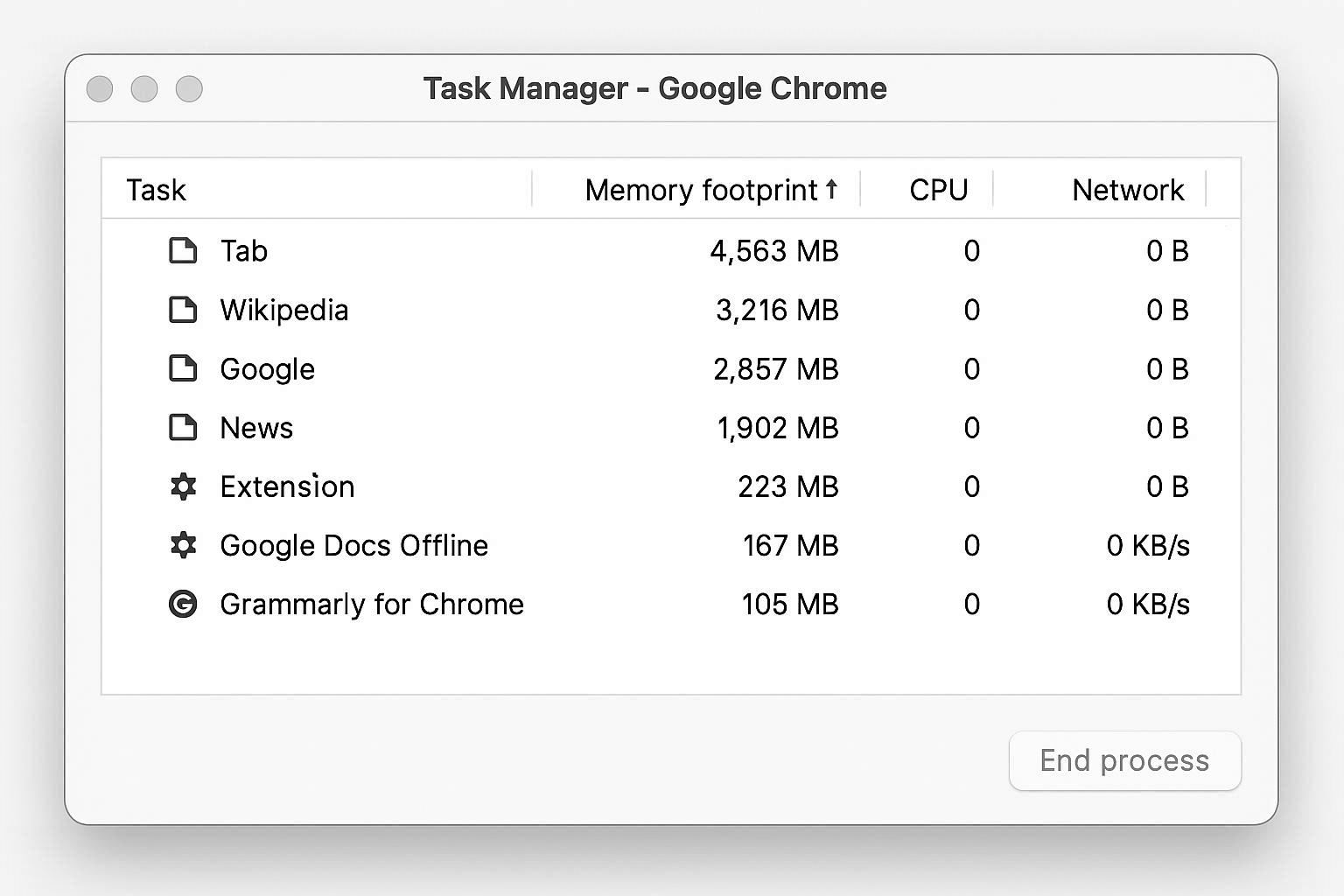
Chrome has its OWN task manager. Separate from Windows Task Manager. It shows you exactly how much memory each tab and extension is using. This is the killer tool for figuring out where your RAM is going.
Open Chrome, then press Shift + Esc.
You’ll see a window listing every tab, every extension, and every Chrome process with their memory and CPU usage. Click the Memory footprint column to sort from highest to lowest. Now you can see exactly which tab or extension is the actual culprit.
You can also access it from the menu: three dots → More tools → Task Manager.
What you’re looking for:
- A single tab using more than 500MB? That’s high but maybe okay if it’s a video or web app.
- A tab using 1GB+? Something’s wrong with that tab. Reload it or close it.
- A tab using 2GB+? Memory leak. Definitely reload or close.
- An extension using more than 100MB? That extension is misbehaving.
- An extension using 500MB+? Get rid of it.
The Tabs That Eat RAM
Some websites are just memory monsters by design. The usual suspects:
- Gmail — especially if you have a lot of unread emails or attachments loaded. Easily 500MB-1GB on its own.
- Slack in browser — pretty bad, like 300-600MB per workspace.
- YouTube with a video playing — 200-400MB per video tab.
- Google Docs/Sheets with large documents — can spike to 1GB+ for big spreadsheets.
- Figma, Canva, or any design tool — 500MB-2GB easily.
- Twitter/X — has gotten really bloated, 200-400MB.
- Facebook — same boat, lots of tracking scripts running.
- Any site with autoplay video ads — varies wildly, can be huge.
The fix? Don’t keep these open all day. Close them when you’re done.
Memory Leaks Are Real
A memory leak happens when a website keeps allocating memory but never releases it. Over time the tab grows and grows until it’s eating gigabytes. JavaScript code with bugs causes this. Some websites have leaks they never fix.
If you keep a single tab open for many hours and Chrome’s Task Manager shows it consuming way more memory than it should, that’s a leak. The fix is simple: just close and reopen the tab. The new instance starts fresh with no leaked memory.
I used to keep my email tab open from 8 AM to 6 PM every day. By 4 PM Gmail would be eating 2GB. I started closing and reopening it after lunch each day. Saved like 1.5GB constantly.
Extensions Are Often the Real Problem
This was the big revelation for me. I had three extensions that I had completely forgotten about:
- A grammar checker that was scanning every input field on every page in real time
- An ad blocker that was processing thousands of rules per page
- A screen recording tool that was somehow keeping its capture buffer in memory all the time
Together these three extensions were eating 3GB of RAM. THREE GIGABYTES. For things I didn’t even use most of the time.
Go to chrome://extensions/ in your address bar. Look at every extension. For each one ask yourself:
- Do I actually use this regularly?
- When was the last time I used it?
- Could I just visit the website instead?
Disable everything you don’t need. Don’t uninstall yet — just disable. If you find you don’t miss it after a few days, then uninstall.
Specific extensions known for being memory hogs:
- Grammarly (the browser extension, not the app)
- Honey
- LastPass and other password managers (less bad than they used to be but still heavy)
- Web of Trust
- Most VPN extensions
- Most ad blockers EXCEPT uBlock Origin (which is actually super lightweight)
- Anything with “AI” in the name from 2023-2024
- Screen recording extensions
Memory Saver Mode
Chrome has a built-in feature called Memory Saver that automatically frees up memory from inactive tabs. The tabs are still there, you just need to click them to reload. For most people, this is fine — you’re not actively using a tab if you haven’t clicked it in 15 minutes.
Go to chrome://settings/performance. Make sure Memory Saver is on. You can also add specific sites to the “Always keep these sites active” list if you don’t want them put to sleep (like your email, music streaming, work apps).
This won’t fix a tab that’s actively running and leaking, but it will keep idle tabs from eating RAM. Decent quality of life improvement.
Hardware Acceleration: Friend or Foe?
Chrome uses your GPU to render web content by default. This is called hardware acceleration. On most computers this is good — it offloads work from the CPU. But on some computers, especially laptops with crappy integrated graphics, it can cause weird memory issues.
If nothing else has helped, try toggling hardware acceleration. Go to Chrome Settings → System → toggle off Use hardware acceleration when available. Restart Chrome. See if memory usage gets better.
If it does, leave it off. If it doesn’t, turn it back on.
The Nuclear Reset
If Chrome is still being weird after all this, sometimes a full reset helps. Settings → Reset settings → Restore settings to their original defaults. This:
- Resets your homepage and search engine
- Disables (but doesn’t delete) all extensions
- Clears cookies and site data
- Keeps your bookmarks, passwords, and history
After the reset, slowly re-enable extensions you actually need. If you re-enable an extension and notice memory usage spike, that extension was the problem.
Should You Just Use Edge or Firefox?
Honestly? Maybe. Edge is built on Chromium so it’s basically Chrome under the hood, but Microsoft has done some optimization that makes it use less memory. Most Chrome extensions work in Edge. If you’re laptop has 8GB or less of RAM and you can’t function in Chrome anymore, Edge is a viable option.
Firefox is genuinely lighter on memory than Chrome and has gotten really good in the past few years. Different ecosystem and extension story but worth trying.
For me though, Chrome won after I cleaned out my extensions. Memory usage dropped from 12GB at peak to about 4-5GB. Totally fine for daily use. The problem was never Chrome itself — it was the junk I had piled into Chrome.
Go open Chrome’s task manager right now. Shift + Esc. Be horrified at what you find. Then start cleaning house.