
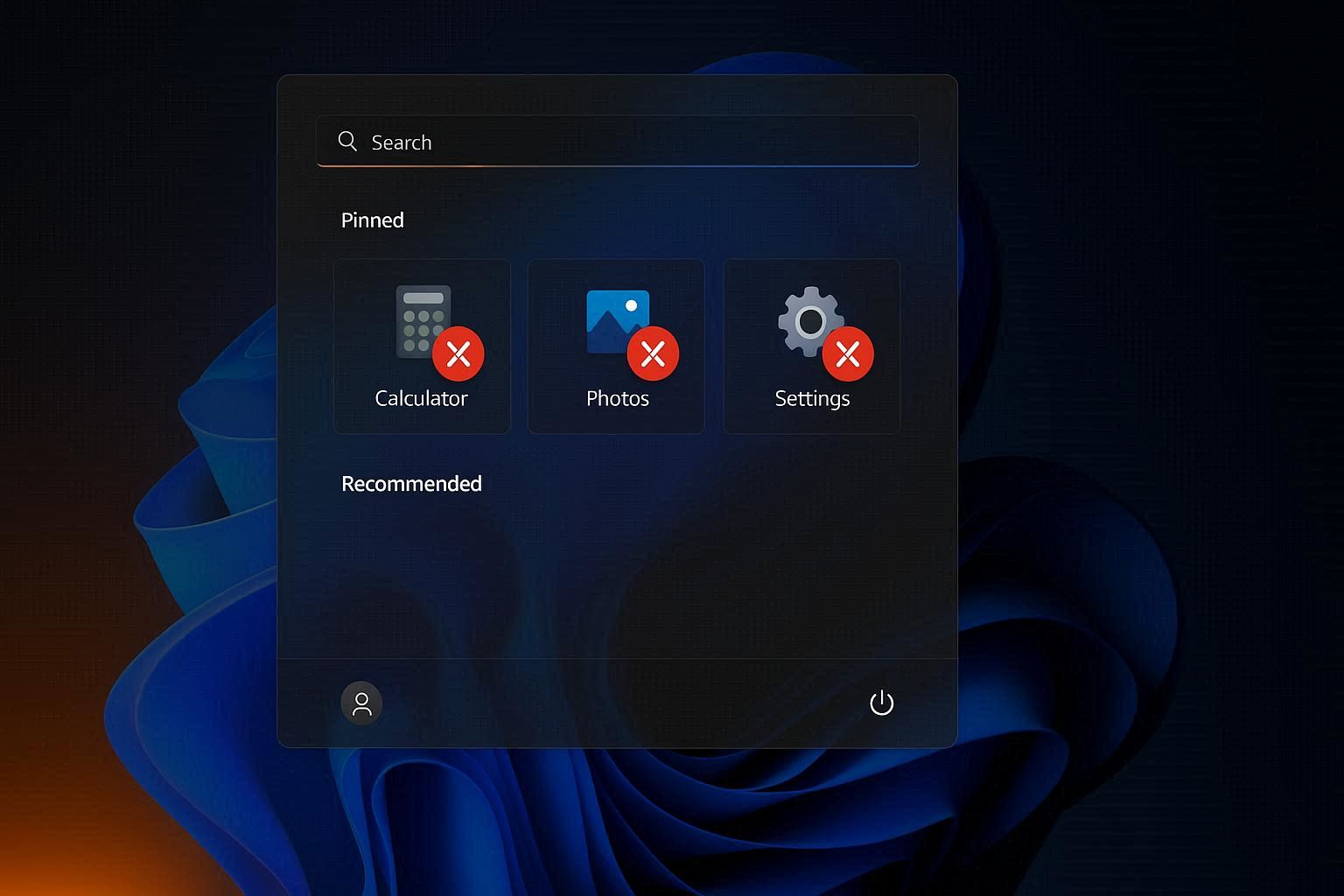
How to Fix Windows 11 Apps Not Opening or Crashing Immediately After Launch
You click the Calculator app. Nothing happens. You click it again. Nothing. You click Photos. Nothing. You click Settings. Nothing. You right-click an app and select Open. Nothing.
Or maybe the apps start — you see the window begin to appear — and then instantly disappear. A flash of the app’s interface, gone in less than a second. No error message, no crash report, no explanation. Just a brief flicker and silence.
The strange part is that regular desktop programs work perfectly. Chrome opens. Word opens. Games open. Steam opens. Only the built-in Windows apps — Calculator, Photos, Camera, Calendar, Clock, Microsoft Store, Mail, and sometimes even Settings — refuse to start.
When multiple Windows apps fail simultaneously, the problem is not with the individual apps. The problem is with the platform that runs them.
The Windows App Platform
Windows 11 has two types of applications:
Traditional Win32 desktop applications — programs installed from .exe or .msi installers. Chrome, Firefox, Microsoft Office desktop, games, creative software. These run directly on the Windows API and manage their own files, registry entries, and dependencies.
UWP/WinUI applications — apps from the Microsoft Store and Windows built-in apps. Calculator, Photos, Camera, Settings, Mail, Calendar, Clock, Microsoft Store itself. These run inside a sandboxed container managed by the Windows App Platform, which handles app registration, file isolation, licensing, and runtime dependencies.
When the Windows App Platform is corrupted — by a failed update, a disk error, or a permission conflict — ALL UWP apps fail simultaneously. The platform cannot load the app containers, validate licenses, or provide the runtime environment the apps expect. Each app tries to start, finds that its platform dependencies are missing or broken, and crashes immediately.
Traditional Win32 desktop apps are completely unaffected because they do not use this platform.
Step 1: Reset the Specific App
If only one or two apps are broken while others work, the app-specific data is corrupted:
- Go to Settings → Apps → Installed apps
- Find the broken app (search for its name)
- Click the three dots (⋯) → Advanced options
- Scroll down to the Reset section
- Click Repair first — this attempts to fix the app without losing data
- If Repair does not work, click Reset — this clears all app data and returns it to factory state
Reset vs. Repair: Repair keeps your app data (saved preferences, recent files, login state) and attempts to fix only the application files. Reset deletes everything — app data, preferences, login state — and gives you a completely fresh app. Think of Repair as fixing the engine and Reset as buying a new car.
After Reset, the app should open normally. You will need to reconfigure any preferences or sign in again.
If Settings itself won’t open: you cannot access App settings through Settings. Instead:
- Try the keyboard shortcut Windows + I to force-open Settings
- Or open Command Prompt and type
start ms-settings:(with the colon) to launch Settings via URI protocol - Or skip to Step 2 which does not require Settings
Step 2: Re-Register All Windows Apps (The Fix That Works)
This is the most effective fix for widespread app failures. It re-registers every Windows app package with the platform, fixing corrupt registration entries:
Open PowerShell as Administrator:
- Search for “PowerShell” in Start → right-click → Run as administrator
- Or: Task Manager → File → Run new task → type
powershell→ check “Create this task with administrative privileges” → OK
Run this command:
Get-AppXPackage -AllUsers | Foreach {Add-AppxPackage -DisableDevelopmentMode -Register "$($_.InstallLocation)\AppXManifest.xml"}
The command takes 2 to 5 minutes to complete. You will see red error text appearing for some packages — this is normal and expected. System packages that are currently running cannot be re-registered while active, so they produce errors. The packages that were broken will be successfully re-registered.
After the command completes, restart your computer. Open the apps that were broken — they should now launch normally.
What this command does: every UWP app has a manifest file (AppXManifest.xml) that describes the app to the Windows App Platform — its name, version, capabilities, entry point, and dependencies. The -Register flag tells the platform to re-read this manifest and rebuild the app’s registration. If the previous registration was corrupted (missing entries, wrong paths, broken dependencies), the re-registration replaces it with a clean copy.
Step 3: Clear the Store Cache
The Microsoft Store maintains a cache of download data, license tokens, and app metadata. When this cache corrupts, apps that were installed or updated through the Store can fail to validate their licenses on launch, causing immediate crashes.
Press Windows + R, type wsreset.exe, press Enter.
A blank Command Prompt window appears and sits there for about 30 seconds. Do not close it. When it finishes, the Microsoft Store opens automatically, confirming the cache has been cleared.
Test your apps after the cache clear. Apps that were crashing due to license validation failures should now start normally.
Step 4: The Update Dependency Problem
Windows apps depend on the app platform runtime, and the platform is updated through Windows Update. When you delay or skip Windows updates, the platform version can fall behind what the apps expect. The apps received their own updates (through the Microsoft Store) but the platform did not keep up.
Go to Settings → Windows Update → Check for updates. Install everything:
- Security updates
- Cumulative updates
- .NET Framework updates
- Optional updates — expand “Optional updates” and install these too; they often contain app platform runtime updates
After installing all updates and restarting, the platform and apps should be version-compatible again.
Step 5: Profile Corruption Test
If apps work in Safe Mode or on a different user account but not on your main account, the corruption is in your user profile — specifically in the per-user app data stored in %localappdata%\Packages.
Test: create a new local user account (Settings → Accounts → Other users → Add account). Sign in to the new account and test the apps. If they work there, your original profile’s app data is corrupted.
Fix without creating a new profile: the app data for each UWP app is stored in a subfolder under %localappdata%\Packages. Each app has its own folder named after its package family. You can reset a specific app’s data by deleting or renaming its package folder:
- Navigate to
C:\Users\YourName\AppData\Local\Packages - Find the folder for the broken app (e.g.,
Microsoft.WindowsCalculator_8wekyb3d8bbwefor Calculator) - Rename it (e.g., add
.oldto the end) - Restart the app — Windows creates a fresh data folder
This is the manual equivalent of the Reset button in Settings but works even when Settings itself is broken.
Windows apps failing to open is one of those problems that looks catastrophic but has a straightforward fix. The PowerShell re-registration command is the single most effective solution, fixing the platform-level corruption that causes all UWP apps to fail simultaneously. It takes 5 minutes, requires no downloads, and works in the vast majority of cases.