
How to Fix Windows 11 Notification Sound Not Playing — The Volume Mixer Channel Nobody Checks
A notification banner slides in from the bottom right corner of your screen. You see the message — a new email arrived, a Teams message, a calendar reminder. But you did not hear it. No chime, no ding, no alert sound. If you had not happened to glance at the screen at that exact moment, you would have missed it entirely.
Your speakers work fine. Music plays. YouTube videos have audio. Games have sound. Every application produces audio perfectly. But Windows notification sounds — the chimes, dings, and alerts that are supposed to get your attention — are completely silent.
You check the volume. The speaker icon in the taskbar shows full volume, no mute icon. You click it and the volume slider is at 75 percent. Everything looks normal. So why are notifications silent?
Because Windows has a second volume control that most people do not know exists. And it is muted.
The Volume Mixer: Where System Sounds Hide
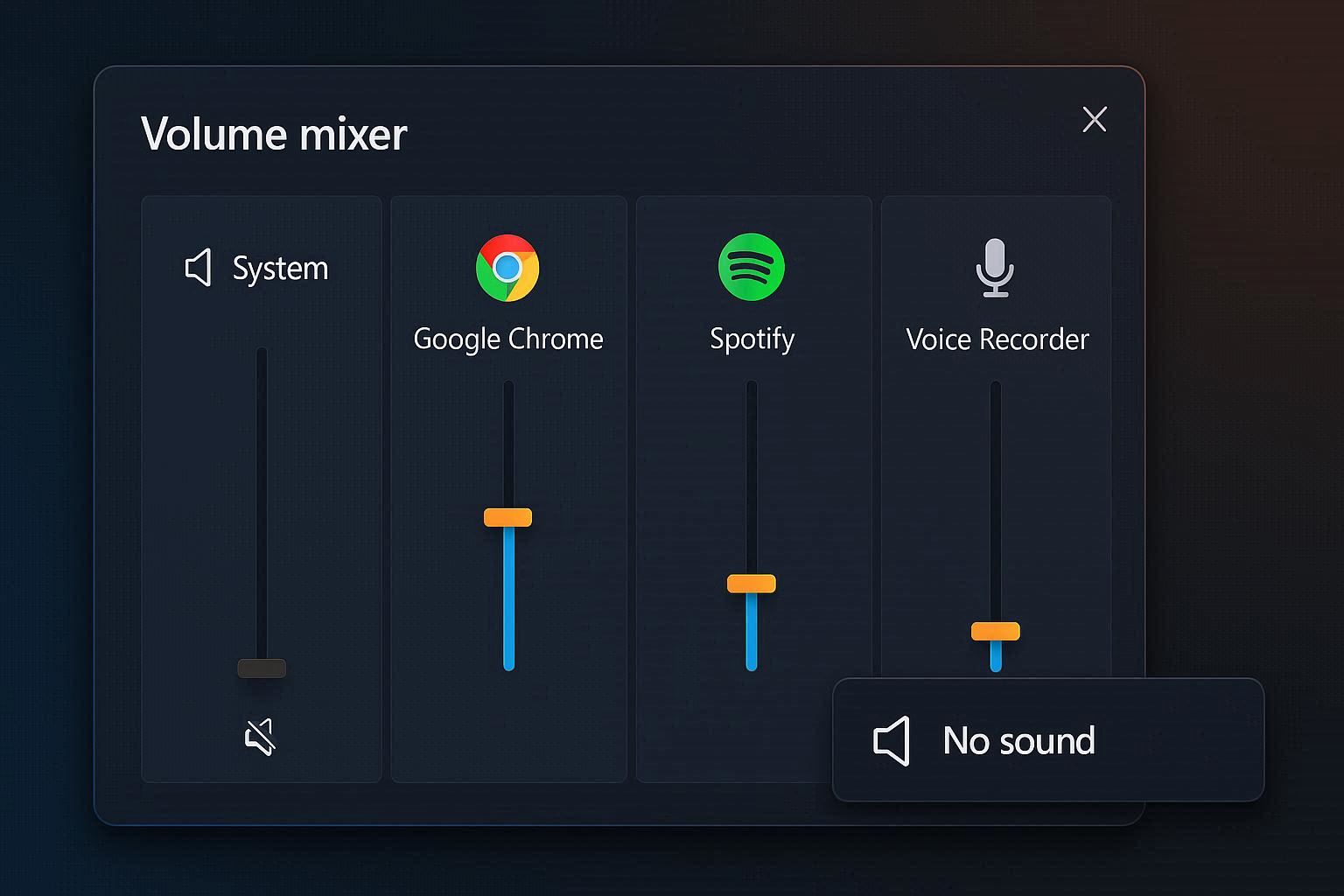
Windows does not have one volume slider. It has many. The speaker icon in the taskbar controls the master volume — the overall maximum for all audio output. But underneath that, every application and audio stream has its own independent volume slider.
Right-click the speaker icon in the system tray and select “Open volume mixer” (or on newer Windows 11 builds, click the speaker icon, then click the Volume mixer link).
You will see individual sliders for:
- System Sounds — this controls notification chimes, error beeps, and all Windows alert sounds
- Each open application (Chrome, Spotify, Teams, etc.)
Look at the System Sounds slider. If it is at zero or shows a mute icon, that is your problem. Notification sounds are controlled by this slider independently from everything else. You can have your master volume at 100 percent, Chrome playing audio at full blast, and system sounds at absolute zero — and that is exactly what happens to many people without them realizing it.
How it gets muted accidentally:
- Some gaming applications lower system sounds to prevent notification chimes during gameplay
- Volume mixer adjustments made while troubleshooting another audio issue
- Third-party audio management software (like Voicemeeter, Sound Blaster Command, or Nahimic) that adjusts per-channel volumes
- Windows updates that occasionally reset audio channel configurations
The fix: drag the System Sounds slider up to at least 50 percent. Notification sounds return immediately.
The Sound Scheme: When Windows Forgets What Sounds To Play
Windows uses a “Sound Scheme” that maps specific events (notification arrives, error occurs, USB device connected, email received) to specific WAV audio files. If this scheme is set to “No Sounds,” Windows will not play any system sound for any event — even though the audio system is working perfectly.
Check your Sound Scheme:
- Right-click the speaker icon → Sounds (or open Control Panel → Sound → Sounds tab)
- Look at the Sound Scheme dropdown at the top
- If it says “No Sounds” — that is the problem. Change it to “Windows Default”
Below the dropdown is a list of Program Events. Scroll down to “Notification” and click it. At the bottom of the window, the “Sounds” dropdown should show a WAV file name like Windows Notify System Generic.wav. If it shows (None), click the dropdown and select a sound, or click Browse to choose a WAV file from C:\Windows\Media.
Click Test to hear the selected sound. If you hear it, click Apply then OK.
Common scenario: a user or IT administrator set the scheme to “No Sounds” to eliminate distracting chimes in a meeting or quiet environment, and it was never changed back. Or privacy-focused software made the change during a system “optimization.”
Per-App Notification Sound Settings
Even when the Volume Mixer and Sound Scheme are correctly configured, individual apps can have their notification sounds disabled:
Go to Settings → System → Notifications. You see a list of all apps that can send notifications. Click on each app and check:
- Notifications: must be On
- Play a sound when a notification arrives: must be On
This is a per-app toggle. Teams might have sound enabled while Mail has it disabled, or vice versa. If you are missing sounds from a specific app, this is likely the setting that is off.
Scroll through every app in the list and enable the sound toggle for any app where you want audible alerts. Pay special attention to:
- Mail — email notification sounds
- Microsoft Teams — meeting and message alerts
- Calendar — upcoming event reminders
- Microsoft Store — download completion notifications
Focus Assist: Silencing Sounds Without Silencing Banners
Windows 11’s Focus Assist (Do Not Disturb) has a subtle behavior that confuses people: it can suppress notification sounds while still showing notification banners.
When Focus Assist is in “Priority only” mode, it shows banners from priority apps but may suppress the accompanying sounds depending on the configuration. When in “Alarms only” mode, it suppresses all notification sounds except alarm clock alerts.
Check: go to Settings → System → Focus. If Focus Assist is active (not Off), check its configuration. The quickest test is to turn it completely Off and see if notification sounds return.
Also check the automatic rules — Focus Assist can activate itself during specific hours, when duplicating your display (screen sharing), when playing a game, or when using full-screen apps. These rules are the “silent assassins” of notification sounds because they activate and deactivate without any visible indicator, muting your notifications at exactly the times you might need them most.
The Audio Service Reset
If all settings appear correct but notification sounds still do not play, the Windows Audio service may be in a broken state where it handles application audio correctly but fails to play system sounds:
- Press Windows + R → type
services.msc→ Enter - Find Windows Audio → right-click → Restart
- Find Windows Audio Endpoint Builder → right-click → Restart
After restarting both services, test immediately: go to Control Panel → Sound → Sounds tab, click any event (like “Asterisk”), and click Test. You should hear the sound. If the test plays successfully, send yourself a test notification (like an email or Teams message) to verify that notification sounds are now working in context.
If the test button plays no sound either, the audio driver needs attention. Update or reinstall your audio driver from your laptop manufacturer’s support page. The generic “High Definition Audio Device” driver that Windows sometimes installs after updates has known issues with system sound playback on some hardware.
Bluetooth Headphones and Notification Sounds
Bluetooth headphones introduce an extra complication. When your Bluetooth headset is connected:
- Windows may route application audio to the headset but system sounds to the laptop speakers (or vice versa)
- System sounds may be silent because the headset is in a mode that does not support system audio mixing
- The headset’s own volume for system sounds may be at zero
Fix: go to Control Panel → Sound → Playback tab. Make sure your Bluetooth headset is set as both the Default Device and the Default Communication Device (right-click → “Set as Default Device” and “Set as Default Communication Device”). This ensures all audio — including system sounds — routes to the headset.
Also check Volume Mixer while the headset is connected. The system sounds slider may show a different level for the headset than it does for the laptop speakers, because Windows maintains separate volume settings per output device.
Notification sounds are supposed to get your attention when you are not looking at the screen. When they stop working, you miss messages, emails, meeting reminders, and alerts that might be time-sensitive. The fix is almost always in the Volume Mixer — that independently controlled system sounds channel that gets accidentally muted. Check it first and the chimes come back in seconds.