
How to Fix VPN Not Connecting on Windows 11 After Update — The WAN Miniport Driver That Breaks Every Time
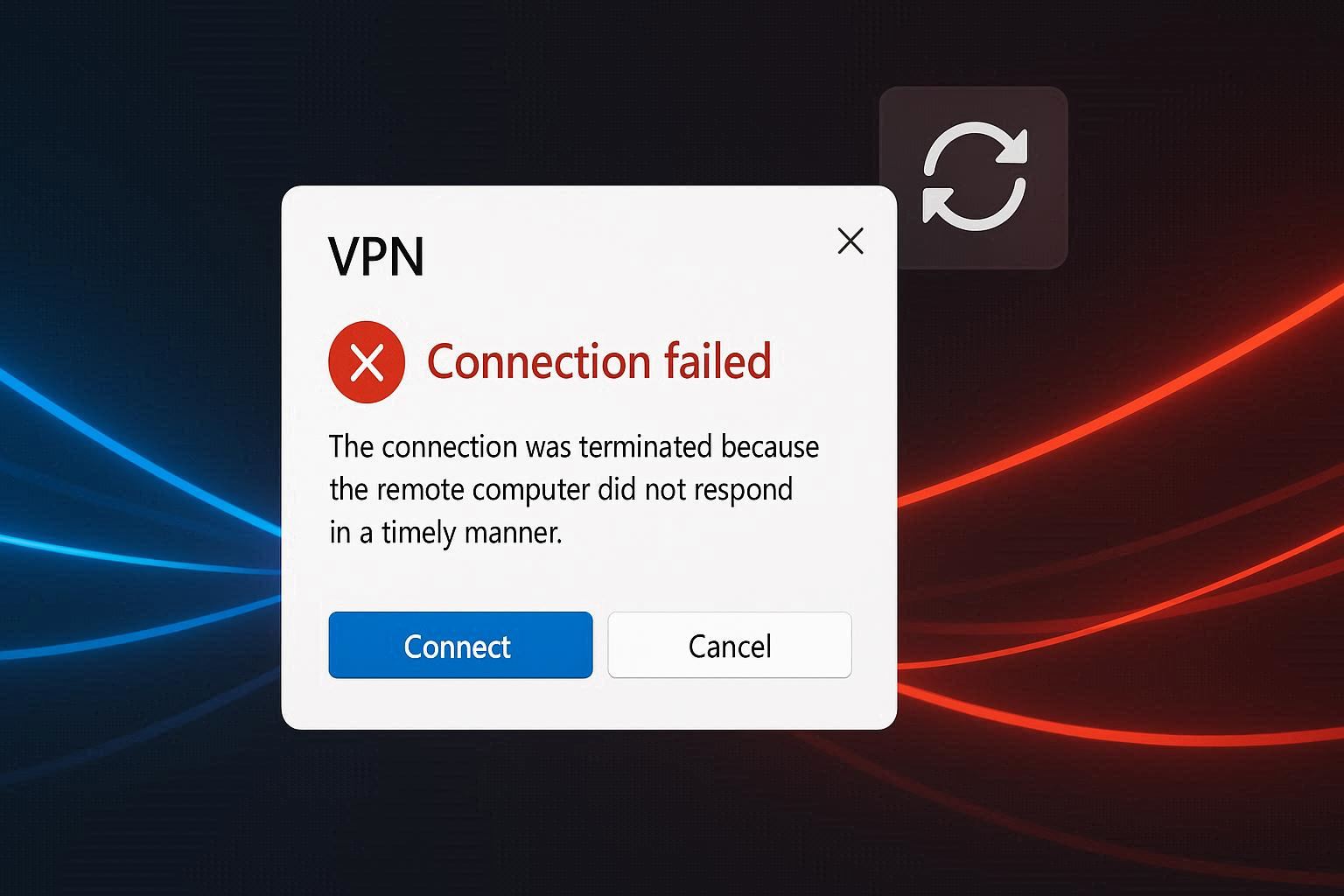
Monday morning. You open your laptop, click the VPN icon to connect to your company network, and get a message you have never seen before: “The connection was terminated by the remote computer before it could be completed.” Or maybe: “The L2TP connection attempt failed because the security layer encountered a processing error.” Or the most helpful one of all: “General failure.”
You did not change anything. The VPN was working perfectly on Friday. You connected to the same server, with the same credentials, using the same WiFi network. Nothing changed on your end.
Except something did change. While your laptop was sleeping over the weekend, Windows downloaded and installed an update. You might have noticed the “Update and restart” option when you shut down Friday evening. Or the update installed silently during an automatic maintenance window. Either way, something in that update broke the chain of network components your VPN depends on.
This is not a rare occurrence. It is so common that “VPN broken after Windows update” is a recognized pattern that IT administrators deal with regularly — especially after the 2026 cumulative updates that restructured parts of the networking stack.
Why Windows Updates Break VPN Connections
A VPN connection on Windows depends on a chain of software components:
Your VPN client (the app or the built-in Windows VPN) sends connection requests through WAN Miniport virtual network adapters — software drivers that emulate network hardware for each VPN protocol. There is a WAN Miniport for IKEv2, one for L2TP, one for PPTP, one for SSTP, and one for IP.
These WAN Miniport drivers are Microsoft-signed components that live in the Windows networking stack. When a cumulative update touches the networking stack — which most security updates do because networking is a common attack surface — these drivers can become corrupted, misconfigured, or version-mismatched with other networking components.
The result: the VPN client sends a connection request, the request reaches a broken WAN Miniport driver, and the driver either fails silently (connection times out) or returns a cryptic error that tells you nothing about the actual cause.
Additionally, L2TP VPN connections require a specific registry key (AssumeUDPEncapsulationContextOnSendRule) to work behind NAT (Network Address Translation) routers — which is virtually every home and office router in existence. This registry key is not part of the default Windows configuration, so Windows updates do not preserve it. After an update, the key may be removed or reset to its default value of 0, which breaks L2TP VPN for everyone behind a NAT router.
Step 1: Reinstall WAN Miniport Drivers (Fixes 70% of Cases)
This is the single most effective fix for post-update VPN failures:
- Press Windows + X → Device Manager
- Expand Network adapters
- Find all entries starting with “WAN Miniport” — there are typically 5 to 7:
- WAN Miniport (IKEv2)
- WAN Miniport (IP)
- WAN Miniport (IPv6)
- WAN Miniport (L2TP)
- WAN Miniport (Network Monitor)
- WAN Miniport (PPTP)
- WAN Miniport (SSTP)
- Right-click each one → Uninstall device → confirm
- After removing all of them, click Action → Scan for hardware changes
- Windows will automatically detect the missing adapters and reinstall them fresh
- Restart your computer
After restart, try connecting to your VPN. In the majority of cases, the fresh WAN Miniport installation resolves the connection failure because the corrupted drivers from the update are replaced with clean copies.
Step 2: The L2TP Registry Fix (The Key Nobody Knows About)
If you use L2TP/IPsec VPN — one of the most common protocols for corporate VPN connections — and you get errors mentioning “authentication” or “security layer processing,” you need this registry key:
-
Press Windows + R → type
regedit→ Enter -
Navigate to:
HKEY_LOCAL_MACHINE\SYSTEM\CurrentControlSet\Services\PolicyAgent -
In the right pane, right-click → New → DWORD (32-bit) Value
-
Name it:
AssumeUDPEncapsulationContextOnSendRule -
Double-click it → set Value data to 2
-
Click OK
-
Restart the computer
What this key does: L2TP/IPsec VPN uses UDP port 500 and port 4500 for the encrypted tunnel. When the VPN client and server are both behind NAT routers (which is nearly always the case), the IPsec packets need to be encapsulated in UDP to traverse the NAT. Windows, by default, does not assume UDP encapsulation is needed. The registry value “2” tells Windows to assume that both the client and the server are behind NAT and to use UDP encapsulation for all L2TP/IPsec connections.
Without this key, the connection attempt sends non-encapsulated IPsec packets, which the NAT router drops because it cannot route them. The VPN client sees no response and reports a misleading “authentication failed” error — even though the actual problem is packet loss at the NAT level, not an authentication issue.
This key needs to be re-added after every major Windows update because updates can reset or remove it. Some IT administrators create a scheduled task or startup script that checks for the key and recreates it if missing, ensuring it survives updates automatically.
Step 3: Reset the Network Stack
If the WAN Miniport reinstallation and L2TP registry fix do not resolve the issue, the Windows networking stack itself may have residual corruption:
Open Command Prompt as Administrator and run these commands sequentially:
ipconfig /release
ipconfig /flushdns
ipconfig /renew
netsh winsock reset
netsh int ip reset
Each command addresses a different part of the networking stack:
ipconfig /releaseand/renewreset the DHCP leaseipconfig /flushdnsclears cached DNS entries that might reference old VPN configurationsnetsh winsock resetresets the Windows Sockets catalog — the layer between applications and the network stacknetsh int ip resetresets TCP/IP configuration to factory defaults
Restart the computer after running all commands. The combination of these resets clears any networking state corruption that accumulated during the update process.
Step 4: The IPv6 Problem
Windows 11 aggressively promotes IPv6 on all network connections. After updates, IPv6 may be re-enabled on network adapters where you previously disabled it — including VPN adapters.
Many VPN servers — particularly older corporate VPN concentrators — do not support IPv6. When Windows tries to negotiate an IPv6 connection with a server that only speaks IPv4, the handshake fails. The error message does not mention IPv6; it just says the connection failed.
Disable IPv6 on your VPN connection:
- Open Control Panel → Network and Sharing Center → Change adapter settings
- Right-click your VPN connection → Properties
- Uncheck Internet Protocol Version 6 (TCP/IPv6)
- Click OK
This forces the VPN to negotiate using IPv4 only, which is universally supported.
If you use the built-in Windows VPN client, also check the main network adapter:
- Right-click your WiFi or Ethernet adapter → Properties
- Verify whether IPv6 should be enabled or disabled based on your network requirements
- For most home networks, disabling IPv6 causes no issues and can improve VPN reliability
Step 5: Firewall and Security Software
Windows updates can reset firewall rules to their defaults, removing any custom exceptions you added for your VPN application. When the VPN executable is no longer allowed through the firewall, connection attempts are silently blocked.
Check and fix:
- Windows Security → Firewall & network protection → Allow an app through firewall
- Look for your VPN application in the list
- If it is missing, click Change settings → Allow another app
- Browse to your VPN application’s executable
- Check both Private and Public checkboxes
Third-party antivirus firewalls: Norton, Kaspersky, Bitdefender, and ESET all include their own firewall modules that operate independently of Windows Firewall. These can also block VPN connections, especially after their own updates. Check each security application’s firewall settings and whitelist your VPN.
Quick test: temporarily disable ALL firewall and antivirus protection, then try the VPN. If it connects, you know a firewall rule is blocking it. Re-enable protection and add the specific exception.
When the Built-In VPN Keeps Breaking
If Windows updates repeatedly break your VPN and you are tired of the WAN Miniport dance every month, consider switching to a third-party VPN client.
Third-party VPN applications like OpenVPN, NordVPN, WireGuard, and Cisco AnyConnect install their own virtual network adapters and use their own protocol implementations that do not depend on the Windows WAN Miniport drivers. When a Windows update breaks the built-in networking components, these third-party drivers are typically unaffected because they operate in a separate driver namespace.
Ask your IT department if your corporate VPN supports a third-party client. Many organizations provide OpenVPN or WireGuard configurations alongside their L2TP/IKEv2 setup specifically because the Windows built-in VPN is known to break after updates.
VPN connection failures after Windows updates are one of the most common and most disruptive problems in modern computing. The fix path is consistent: reinstall WAN Miniport drivers, add the L2TP registry key if applicable, reset the network stack, check IPv6 and firewall settings. Keep this checklist bookmarked because until Microsoft addresses the root cause, you will likely need it again after the next Patch Tuesday.