
Fix PC Randomly Restarting on Windows 11 — No BSOD, No Error, No Warning
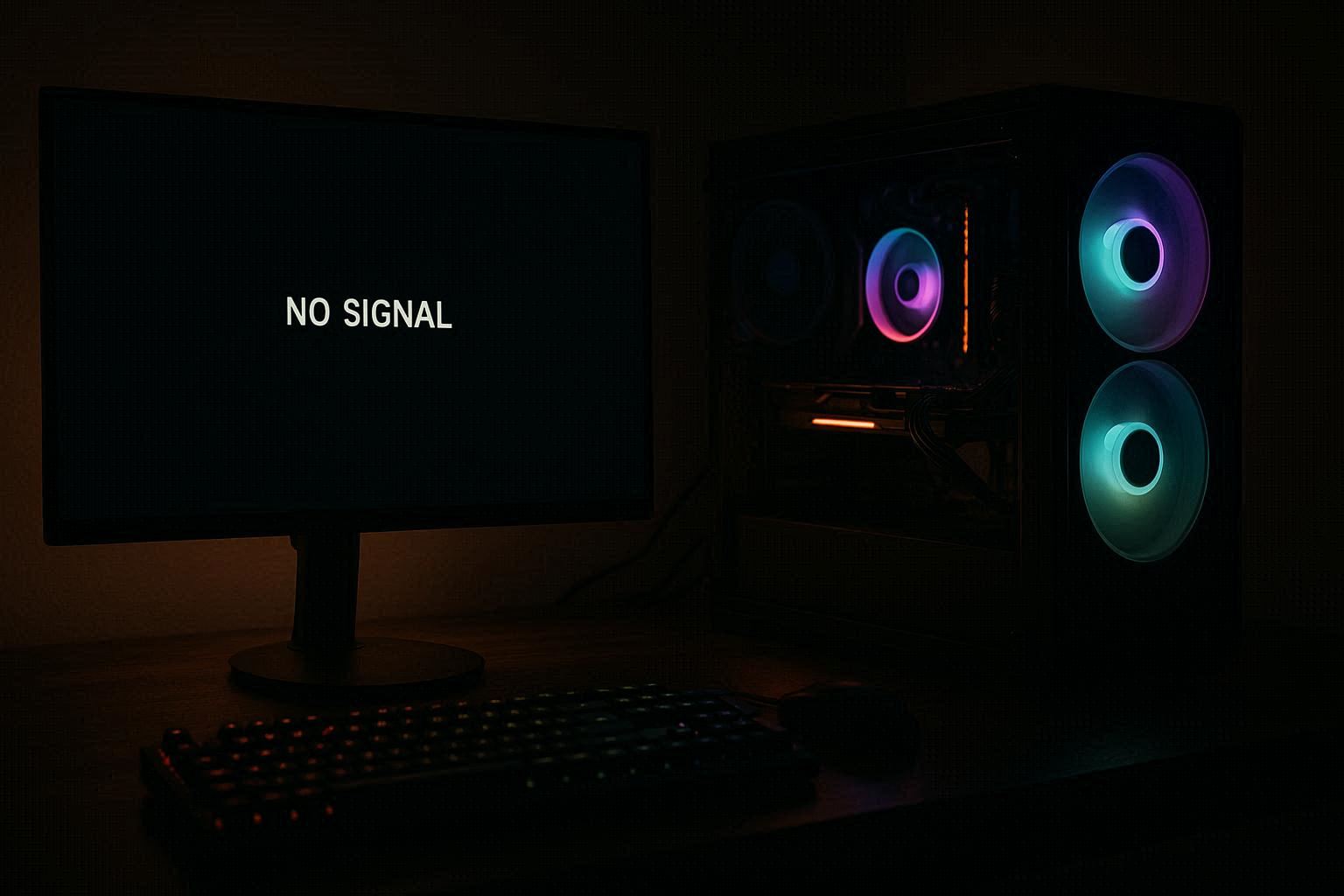
You’re in the middle of something important — editing a document with a deadline looming, gaming in a ranked match, watching a movie — and your PC just… restarts. No blue screen. No error message. No warning. One second you’re working, the next second the screen goes black and you’re staring at the motherboard logo while Windows boots back up. Dealing with a PC randomly restarting on Windows 11 with no warning is maddening because there’s nothing to Google — no stop code, no error dialog, no crash dump. Just a reboot out of nowhere.
This is fundamentally different from a BSOD. A blue screen means Windows detected a fatal error and deliberately stopped itself to prevent damage. When you get a BSOD, Windows writes a crash dump, shows you an error code, and gives you something to investigate. A random restart with no blue screen means the power was cut — either Windows told the system to reboot without showing you the error, or the hardware itself lost power and came back. Those are two completely different categories of problem, and mixing them up sends you down the wrong troubleshooting path for hours.
I learned this the hard way on my own desktop a few years back. I was convinced I had a driver problem. Updated everything. Ran SFC and DISM. Reinstalled Windows. The restarts kept happening. Turned out my power supply had a failing capacitor that would cause a voltage dip under GPU load. The PSU wasn’t dead — it worked fine 90% of the time. But when my RTX 3060 pulled peak power during a gaming session, the voltage would drop for a split second, the motherboard’s protection circuit would trigger, and the system would reboot as if I’d hit the reset button. No log. No error. No trace. Replaced the PSU and the problem vanished overnight.
Let me walk you through everything that causes these mystery restarts and how to systematically nail down the exact culprit without throwing parts at the problem.
First — Figure Out Which Category You’re Dealing With
Open Event Viewer: right-click Start > Event Viewer. This is the same tool you’d use when diagnosing BSOD crashes — except here we’re looking for power loss, not stop codes. Navigate to Windows Logs > System. You’re looking for events timestamped right around when the last random restart happened.
If you see a “Critical” event with source “Kernel-Power” and Event ID 41 — this is the smoking gun. This entry means Windows lost power unexpectedly. The operating system was running, and then the power was gone, and then it came back. Windows has no idea why. This points to hardware: PSU, overheating, unstable RAM, or a physical power interruption.
If you see “Error” events with source “BugCheck” — there WAS a blue screen, you just didn’t see it. Windows is configured by default to automatically restart after a system failure rather than staying on the blue screen. You got a crash, the system rebooted before you could read the stop code. This is a driver or software problem — you need BSOD troubleshooting, not this guide.
If you see no events at all around the restart time — that’s odd, and it suggests either a very fast hardware power cut (the system didn’t have time to log anything) or a BIOS-level reset that bypassed the OS entirely.
Also extremely useful: open Reliability Monitor. Just search “reliability” in the Start menu and open “View reliability history.” This shows a calendar timeline with red X’s for critical events and yellow warnings for less severe ones. Click on any red X from the day of a restart. It’ll show you exactly what Windows recorded — whether it was an unexpected shutdown, a hardware error, or an application crash. Reliability Monitor is one of the most underrated diagnostic tools in Windows and nobody talks about it.
The Auto-Restart Setting That Hides Your Blue Screens
Before we dive into hardware causes, let’s eliminate the possibility that you’re actually getting blue screens but Windows is hiding them from you. This takes 30 seconds and could completely change your diagnosis.
Open Control Panel > System > Advanced system settings (on the left) > Startup and Recovery > Settings. Under “System failure,” you’ll see a checkbox for “Automatically restart.” By default, this is CHECKED. What it does: when Windows encounters a fatal error and blue-screens, instead of staying on the blue screen so you can read the error code, it automatically reboots after a few seconds. The blue screen flashes for a split second — maybe you catch a glimpse of it, maybe you don’t — and then you’re looking at the boot screen.
UNCHECK “Automatically restart.” Click OK.
Now the next time your PC crashes, if it’s a software or driver crash, it’ll stay on the blue screen. You can read the stop code (like MEMORY_MANAGEMENT, IRQL_NOT_LESS_OR_EQUAL, or DPC_WATCHDOG_VIOLATION). Write it down, take a photo with your phone, whatever. That stop code tells you exactly which driver or hardware component is failing.
If your PC continues to restart with no blue screen even after unchecking this setting, then you’ve confirmed it’s NOT a Windows crash. It’s hardware power loss. Now we know where to look.
Cause 1: Overheating — The #1 Reason for PC Randomly Restarting on Windows 11
Every modern CPU and GPU has built-in thermal protection. When the temperature hits a critical threshold (usually 95-105°C depending on the chip), the system cuts power instantly. No warning. No error. No blue screen. Just black, then reboot. This is a hardware-level protection mechanism that happens faster than Windows can log anything.
The classic symptom: your PC restarts during gaming, video rendering, or other heavy workloads, but never during light browsing, document editing, or idle. If the restarts correlate with high system load, overheating is the prime suspect. The same thermal throttling issue that causes laptops to overheat under load applies to desktops too, just with more room for cooling.
Download HWMonitor from cpuid.com — it’s free and doesn’t need installation. Launch it and look at the temperature readings for your CPU and GPU. Leave it running while you do whatever normally triggers the restart.
At idle (just sitting on desktop), CPU should be 30-45°C, GPU 30-50°C. Under gaming load, CPU up to 85°C is acceptable, GPU up to 85°C is fine. If either hits 95°C or above under load, you’re thermal throttling hard and likely hitting shutdown territory.
Also check that all your case fans are actually spinning. Open the side panel and visually verify. I had a system where the rear exhaust fan had died silently — the CPU cooler fan was still spinning, so I assumed everything was fine, but the hot air wasn’t being exhausted from the case. Temperatures climbed slowly over 30 minutes until the thermal limit triggered. Replaced the fan, problem solved.
Dust is the biggest thermal killer. Over months, dust builds up on heatsink fins and blocks airflow. A can of compressed air through the CPU cooler fins, GPU heatsink, and case intake filters can drop temperatures by 10-20°C instantly. On laptops, dust is even worse because the cooling system is so cramped.
If cleaning doesn’t help and your system is over 2 years old, the thermal paste between the CPU and its cooler may have dried out. This is especially common on laptops. Replacing thermal paste drops temperatures significantly — I’ve seen 15°C improvements on laptops with dried factory paste.
Cause 2: Failing Power Supply (The Silent Killer)
The power supply is the one component that, when it starts failing, takes everything else down without leaving a trace. No crash dump. No error log. No warning. Just a black screen and a reboot.
A PSU that’s dying doesn’t necessarily fail completely. More often, it degrades gradually. Capacitors age. Voltage regulation becomes unstable. Under light loads, everything seems fine. Under heavy loads — particularly when the GPU kicks into high gear during gaming — the PSU can’t maintain stable voltage on the 12V rail. The voltage dips for a fraction of a second, the motherboard’s protection circuit detects the drop, and the system resets.
The diagnostic test: if your PC restarts during gaming or GPU-intensive tasks but runs stable during CPU-only workloads (like video rendering that doesn’t use the GPU), the PSU is very likely the culprit. The GPU is the biggest power draw in most systems by far, and it’s usually what tips a weak PSU over the edge.
If you can borrow a known-good PSU from another PC or a friend, swap it and test. That’s the definitive test. If the restarts stop with the known-good PSU, your old one is dying. If they continue, the PSU is fine.
Also worth checking: did you recently upgrade your GPU without upgrading the PSU? A GTX 1060 draws about 120W. An RTX 4070 draws about 200W. If your 500W PSU was fine for the old card, it might be struggling with the new one.
Power supplies also degrade with age. A PSU that’s 5+ years old may only deliver 70-80% of its rated wattage. If you bought a 650W PSU in 2019, it might only be good for 500W today. Age matters.
Cause 3: Fast Startup Corrupting Driver State
Fast Startup is a Windows feature that sounds great in theory but causes more problems than it solves. When you shut down with Fast Startup enabled, Windows doesn’t do a full shutdown. Instead, it saves a snapshot of the running kernel and loaded drivers to disk. On the next boot, it reloads that snapshot instead of initializing everything from scratch. Faster boot times.
The problem: if a driver was in a bad state when you shut down — maybe it had a memory leak, maybe it was partially crashed, maybe it had a pending operation that never completed — that bad state gets frozen in the snapshot and faithfully restored on every boot. Over weeks of shutdown-boot cycles, the accumulated corruption can cause random instability, including restarts.
Disable Fast Startup: Control Panel > Power Options > Choose what the power buttons do > Change settings that are currently unavailable > uncheck “Turn on fast startup” > Save changes.
This forces every boot to be a clean driver initialization. Your boot time might increase by 5-10 seconds. In exchange, every startup is a fresh clean state. If the random restarts stop after disabling Fast Startup, you know the problem was accumulated driver state corruption.
Cause 4: RAM Instability
Failing or unstable RAM causes random crashes and restarts that look identical to power issues. The difference: RAM problems usually get worse over time, and you might notice other symptoms like applications crashing randomly with no error, files getting corrupted (you save a document and it’s damaged when you reopen it), or the system feeling generally “off” in subtle ways.
Run Windows Memory Diagnostic as a first check: type “mdsched” in Start, choose “Restart now and check for problems.” Let the test run — it takes 15-30 minutes. If it finds errors, you have bad RAM. Stop here and replace the faulty stick.
However, Windows Memory Diagnostic only runs basic tests. It catches obvious failures but misses intermittent problems that only appear under specific conditions. If the built-in test passes but you still suspect RAM, download MemTest86 from memtest86.com, create a bootable USB, and let it run overnight. Four full passes of MemTest86 is the gold standard. It catches errors that only appear after the RAM warms up or under specific access patterns.
If you have multiple RAM sticks: test them individually. Remove all but one stick, run MemTest86 on just that stick. Then swap in the next. The stick that produces errors is the bad one. This also catches the less common scenario where the RAM itself is fine but a specific motherboard slot is failing.
Also worth checking: is your RAM running at its rated speed? Sometimes BIOS applies overly aggressive XMP profiles that push RAM beyond what your specific CPU’s memory controller can handle. Try disabling XMP/DOCP in BIOS temporarily and running at the default JEDEC speed. If the restarts stop, your XMP profile is unstable and needs to be tuned down.
Cause 5: BIOS Power Management Settings
Some systems have aggressive power management settings in BIOS that can cause random shutdowns or reboots. The most common offenders are C-State settings (which control how deeply the CPU can sleep when idle) and ASPM (Active State Power Management, which controls power saving on PCI Express devices).
Enter BIOS by pressing F2, Del, or F12 during boot (the exact key varies by manufacturer — it’ll usually say “Press [key] to enter Setup” on the boot screen). Look through the power management or advanced CPU settings. Try temporarily disabling C-States entirely, or setting them to a less aggressive level. Look for ASPM settings and try disabling them.
If the restarts stop after changes to BIOS power settings, you can selectively re-enable options to find which specific one was causing the problem. Usually it’s a specific C-State level that your CPU or motherboard doesn’t handle stably.
While you’re in BIOS, also check that your CPU temperatures are being reported correctly. A faulty temperature sensor can report false high readings, causing the system to trigger thermal shutdown even when the CPU is cool. HWMonitor will show you the same sensor data.
When You’ve Tried Everything
If you’ve been through all of these — tested for overheating, swapped the PSU, disabled Fast Startup, tested RAM, checked BIOS settings — and the restarts continue, you may be looking at a motherboard-level issue. A failing voltage regulator module (VRM) on the motherboard, a damaged trace, or liquid damage can all cause power instability that triggers restarts.
At this point, professional diagnosis is worth the cost. A repair shop can test components individually with known-good parts and isolate the exact failure much faster than you can at home.
Bottom Line: Work Through It Systematically
Random restarts with no error are frustrating because there’s no crash dump to analyze, no Google-able error code, no obvious trail to follow. But the causes are limited. Power has to come from somewhere, and power has to be cut by something. Your job is to figure out which link in the chain is failing.
The diagnostic order I recommend: disable auto-restart first so you can see if there’s actually a hidden blue screen. Then check temperatures. Then swap the PSU if possible. Then disable Fast Startup. Then test RAM. Then check BIOS settings. One of these will point you at the root cause.