
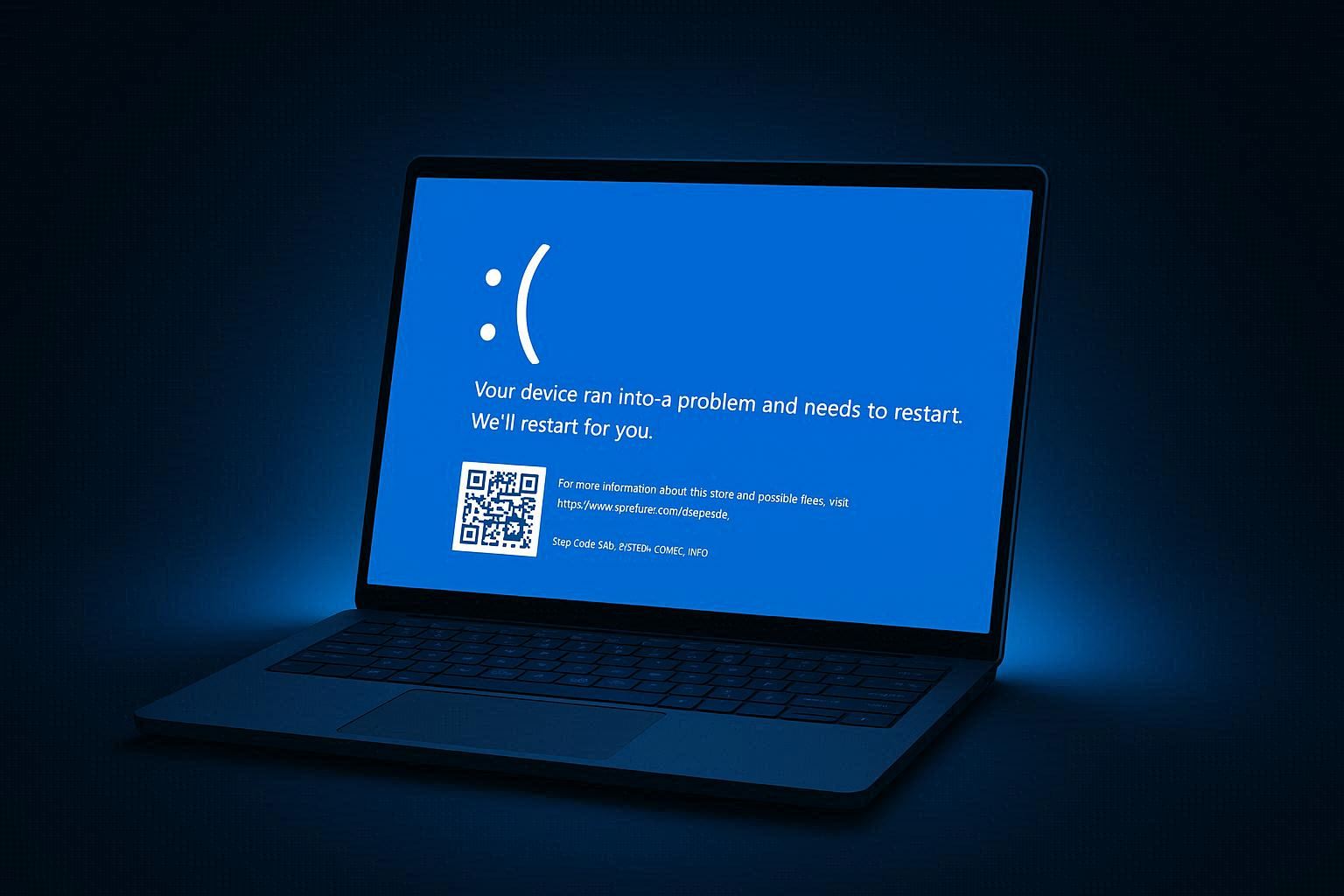
Your computer just crashed. The screen went blue — or black, if you’re on a newer Windows 11 build — showed a sad face emoji, displayed some cryptic text about “collecting error info,” and restarted itself before you could even process what happened.
The natural instinct is to immediately Google “blue screen fix Windows 11” and start trying every suggestion you find. Disable this, update that, run this command. Most of those suggestions are generic shotgun approaches — they might work, but you’re essentially guessing.
Here’s what most people miss: that blue screen is not just an error message. It’s a diagnostic report. The stop code displayed on screen, along with the crash dump file Windows silently saves, tells you exactly which component of your system crashed and often why. You don’t need to guess. You need to read.
The Stop Code Is Your Diagnostic Clue
When a BSOD appears, look at the text near the bottom of the screen. You’ll see something like:
Stop code: IRQL_NOT_LESS_OR_EQUAL
Or:
Stop code: KERNEL_SECURITY_CHECK_FAILURE

What failed: nvlddmkm.sys
That stop code is not random. Each code corresponds to a specific category of crash. And that “What failed” line — when it appears — literally names the file that crashed your computer.
Problem: the BSOD screen only stays visible for a few seconds before the computer restarts. Most people can’t read it in time.
Solution: Windows saves every BSOD crash report. Open Event Viewer (search for it in the Start menu) and navigate to Windows Logs → System. Look for events with Level: Critical and Source: BugCheck. Click on the event and you’ll see the stop code, parameters, and timestamp.
You can also prevent the automatic restart so you have time to read the screen: go to Settings → System → About → Advanced system settings → Startup and Recovery → Settings, then uncheck “Automatically restart” under System failure. Next time a BSOD occurs, the screen will stay visible until you manually restart.
What the Most Common Stop Codes Actually Mean
There are hundreds of possible stop codes, but about 90% of BSODs fall into these categories:
IRQL_NOT_LESS_OR_EQUAL — A driver tried to access a memory address it doesn’t have permission to touch. Almost always caused by a faulty or incompatible driver — graphics drivers, network drivers, and USB drivers are the usual suspects. The “What failed” line typically names the exact driver file.
KERNEL_SECURITY_CHECK_FAILURE — The kernel detected a security violation, usually in a driver. This became extremely common in early 2026 due to GPU driver conflicts with Windows 11’s kernel-mode hardware-enforced stack protection. Gamers playing titles with kernel-level anti-cheat (Genshin Impact, Marvel Rivals, Forza Horizon 5) were particularly affected. Microsoft patched this in the February 2026 update.
CRITICAL_PROCESS_DIED — A system process essential to Windows operation stopped working. Usually caused by corrupted system files, a failed Windows update, or occasionally by aggressive third-party antivirus software interfering with core processes. This one is less about drivers and more about Windows itself.
SYSTEM_SERVICE_EXCEPTION — A system service encountered an unhandled exception. The “What failed” line is especially important here because it pinpoints whether the crash originated in a driver (like dxgkrnl.sys for graphics) or a Windows component (like win32kfull.sys for the display subsystem).
PAGE_FAULT_IN_NONPAGED_AREA — The system tried to access a piece of memory that doesn’t exist or has been corrupted. This is the stop code most likely to indicate a hardware problem — specifically faulty RAM. If you see this code repeatedly, test your RAM immediately.
DPC_WATCHDOG_VIOLATION — A driver took too long to complete a deferred procedure call. We have a dedicated article on fixing DPC_WATCHDOG_VIOLATION that goes deep on this one, but it’s most commonly caused by storage controller drivers, particularly with SSDs running outdated firmware.
UNMOUNTABLE_BOOT_VOLUME — Windows couldn’t access the boot drive. This appeared on some PCs after the January 2026 update, particularly on systems where the December 2025 security update had failed to install properly first.
Step 1: Analyze the Crash Dump (This Is Where Guessing Ends)
Every BSOD creates a small crash dump file — a snapshot of what was happening in memory at the moment of the crash. These are saved in C:\Windows\Minidump. They’re your forensic evidence.
To read them, you need WinDbg Preview, which is free from the Microsoft Store. Install it, then:
- Open WinDbg
- Click File → Open dump file
- Navigate to C:\Windows\Minidump
- Select the most recent
.dmpfile - Wait for it to load and analyze
WinDbg will show a wall of technical text. You don’t need to read most of it. Look for these specific lines:
BugCheck — this shows the stop code and its parameters.
IMAGE_NAME — this names the driver or file that was executing when the crash occurred.
MODULE_NAME — this identifies the broader module responsible.
FAILURE_BUCKET_ID — this categorizes the type of failure.
For example, if you see:
IMAGE_NAME: nvlddmkm.sys

MODULE_NAME: nvlddmkm
That’s your Nvidia graphics driver. If you see:
IMAGE_NAME: Realtek.sys

MODULE_NAME: Realtek
That’s your Realtek audio or network driver. If you see:
IMAGE_NAME: ntoskrnl.exe

MODULE_NAME: nt
That’s the Windows kernel itself — pointing to system file corruption or a deeper hardware issue.
This analysis turns a scary random crash into a clear, actionable diagnosis. You know exactly which component failed and can target your fix accordingly.
Step 2: Fix Driver-Related BSODs
If the crash dump points to a third-party driver (anything that isn’t ntoskrnl.exe or a win32k component), the fix is updating or rolling back that specific driver.
If the BSOD started after a driver update — roll back:
- Open Device Manager (search in Start menu)
- Find the device category matching the crashing driver
- Right-click the device → Properties → Driver tab
- Click Roll Back Driver
- Select a reason and click Yes
This reverts to the previous working driver version. Restart and see if the BSOD stops.
If the driver is simply outdated — update from the manufacturer:
Do NOT use Windows’ “Search automatically for drivers” option for graphics drivers. It often installs a generic or outdated version. Instead, go directly to the manufacturer:
- Nvidia: nvidia.com/drivers
- AMD: amd.com/support
- Intel: intel.com/download-center
- Realtek: realtek.com/downloads
Download the latest driver for your specific hardware model and Windows version. Install it and restart.
For graphics drivers specifically, consider doing a clean installation. Nvidia’s installer has a “Perform a clean installation” checkbox. AMD’s installer offers a “Factory Reset” option. These remove all traces of the old driver before installing the new one, eliminating any leftover corrupt files.
Step 3: Fix System File and Update-Related BSODs
If the crash dump points to Windows system files (ntoskrnl.exe, win32kfull.sys, ntfs.sys), the problem is within Windows itself.
Run system file repair:
Open Command Prompt as Administrator and execute:
sfc /scannow
This scans every protected system file and replaces corrupted ones with clean cached copies. Takes 10-20 minutes. If it finds and repairs corruption, restart and monitor.
Then run:
DISM /Online /Cleanup-Image /RestoreHealth
This repairs the component store — the source of clean files that sfc uses. If the source is corrupted, sfc can’t fix anything. DISM downloads clean components from Microsoft’s servers to fix this.
If the BSOD started after a Windows Update:
- Go to Settings → Windows Update → Update history → Uninstall updates
- Find the most recent update
- Click Uninstall
- Restart
Then wait. Microsoft is usually aware of update-related BSODs within days and releases patches within 1-3 weeks. Check Windows Update periodically until the fixed update appears.
In early 2026, multiple Windows 11 updates caused widespread BSODs — the January update broke GPUs and commercial PCs, while the February update finally patched most of these issues. If you’re reading this during another BSOD wave, the same pattern applies: uninstall the problematic update, wait for the fix, install the patched version.
Step 4: Test for Hardware Failure
If you’ve fixed drivers and repaired system files and BSODs still persist — especially with stop codes like PAGE_FAULT_IN_NONPAGED_AREA or MEMORY_MANAGEMENT — the problem is likely physical hardware.
Test RAM:
Open the Start menu and search for “Windows Memory Diagnostic”. Click Restart now and check for problems. Your computer will restart and run a thorough memory test that takes 15-30 minutes.
If errors are found, you have a faulty RAM module. If you have multiple RAM sticks, remove one at a time and retest to identify which stick is bad. Replace the faulty stick.
For a more thorough test, download MemTest86 — a free tool that boots independently of Windows and can find intermittent RAM errors that Windows Memory Diagnostic sometimes misses. Let it run for at least 4 passes (takes several hours but catches subtle errors).
Test storage:
Download CrystalDiskInfo and check your drive’s SMART status. A drive showing “Caution” or “Bad” health is failing and should be replaced immediately — before it dies completely and takes your data with it.
For SSDs specifically, check the Percentage Used or Wear Leveling Count indicators. Consumer SSDs are rated for a certain amount of writes, and once they approach their limit, they become unreliable.
Test with Safe Mode:
Restart into Safe Mode (Settings → System → Recovery → Advanced startup → Restart now → Troubleshoot → Startup Settings → Restart → press 4). Safe Mode loads only essential Microsoft drivers and services. If BSODs stop in Safe Mode, a third-party driver or service is definitely the culprit. If BSODs continue even in Safe Mode, it’s hardware.
The BSOD Prevention Checklist
Once you’ve fixed the current BSOD, keep it from coming back:
Keep Windows updated — but wait 48-72 hours after major updates to install them. Let early adopters discover the bugs first. Check tech news sites or Windows Latest for reports of update problems before installing.
Update drivers from the manufacturer — don’t rely on Windows Update for drivers. Set a quarterly reminder to check your GPU, audio, and network driver versions.
Monitor hardware health — run CrystalDiskInfo once a month. Run Windows Memory Diagnostic twice a year. Catching failing hardware early prevents data loss and unexpected crashes.
Don’t use third-party “driver updater” tools — these are a leading cause of driver-related BSODs because they often install incorrect, unofficial, or incompatible driver versions. The only safe sources for drivers are the hardware manufacturer’s website and Windows Update.
Keep system files healthy — run sfc /scannow once every few months as preventive maintenance. Corruption accumulates gradually and can silently destabilize your system long before a BSOD appears.
A BSOD feels catastrophic in the moment. But it’s actually Windows protecting your computer by stopping before corrupt data can be written to disk or hardware damage can occur. The blue screen isn’t the problem — it’s the fire alarm. Your job is to find the fire, put it out, and make sure it doesn’t start again.