
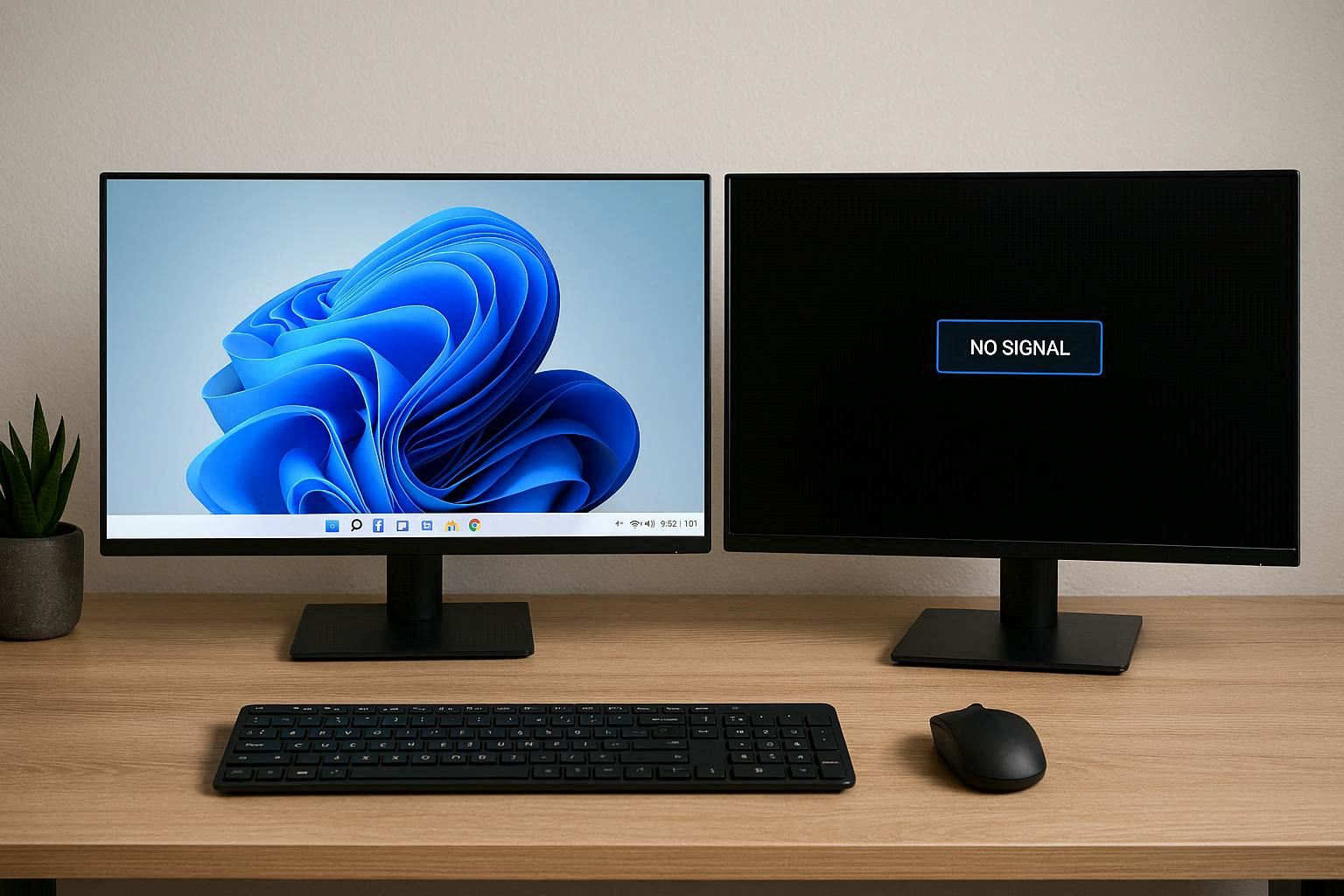
Fix Second Monitor Not Detected on Windows 11 — Complete Troubleshooting Guide
I’ve lost count of how many times I’ve been called out to an office because someone’s second monitor not detected on Windows 11 problem flared up. It’s the number one multi-monitor complaint I’ve dealt with over two decades of IT support. It’s the number one multi-monitor complaint I’ve dealt with over two decades of IT support. And here’s the funny part — like 80% of the time, the fix is embarrassingly simple. Loose cable. Wrong input source. Monitor not even turned on. Yeah, I’ve been that guy troubleshooting for 15 minutes before realizing the monitor wasn’t plugged into the wall.
But I’ve also seen the nightmare scenarios. Driver conflicts that took hours to untangle. GPU ports that died for no apparent reason. Windows updates that completely broke display detection. Just like when your laptop screen starts flickering for no reason, multi-monitor issues can range from trivial to maddening.
Whether you’re running a laptop with an external display or a desktop with a dual monitor setup, the “second monitor not detected” problem is universal. And I’ve probably seen every variation of it. Let me walk you through what actually fixes it.
Why Windows 11 Won’t Detect Your Second Monitor — Second Monitor Not Detected on Windows 11 Causes
Let’s break down the common causes based on what I’ve actually seen in my repair logs:
Loose or bad cable. Number one by a mile. HDMI and DisplayPort cables that look perfectly fine can have internal wiring breaks you can’t see. Or they’re slightly unplugged without you noticing.
Wrong input source selected on the monitor. Modern monitors have multiple inputs — HDMI 1, HDMI 2, DisplayPort, sometimes even VGA. If you’re plugged into HDMI 1 but the monitor is set to DisplayPort, you’re getting nothing.
Corrupt or outdated graphics drivers. After certain Windows Updates, your GPU driver can get completely borked. This is especially common on laptops with dual GPUs like Intel + NVIDIA Optimus setups. Same thing that causes your laptop to boot painfully slow after an update.
Glitched Windows display settings. Sometimes Windows knows the monitor is there but has it set to “Disconnect this display” or has Extend mode disabled for no reason.
GPU hardware limitation or dead port. Some laptops only support one external display. Some GPU ports just die over time from repeated plugging and unplugging.
Incompatible resolution or refresh rate. A brand new 4K monitor or high refresh rate display sometimes won’t get detected until the drivers are fully set up.
The Quick Checks That Save You From Looking Stupid
Before we get into anything technical, run through this checklist. I do this before touching a single setting, and it’s saved me from embarrassment more times than I’d like to admit.
First: is the monitor actually powered on? I’m not joking. Check the power LED. Check the power cable. I’ve “diagnosed” a monitor for 15 minutes before realizing it wasn’t plugged into the wall.
Second: is the right input selected? Most monitors have a button to cycle through inputs. Check the OSD menu and make sure it’s set to whichever port you’re using.
Third: have you tried a different cable? Always, always, always have a spare HDMI or DisplayPort cable on hand. This alone resolves half of all no-display calls.
Fourth: have you tried a different port on your GPU? Ports can die. Try the one next to it.
Fifth: restart both the PC and the monitor. Turn it off and on again. Monitors have firmware too, and they can glitch out just like any other device.
If you’ve done all five of these and the monitor still isn’t showing up, okay, now we can get into the real fixes.
Windows Display Settings — The Stuff Most People Miss
Windows 11 has multiple ways to detect displays, and most people only know one of them. I’ve found that cycling through different approaches actually matters.
Method one: Settings > System > Display. At the top you’ll see a visual representation of your monitors. On the right side, there’s a “Detect” button. Click it. Sometimes you need to click it two or three times before Windows actually notices the display. I don’t know why, but it works.
Method two: right-click on empty desktop space, pick “Display settings.” Scroll down to “Multiple displays,” click the dropdown, and make sure it’s set to “Extend these displays” or “Duplicate these displays.” Sometimes Windows defaults to “Show only on 1” after an update or driver reset.
Method three: the Win+P shortcut. This opens the Project menu with four options — PC screen only, Duplicate, Extend, Second screen only. Cycle through them. Sometimes your second monitor magically appears the moment you switch to Extend or Duplicate. It’s like checking your GPU health — the built-in tools are right there, people just never use them.
My go-to workflow: hit Win+P first, cycle through the options, then go to Display Settings and manually click Detect. This two-step approach has been my bread and butter for years.
Graphics Drivers — The Root of Most Multi-Monitor Evil
This is where I spend most of my troubleshooting time on multi-monitor problems. Graphics drivers are finicky as hell, especially on laptops with dual GPUs.
Step one: figure out what GPU you’re working with. Open Device Manager > Display adapters. You might see two entries — one Intel UHD or Arc, and one NVIDIA or AMD. If either has a yellow exclamation mark, there’s your problem right there.
Step two: download the driver directly from the manufacturer. Do NOT use Windows Update for graphics drivers. Ever. I always download from:
- NVIDIA: nvidia.com/download
- AMD: amd.com/support
- Intel: intel.com/download
During installation, choose “Clean installation” or “Factory reset.” This wipes all the old settings and driver remnants that might be causing conflicts. According to NVIDIA’s support documentation, clean installation is critical for resolving driver conflicts after Windows updates.
Step three: for laptop users with NVIDIA Optimus, open the NVIDIA Control Panel. Go to “Manage 3D settings” and check which GPU is assigned to handle displays. Sometimes your external monitor gets routed through the integrated GPU when it should be on the dedicated one.
Pro tip: if you’re using a laptop with a USB-C docking station, install the dock’s drivers too. I’ve wasted hours troubleshooting external monitors that weren’t detected, and the problem was literally just an outdated dock driver. According to Microsoft’s official multiple display troubleshooting guide, docking stations introduce an extra layer of complexity that most people overlook.
Veteran Tricks I’ve Collected Over 20 Years
These are the tricks that aren’t in any official documentation. I’ve figured these out through years of trial and error:
Trick 1: unplug and replug the monitor while Windows is running. And I mean both ends — unplug from the GPU and from the monitor. DisplayPort has a “hot-plug detection” pin that can glitch. Disconnect both ends, wait 10 seconds, then reconnect firmly.
Trick 2: power cycle the monitor properly. Unplug the power cable, then press and hold the monitor’s power button for 30 seconds. This discharges residual electricity from the capacitors. Plug it back in and turn it on. This often fixes monitors that are “stuck” in some weird state. Kind of like when your USB transfer speeds suddenly tank — sometimes ports just need a physical reset.
Trick 3: boot Windows with the second monitor already plugged in and turned on. Windows sometimes only scans for external displays during the boot process, not while it’s already running.
Trick 4: lower the refresh rate on your primary monitor. If you’re running a high refresh rate display (144Hz, 165Hz, 240Hz), temporarily drop it to 60Hz. Then enable the second monitor, then bump the refresh rate back up. I don’t know why this works, but it does.
Trick 5: clean up ghost monitor entries. Open Device Manager, click View > Show hidden devices. Expand “Monitors” and uninstall every greyed-out entry. These are ghost monitors from previous connections that can confuse Windows. Restart after cleaning.
When It’s Actually a Hardware Problem
If you’ve exhausted every software trick and the monitor still isn’t showing up, it’s time to consider hardware failure:
Test the monitor on a different PC. If it works there, the problem is your original computer. If it doesn’t work anywhere, the monitor itself is the issue.
Test a different port on your GPU. If the monitor works on DisplayPort but not HDMI, that specific port might be dead.
For laptops: test a different dock or adapter. Cheap USB-C to HDMI adapters are notoriously unreliable. I carry 3-4 different adapters in my toolkit just for testing purposes.
If you’re on a desktop with a dedicated GPU, test the monitor on both the GPU port and the motherboard port (integrated graphics). If it works on the motherboard but not the GPU, either your graphics card or its port is having issues.
Using a 4K monitor with a long cable (over 3 meters)? Signal degradation is a real thing. Try a shorter cable or an active cable with a built-in signal booster.
Bottom Line: Multi-Monitor Setup Is Sometimes Art, Not Science
I’m not gonna lie to you. Even after 20 years, multi-monitor setups still make me scratch my head sometimes. But here’s what I know for sure: 90% of “second monitor not detected” cases come down to cables, input sources, or basic Windows settings. Do not jump straight to buying a new GPU or reinstalling Windows.
My recommended fix-it flow:
- Physical checks — power, cable, input source
- Win+P shortcut and manual Detect in Display Settings
- Clean reinstall graphics drivers from manufacturer
- Ghost monitor cleanup in Device Manager
- Test with different hardware combinations
Bookmark this article. If you deal with multi-monitor setups regularly, you will run into this problem eventually. And remember — always keep a spare HDMI cable in your bag. You’ll thank me later.
Also worth checking out: my guide on freeing up disk space on Windows 11 — because a full system drive can cause all kinds of weird driver and detection issues you’d never expect.
Happy multi-monitoring.