
Fix Android Phone Not Charging — Why It Happens and How to Actually Fix It
Man, I know this feeling. You plug in your phone, expecting it to charge up, but the screen stays dead. Or worse — the charging icon pops up but the battery percentage just sits there. Trying to fix android phone not charging is something I’ve dealt with literally hundreds of times. Panic mode, right? I’ve been there myself more times than I can count, and I’ve fixed this exact problem for hundreds of people in my repair shop.
Here’s the thing most people don’t realize: the majority of Android charging problems are dead simple to fix. But people panic, jump to conclusions, and end up at a repair shop spending money they didn’t need to spend. It’s the same story I see with Android battery drain problems — the fix is often way simpler than you think.
So I’m gonna walk you through everything I’ve learned about fixing Android phones that won’t charge. From the embarrassingly simple stuff to the more advanced tricks. Let’s get into it.
Why Your Android Phone Refuses to Charge — Fix Android Phone Not Charging Causes
After two decades of cracking open phones and dealing with charging issues, here are the usual suspects:
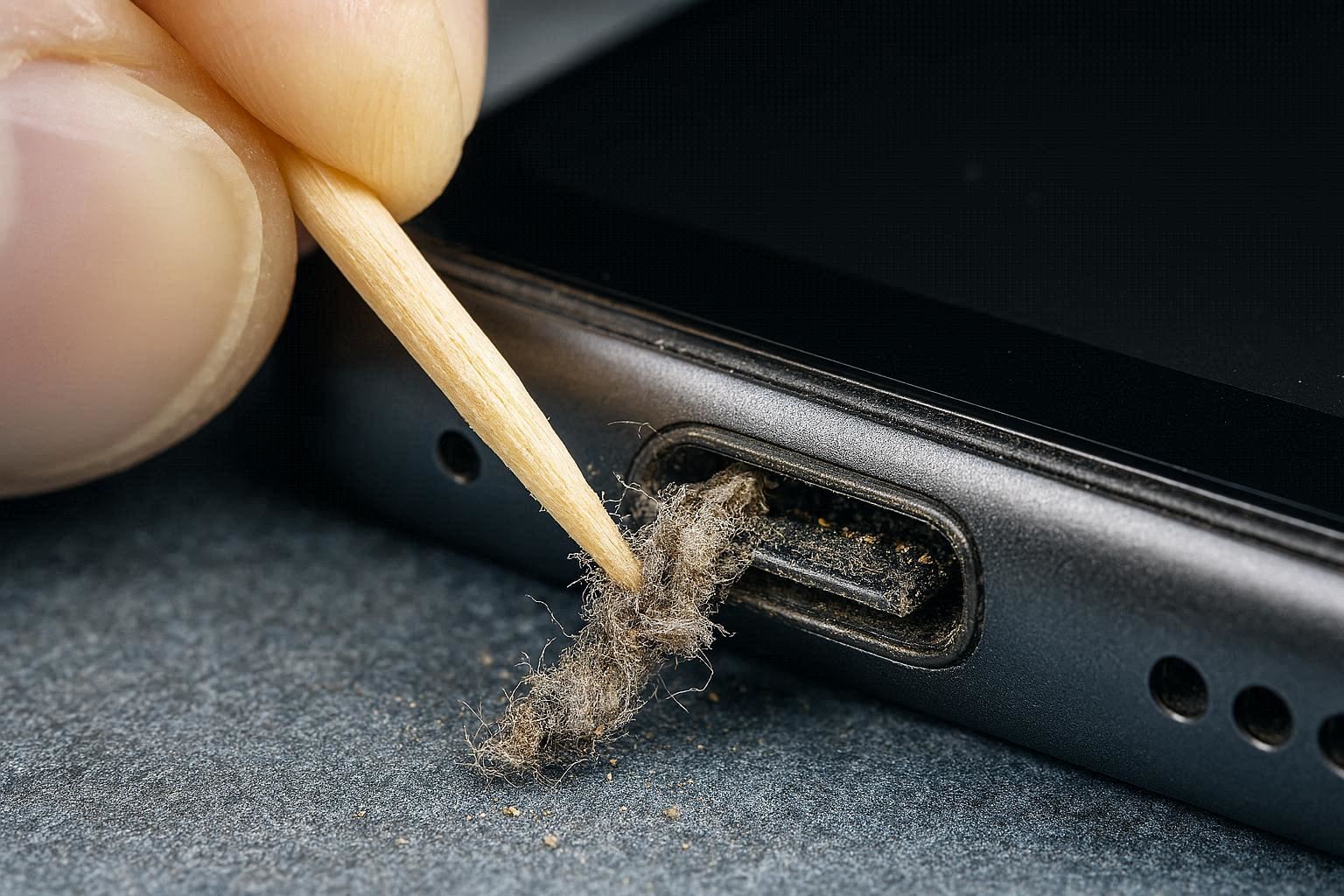
Dirty charging port. I’m dead serious — this is the number one cause. Pocket lint, dust, and debris get packed into your USB-C or microUSB port over time. I’ve personally pulled out lint balls the size of actual peas from client phones. After cleaning, the phone charges like new.
Busted charging cable. Another big one. Cheap third-party cables are the worst — they look fine on the outside but have internal wire breaks you can’t see. And they often don’t deliver proper power even when they “work.” Google’s official charging documentation specifically warns against using uncertified cables.
Incompatible or dead charger brick. Using some ancient 5W charger on a modern phone that needs 25W or more? Yeah, that’s not gonna cut it. The phone might show it’s charging but the battery barely moves.
Software glitch after an update. Android system updates sometimes mess up the battery calibration or fast charging protocol. This happens way more often than Google would like to admit. Similar to how phones overheat and throttle performance, it’s a side effect of the system getting confused about battery states.
Battery calibration error. Your phone’s OS thinks the battery is at zero when it actually has charge left. So the phone refuses to boot and looks like it’s not charging at all.
Physical port damage. Bent pins, broken connectors, liquid damage. This is the serious stuff that usually needs a professional with soldering skills.
My Diagnostic Process for Charging Issues
Before you panic and order a new battery, I always follow a specific diagnostic flow. This has saved my clients thousands of dollars over the years.
First move: try a different charger AND cable. Not just one or the other — both. Use stuff you know for a fact works on another device. If you only have one set, borrow from a friend or buy a quality replacement. I keep three different chargers and multiple cables on my workbench just for this test.
Second: try different power sources. Don’t just stick with the wall outlet — test a computer USB port, a power bank, even your car charger. If the phone charges from one source but not another, you’ve already found the problem.
Third: watch what happens when you plug in. Does the charging indicator appear? If yes, does the percentage actually go up or just sit there? This tells you a ton. A phone that shows charging but won’t increase percentage is usually a different issue than a phone that’s completely dead with no response at all.
How to Clean Your Android Charging Port the Right Way
I’ve mastered this over 20 years. Cleaning a USB-C or microUSB port is an art form, and if you do it wrong, you can actually destroy the port. Here’s how to do it properly.
What you need:
- Wooden toothpick (NOT metal — ever!)
- 90% or higher isopropyl alcohol (optional, for deep cleaning)
- Canned compressed air
- Good lighting — a desk lamp or flashlight
Power off your phone first. Shine a light into the charging port and look closely. You’ll probably be shocked at how much crud is packed in there, especially in the corners.
Take your wooden toothpick and gently scrape along the inside of the port. Use wood only — metal can scratch the contact pins and cause a short circuit. I’ve told every apprentice I’ve trained: wood only, no exceptions, ever.
You’ll pull out compacted lint that’s been building up for months or even years. Keep scraping until you can see the metal contact pins shining clean. Then blast it with compressed air to clear out any remaining fine dust.
Pro tip: if your port is really nasty, dip the toothpick tip in a tiny bit of isopropyl alcohol and scrape again. The alcohol helps break down caked-on gunk. Just make absolutely sure the port is bone dry before you plug in a charger.
I have literally “fixed” hundreds of phones that customers thought needed new batteries or charging ports — just by cleaning out the lint. No parts replaced, no money spent, and they walked out of my shop with a working phone. This is hands down the most underrated fix in phone repair.
Battery Calibration — The Fix Nobody Talks About
Sometimes the problem isn’t hardware at all — it’s corrupted battery calibration data. Your phone’s software thinks the battery is completely drained when it’s actually not. So the phone refuses to charge or boot, acting like it’s dead.
Here’s how to recalibrate:
First, let the phone drain completely until it shuts off on its own. Don’t plug it in! Let it die naturally.
Second, after it’s dead, try turning it on again. There’s usually a tiny bit of residual power left, so it might boot for a few seconds then die again. Keep doing this until it absolutely will not power on at all.
Third, plug it into the charger while it’s OFF. Do not turn it on. Let it charge all the way to 100% while powered down. This is important — charging while off is more accurate and efficient.
Fourth, once it hits 100%, turn it on and check. The battery indicator should be way more accurate now, and the phone should charge normally again.
This is the same concept as calibrating a laptop battery for accurate readings — you need to let the system relearn where the bottom and top of the battery actually are.
Chargers and Cables — Quality Actually Matters
I’ve spent years testing chargers and cables from every brand you can think of. Here’s the hard truth: cheap cables are a false economy.
A proper USB-C cable has an actual controller chip inside that negotiates power delivery with your phone. Cheap knockoff cables either skip this chip entirely or use rejected factory seconds. The result? Your phone either can’t fast charge, charges incredibly slow, or refuses to charge at all because the phone’s safety systems block the non-compliant cable.
My recommendations after years of testing:
- Use the original charger that came with your phone whenever possible
- If you need a replacement cable, buy from reputable brands like Anker, Ugreen, or Baseus
- Avoid cables that cost less than about ten bucks — they’re almost certainly garbage
- GaN (Gallium Nitride) chargers are legit game-changers. Smaller, more efficient, and deliver cleaner power
And one thing a lot of people don’t know: don’t charge your phone from a random laptop USB-C charger. Some laptop chargers push way too much voltage, and your phone will block the charging as a safety measure. It’s not broken — it’s protecting itself.
When It’s Time to Visit a Repair Shop
After 20 years of phone repair, I know exactly when a problem is DIY-fixable and when it needs professional tools. Here are the red flags:
Physical damage to the charging port. Bent pins, a loose connector, or burn marks (usually dark brown or black). This needs micro-soldering work — do not attempt this yourself unless you have actual soldering experience.
Liquid damage. If your phone took a swim and now won’t charge, there’s likely corrosion on the motherboard. Get it to a professional fast — corrosion spreads and gets worse the longer you wait.
Swollen battery. If your screen or back cover is bulging or separating from the frame, that battery is swelling. Stop using the phone immediately, don’t charge it, and get it to a shop. A swollen battery is literally a fire hazard.
Phone is completely dead. No LED, no vibration, no response at all from multiple chargers. Could be a motherboard-level issue that needs professional diagnostic tools.
According to iFixit’s repair guides, most charging port repairs need at least a heat gun and precision soldering equipment. If you’ve tried everything I’ve laid out here and the phone still won’t charge, it’s time for a professional.
But honestly? From my experience, roughly 70% of the “not charging” cases that come into my shop are just dirty ports or bad cables. Start with the simple stuff first.