
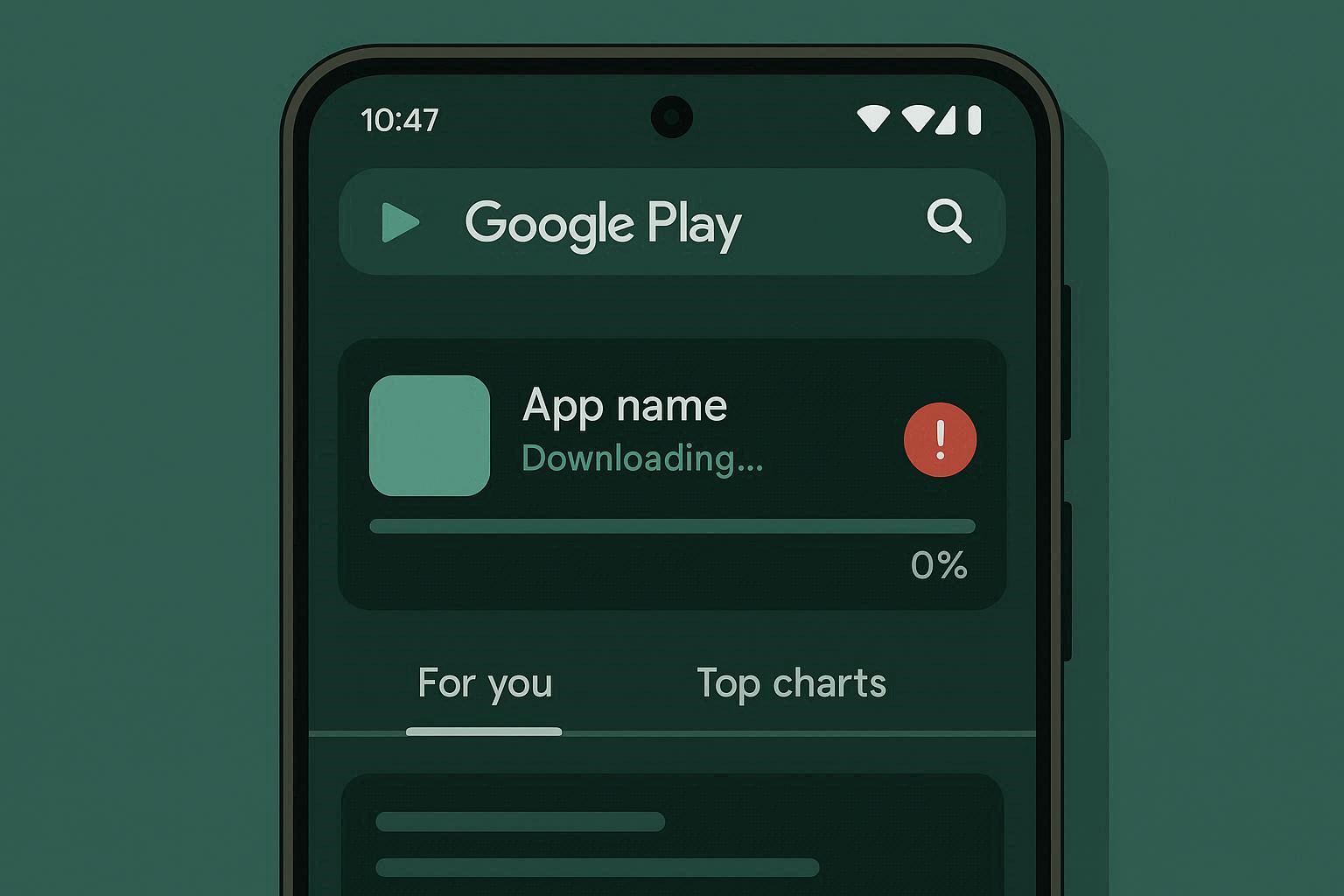
You open the Play Store. You find the app you want. You tap Install. The button changes to “Pending.” And then… nothing.
No download progress. No error message. Just “Pending” staring back at you like it’s thinking about it. You wait a minute. Still pending. You close the Play Store and open it again. Still pending. You restart your phone. Pending.
At some point you search for a fix. Every article says the same thing: clear the Play Store cache. So you do that. You try to download again. Still pending.
Let me save you an hour of frustration. The Google Play Store does not download apps by itself. It uses a separate system app called Download Manager to handle the actual download. If Download Manager is disabled, frozen, or corrupted, no amount of cache clearing will fix the Play Store — because the Play Store isn’t the problem.
The Architecture: Why the Play Store Depends on Two Other Apps
Most people think the Play Store is one app that handles everything. It’s actually three components working together:
- Google Play Store — The storefront. It shows you apps, handles your account, and manages the UI.
- Google Play Services — The invisible backend. It handles authentication (proving you’re you), push notifications, location services, and security verification. Every Google app on your phone depends on it.
- Download Manager — The worker. When you tap Install, the Play Store tells Download Manager what to download and where to put it. Download Manager does the actual downloading.
If any of these three breaks, downloads fail. But the error messages never tell you which one broke. You just see “Pending” or “Download failed” or a generic error code.
This is why “clear the Play Store cache” doesn’t always work. If the problem is in Download Manager or Play Services, you’re cleaning the wrong thing.
Step 1: Check Download Manager First
This is the step everyone skips, and it’s the one that fixes the problem most often.
Download Manager is a system app. It doesn’t appear in your normal app list. You have to specifically tell your phone to show system apps.
Settings → Apps → tap the three-dot menu (⋮) → Show System Apps
Scroll down to Download Manager and tap on it.
If it says “Disabled” — there’s your answer. Tap Enable.
How does Download Manager get disabled? Several ways. Some battery optimization apps disable it to save power. Some users accidentally disable it while trying to manage storage. Some phone manufacturers’ “optimization” features turn it off. And occasionally, a system update glitches and disables it.
Once you enable it, go back to the Play Store and try your download again. In a surprising number of cases, this immediately fixes the problem.
If Download Manager is already enabled, tap Storage and then Clear Cache and Clear Data. This resets it without disabling it.
Step 2: Clear Cache in the Right Order
If Download Manager wasn’t the issue, the next step is clearing cached data — but the order matters.
First, clear Google Play Store:
Settings → Apps → Google Play Store → Storage → Clear Cache → Clear Data
“Clear Data” sounds scary, but it doesn’t delete your apps or purchases. It removes the Play Store’s local preferences, search history, and cached files. Your purchases are tied to your Google account, not to the app’s local data.
Second, clear Google Play Services cache:
Settings → Apps → Google Play Services → Storage → Clear Cache
Important: Only clear the cache for Play Services. Do NOT clear its data. Clearing Play Services data logs you out of every Google app on your phone — Gmail, YouTube, Google Photos, everything — and you’ll need to re-authenticate each one. It’s recoverable but annoying and usually unnecessary.
Why this order? The Play Store checks in with Play Services for authentication before starting any download. If the Play Store has stale authentication tokens in its cache, clearing the Play Store first removes those tokens. Then clearing the Play Services cache forces a fresh handshake between the two apps. Now when you open the Play Store, both apps rebuild their caches from scratch with current data.
After clearing both, open the Play Store. You’ll see the terms of service screen again — accept it and try your download.
Step 3: Kill the Download Queue
There’s a specific scenario that drives people crazy: one app downloads fine, but another just says “Pending” forever. Or all downloads say “Pending.”
The Play Store maintains a download queue. Downloads are processed one at a time, in order. If the first download in the queue gets stuck — maybe the server is unresponsive, maybe the file is corrupt — every download behind it waits indefinitely.
The status says “Pending” but the actual reason is “blocked by a stuck download ahead of you in line.”
Clear the queue:
Open Play Store → tap your profile icon → Manage apps & device → Manage tab
Look at the top of the screen. If you see “Updates available” or pending downloads, tap into it. Cancel everything — every pending update and every pending download.
Now go back and try downloading the specific app you want. With the queue cleared, it becomes the first (and only) item in line.
If you had auto-updates enabled, this is a good time to switch to manual updates:
Play Store → profile icon → Settings → Network preferences → Auto-update apps → Don't auto-update apps
This prevents the queue from filling up with automatic update downloads that can block your manual installs.
Step 4: Uninstall Play Store Updates
This sounds counterintuitive. “Uninstall updates? Won’t that make it worse?”
No. Here’s what it does: the Google Play Store comes pre-installed on every Android phone. Over time, it updates itself. Sometimes those updates introduce bugs. Uninstalling the updates reverts the Play Store to its original factory version — the version that shipped with your phone.
Settings → Apps → Google Play Store → tap the three-dot menu (⋮) → Uninstall updates
Confirm when prompted. The Play Store is now back to its factory version.
Open the Play Store. It will detect that it’s outdated and automatically download the latest version. This process takes 1-2 minutes.
Why does this work when clearing data doesn’t? Clearing data removes the Play Store’s stored information — preferences, history, cached files. But the app code itself might be corrupted from a bad update. Uninstalling updates replaces the app code entirely with the known-good factory version, then updates it fresh.
Think of it like the difference between clearing your browsing history versus completely reinstalling your browser. Sometimes you need the full reinstall.
Step 5: The Nuclear Option — Remove and Re-add Your Google Account
If nothing above worked, the authentication between your Google account and the Play Store might be broken. This happens more often than you’d think, especially after changing your Google password, enabling 2-factor authentication, or switching devices.
Remove your Google account:
Settings → Accounts → [your Google account] → Remove Account
Confirm. This logs you out of all Google services on the phone.
Restart your phone. This clears any cached authentication tokens that survived the account removal.
Re-add your Google account:
Settings → Accounts → Add Account → Google → sign in
After signing back in, open the Play Store and try your download. The fresh authentication session usually resolves persistent download failures.
Before you do this: Make sure you know your Google password. If you have 2-factor authentication enabled, have your authenticator app or backup codes ready. You’ll need them to sign back in.
Other Things That Quietly Break Play Store Downloads
If the five steps above didn’t solve it, check these:
Wrong date and time. The Play Store uses SSL certificates that are time-sensitive. If your phone’s clock is wrong by more than a few minutes, certificate verification fails and downloads silently stop.
Settings → Date & Time → enable "Automatic date & time"
Insufficient storage. The Play Store doesn’t always tell you when you’re out of space. It just fails to download. Check:
Settings → Storage
If you have less than 1 GB free, the Play Store may refuse to download new apps. Free up space by removing old photos, clearing app caches, or uninstalling apps you don’t use.
VPN interference. Some VPNs route traffic through servers that Google doesn’t trust, causing the Play Store to block downloads as a security measure. Temporarily disable your VPN and try the download.
Restricted network settings. If you set the Play Store to download only on WiFi, it won’t download on mobile data — even if your WiFi is broken and mobile data works fine.
Play Store → profile icon → Settings → Network preferences → App download preference → Over any network
When the Play Store Genuinely Can’t Help
Rare but possible: the app you want is not available in your region, is incompatible with your phone, or has been removed from the Play Store entirely. In these cases, the download will either fail with a specific error or the app won’t show up in search results at all.
For incompatible apps, your only option is sideloading the APK from a trusted source like APKMirror. Be careful — only use sources you trust, and always verify the APK’s SHA-256 checksum when available.
If you found this guide helpful, check out our other resources: