
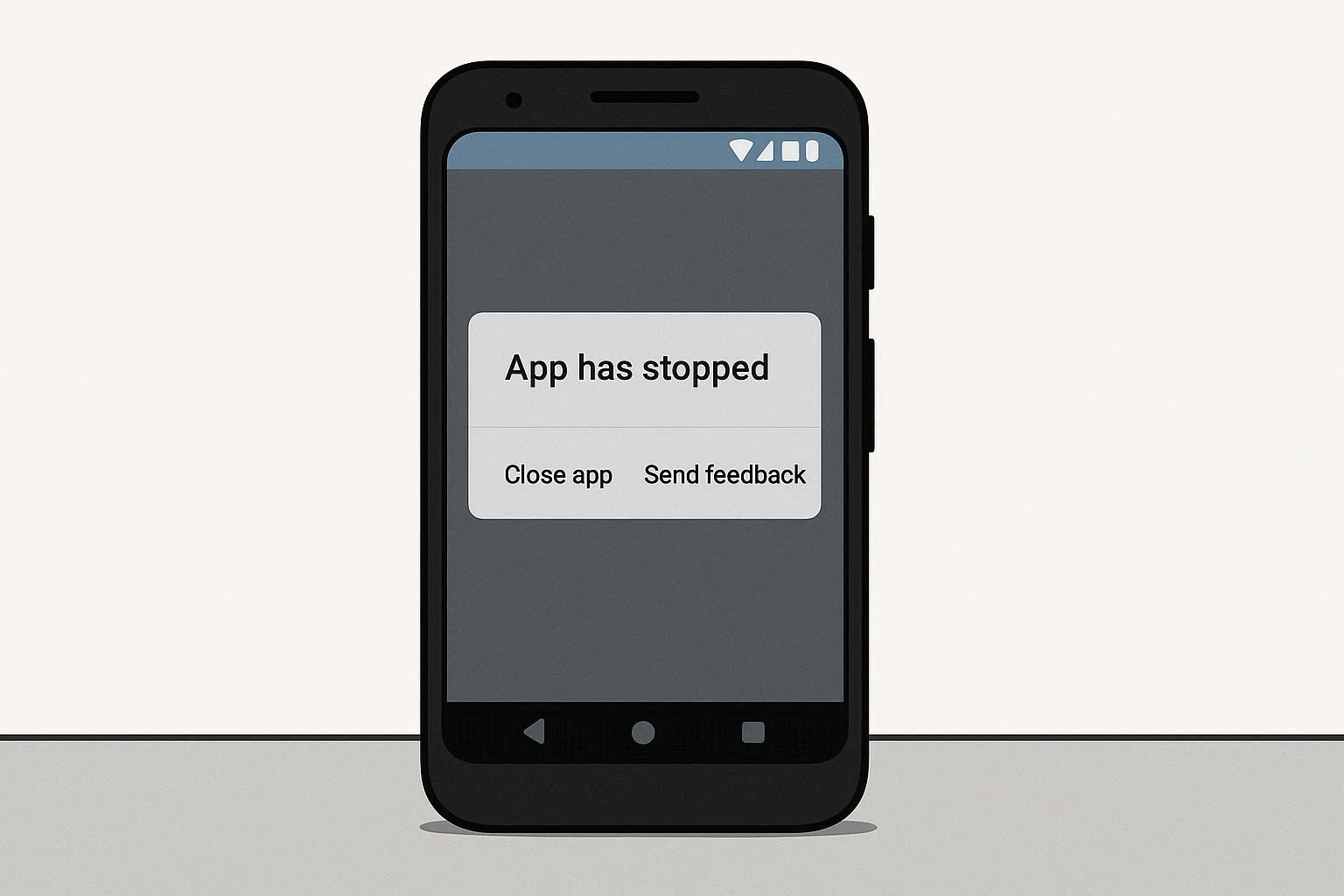
You’re using your phone, minding your own business, and a popup appears: “App keeps stopping.” You tap Close, reopen the app, and it crashes again. Same popup. Over and over.
So you Google it. Every guide says the same thing: clear cache, restart your phone, reinstall the app. You try all three. It still crashes.
Here’s why: the problem often isn’t the app itself. It’s a hidden system component called Android System WebView — and most troubleshooting guides never mention it.
What Actually Causes “App Keeps Stopping”
When an Android app crashes, it’s usually one of these:
- Corrupted cache files — the app stored bad temporary data
- App update gone wrong — the latest version has a bug
- Not enough storage — the app can’t save the data it needs
- Android System WebView crash — this is the big one that nobody talks about
WebView is a system component that apps use to display web content. Any app that shows a webpage, loads an ad, displays a help article, or renders HTML inside the app uses WebView behind the scenes. That includes Gmail, Google Maps, Amazon, banking apps, news apps — basically most apps on your phone.
When Google pushes a bad WebView update (and this has happened multiple times), dozens of unrelated apps all crash at the same time. You’ll see “App keeps stopping” for Gmail, then your banking app crashes, then your weather app dies. It looks like your phone is falling apart, but it’s all one component.
How to Tell If It’s WebView
Ask yourself: is it just ONE app crashing, or multiple unrelated apps?
- One app: The problem is likely with that specific app — corrupted cache, buggy update, or a permissions issue
- Multiple apps crashing around the same time: Almost certainly a WebView problem
Fix 1: Force Stop the App
Before anything else, kill the app’s process completely:
- Go to Settings → Apps
- Find the crashing app in the list and tap it
- Tap Force Stop
- Tap OK to confirm
Now reopen the app. Force Stop doesn’t just close the app — it terminates the process entirely, clears it from memory, and forces a fresh start. This alone fixes many temporary crashes.
What Force Stop does vs. what it doesn’t:
- Does: Kills the app process, clears it from RAM, stops all background activity
- Doesn’t: Delete your data, remove your login, or clear cache
Fix 2: Clear Cache (This Is Safe)
If Force Stop didn’t work, clear the app’s cache:
- Go to Settings → Apps
- Tap the crashing app
- Tap Storage & Cache (or just Storage on some phones)
- Tap Clear Cache
Cache is temporary data — thumbnails, scripts, small files the app saves so it loads faster next time. Clearing cache does NOT log you out or delete your settings. It just forces the app to rebuild its temporary files from scratch.
Important distinction that most guides blur: Clear Cache and Clear Data are completely different things. Don’t tap Clear Data yet — we’ll get to that later as a last resort.
Fix 3: Update Android System WebView
This is the fix that solves the problem when multiple apps crash:
- Open the Google Play Store
- Search for “Android System WebView”
- If you see an Update button, tap it
- Also search for “Google Chrome” and update it too (Chrome and WebView share components)
- Restart your phone after updating
If no update is available but you suspect WebView is the problem, try rolling back the update:
- Go to Settings → Apps
- Tap the three dots (⋮) in the top-right corner
- Tap Show system apps
- Find Android System WebView
- Tap the three dots again and select Uninstall updates
- Restart your phone
Rolling back WebView removes the latest update and reverts to the version that came with your phone. This often fixes mass-crashing issues until Google releases a stable update.
Fix 4: Boot Into Safe Mode
Safe Mode starts your phone with ONLY the pre-installed apps. All third-party apps are disabled. This tells you whether a downloaded app is causing the crashes.
How to enter Safe Mode:
- Press and hold the Power button until the power menu appears
- Long-press the Power Off option (hold your finger on it for 2-3 seconds)
- A prompt will appear: “Reboot to Safe Mode”
- Tap OK
Your phone restarts with “Safe Mode” displayed in the bottom-left corner.
Now test:
- If the crashing STOPS in Safe Mode → a third-party app you installed is the cause. Restart normally, then uninstall recently installed apps one by one until you find the culprit
- If the crashing CONTINUES in Safe Mode → it’s a system-level issue (WebView, OS bug, or corrupted system cache)
To exit Safe Mode: Just restart your phone normally.
Fix 5: Check for Android System Updates
Sometimes the “App keeps stopping” error is caused by an OS-level bug that only a system update can fix:
- Go to Settings → System → Software Update (path varies by manufacturer)
- Tap Check for updates
- If an update is available, download and install it
- Your phone will restart
Samsung users: Settings → Software Update → Download and Install
Xiaomi users: Settings → About Phone → System Update
Pixel users: Settings → System → System Update
After a major system update, some apps might crash temporarily as they adjust to the new OS version. Give it 24-48 hours before panic-troubleshooting.
Fix 6: Clear Data (Last Resort)
If nothing else works for a specific app, Clear Data resets it completely:
- Go to Settings → Apps
- Tap the crashing app
- Tap Storage & Cache
- Tap Clear Data (or Clear Storage on some phones)
- Tap OK to confirm
What this does: Deletes everything — cache, login credentials, settings, offline data. The app goes back to the state it was in the moment you first installed it. You’ll need to log in again and set it up from scratch.
When to use this: Only when Clear Cache and Force Stop both failed, and you’re okay with losing the app’s local data.
Fix 7: Uninstall and Reinstall
If even Clear Data doesn’t work:
- Long-press the app icon on your home screen
- Tap Uninstall (or drag it to the Uninstall area at the top)
- Restart your phone
- Open the Play Store and reinstall the app
A fresh install gives you the latest version with clean files. Any corrupted data from the old installation is gone.
The Nuclear Option: Wipe Cache Partition
If multiple system apps crash and nothing above works, you can wipe the system cache partition without losing personal data:
- Turn off your phone
- Press and hold Power + Volume Up simultaneously (varies by manufacturer)
- Release when you see the recovery menu
- Use Volume buttons to navigate to “Wipe cache partition”
- Press Power to select it
- Select “Yes” to confirm
- Select “Reboot system now”
This clears the system-level cache that all apps share. It does NOT delete your photos, apps, or personal data.
Samsung: Power + Volume Up + Bixby button (older models) or Power + Volume Up (newer)
Pixel: Power + Volume Down to enter bootloader, then select Recovery Mode
When Nothing Works
If you’ve tried everything and apps still keep crashing, you’re likely dealing with one of these:
- Severely outdated phone — if your phone is running Android 8 or older, modern app updates may no longer be compatible
- Insufficient storage — check Settings → Storage. If you have less than 2GB free, apps will struggle to function. Delete old photos, videos, or unused apps
- Hardware failure — rare, but failing internal storage can corrupt app data repeatedly. If your phone is also slow, freezing, or randomly restarting, the storage chip may be degrading
Quick Reference: Force Stop vs. Clear Cache vs. Clear Data
| Action | What It Does | Data Lost? | When to Use |
|---|---|---|---|
| Force Stop | Kills the app process | Nothing | First thing to try |
| Clear Cache | Deletes temporary files | No | App is slow or glitchy |
| Clear Data | Resets app to fresh install | Yes — login, settings, offline data | Last resort |
If You Found This Guide Helpful
Check out our other troubleshooting resources:
- How to Fix Android Phone Stuck on Boot Loop — 6 methods without losing data
- How to Fix OBS Black Screen on Windows — similar app crash diagnosis approach
- Speed Up Slow Windows 11 — 10 Built-In Tweaks — optimize device performance
Frequently Asked Questions
What is Android System WebView and why does it crash my apps?
Android System WebView is a system component powered by Chrome’s rendering engine. Apps use it to display web content — login pages, ads, help articles, in-app browsers. When Google pushes a broken WebView update, any app that depends on it will crash. This is why you sometimes see multiple unrelated apps crashing at the same time. Updating or rolling back WebView fixes all of them at once.
Will Safe Mode delete my apps or data?
No. Safe Mode temporarily disables all third-party apps so you can test whether one of them is causing the problem. Nothing is deleted. When you restart your phone normally, everything is back to exactly how it was.
The error only appears for one specific app. Is it still a WebView issue?
Probably not. If only one app crashes, the issue is likely specific to that app — a corrupted cache, a buggy update, or a permissions conflict. Start with Force Stop and Clear Cache. If that fails, uninstall and reinstall the app.
I cleared cache and data but the app STILL crashes after reinstalling. Why?
Your phone’s software may have a bug. Check for an Android system update. If your phone is fully updated and the app still crashes, it could be a compatibility issue — the app may not support your Android version or device model. Check the app’s Play Store reviews to see if other users report the same problem.
Last updated: February 2026 | Tested on Android 14, Android 15 — Samsung, Pixel, Xiaomi