
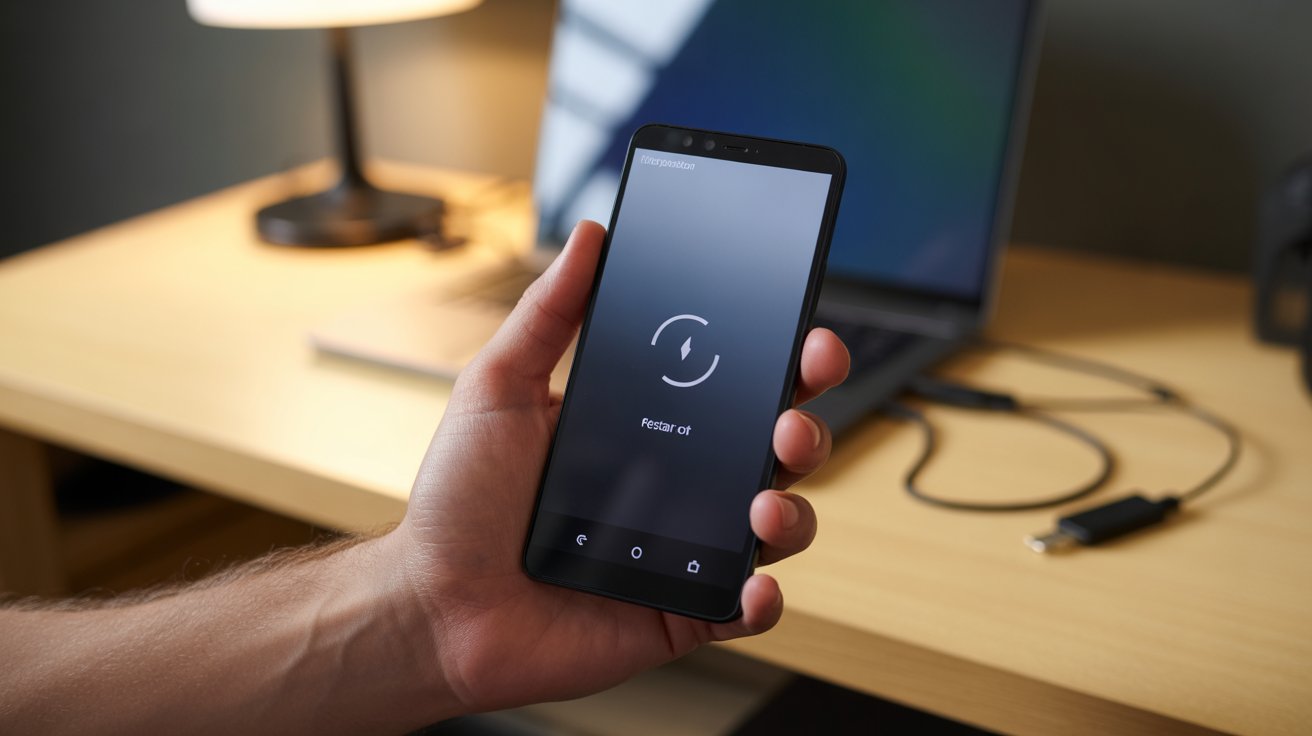
Your Android phone is stuck in a boot loop — it shows the manufacturer logo, maybe the animation starts, then the screen goes black and the logo appears again. Over and over. The phone never reaches the home screen.
This is one of the most stressful phone issues because you can’t access anything. Your photos, messages, apps — all trapped inside a phone that won’t start.
The first thing every guide tells you is to factory reset. But that erases everything. Before you go nuclear, try these 6 methods that can fix the boot loop without wiping your data.
What Causes an Android Boot Loop?
A boot loop happens when something prevents Android from completing its startup process:
- Bad app update — A recently updated app crashes during startup, causing Android to restart
- Failed system update — An interrupted or corrupted OTA update left the system in an inconsistent state
- Full storage — Android needs free space to boot. If your storage is 100% full, the system can’t create temporary files needed for startup
- Corrupted cache partition — The system cache that stores temporary boot data is corrupted
- Root/custom ROM issues — Modified system files can break the boot sequence
- Hardware failure — Rare, but a failing battery or storage chip can cause boot loops
How to Fix Android Boot Loop (Without Losing Data)
Method 1: Force Restart (The Simple Fix)
Sometimes the phone just needs a hard reset to break out of the loop.
For most Android phones:
- Press and hold Power + Volume Down for 15-20 seconds until the phone turns off completely
- Wait 10 seconds, then press Power to turn it on normally
For Samsung phones:
- Press and hold Power + Volume Down for 10 seconds
For Google Pixel:
- Press and hold Power button for 30 seconds
If the phone boots normally, great — problem solved. If it enters the loop again, move to Method 2.
Method 2: Boot into Safe Mode (Disables Third-Party Apps)
Safe Mode starts Android with only built-in system apps. If the phone boots successfully in Safe Mode, a third-party app is causing the boot loop.
Step 1: Turn off the phone completely (hold Power + Volume Down until it shuts off).
Step 2: Press and hold the Power button to start the phone.
Step 3: As soon as you see the manufacturer logo, press and hold the Volume Down button and keep holding it.
Step 4: Keep holding Volume Down until the phone fully boots. You should see “Safe Mode” text in the bottom-left corner of the screen.
Step 5: Once in Safe Mode, go to Settings → Apps and uninstall any recently updated or installed apps that might be causing the issue.
Step 6: Restart normally (without holding Volume Down). The phone should boot without looping.
Samsung-specific: After turning off, press Power to start. When the Samsung logo appears, press and hold Volume Down until it boots with “Safe mode” shown.
If Safe Mode doesn’t boot either, the issue is at the system level — skip to Method 3.
Method 3: Wipe Cache Partition via Recovery Mode
This clears the system cache WITHOUT deleting your personal data (photos, apps, files stay intact).
Step 1: Turn off the phone completely.
Step 2: Enter Recovery Mode:
- Samsung: Hold Power + Volume Up until you see the recovery menu
- Google Pixel: Hold Power + Volume Down, then use volume keys to select “Recovery Mode”
- Most other brands: Hold Power + Volume Up
Step 3: If you see the Android robot with “No command,” press and hold Power, then tap Volume Up once to reveal the menu.
Step 4: Use Volume buttons to navigate and Power button to select.
Step 5: Select “Wipe cache partition”.
Step 6: Confirm by selecting “Yes”.
Step 7: Select “Reboot system now”.
The phone will restart with a clean system cache. This fixes boot loops caused by corrupted cached data.
Important: “Wipe cache partition” is NOT the same as “Wipe data/factory reset.” The cache partition only contains temporary system files. Your photos, apps, and personal data are NOT deleted.
Method 4: Free Up Storage via ADB (If Storage Is Full)
If your phone’s storage was nearly full before the boot loop started, Android may not have enough space to boot.
Requirements: A computer with ADB installed and a USB cable.
Step 1: Install ADB on your computer:
- Download Android Platform Tools from Google
- Extract to a folder on your PC
Step 2: Connect your phone to the computer via USB.
Step 3: Open Command Prompt in the Platform Tools folder (type cmd in the folder’s address bar).
Step 4: Check if the phone is detected:
If your phone shows up, you can delete large files:
Step 5: Reboot the phone:
Note: ADB only works if USB debugging was previously enabled on the phone. If it wasn’t enabled before the boot loop, you may not be able to connect via ADB.
Method 5: Boot into Recovery and Apply Update Manually
If the boot loop was caused by a failed OTA update, you may be able to re-apply or clear the update.
Step 1: Enter Recovery Mode (same as Method 3).
Step 2: Look for “Apply update from ADB” or “Apply update from SD card” option.
Step 3: If available, you can sideload the correct firmware for your phone using:
You’ll need to download the correct firmware file for your exact phone model from the manufacturer’s website.
Method 6: Factory Reset via Recovery (Last Resort)
If nothing else works, a factory reset from Recovery Mode will fix the boot loop but erase all data.
Step 1: Enter Recovery Mode.
Step 2: Select “Wipe data/factory reset”.
Step 3: Confirm by selecting “Factory data reset” or “Yes”.
Step 4: After the reset completes, select “Reboot system now”.
The phone will boot fresh as if it were new. You’ll need to set up your Google account and re-download apps.
Before doing this: If you had automatic Google backup enabled (Settings → System → Backup), most of your app data, contacts, and photos (via Google Photos) will be recoverable after signing into your Google account.
Frequently Asked Questions
My phone boot loops but I can’t enter Recovery Mode. What do I do?
If the standard button combinations don’t work, try connecting the phone to a computer and using ADB:
If ADB doesn’t detect the phone either, the issue may be hardware-related — contact the manufacturer or a repair shop.
Will wiping cache partition delete my photos and apps?
No. Wiping the cache partition only clears temporary system files. Your photos, apps, messages, and all personal data remain untouched. It’s completely safe.
The boot loop started right after I installed an app. How do I remove it?
Boot into Safe Mode (Method 2). In Safe Mode, all third-party apps are disabled. Go to Settings → Apps, find the problematic app, and uninstall it. Then restart normally.
My Samsung phone shows “Installing system update” then loops. What do I do?
This means an OTA update is failing repeatedly. Enter Recovery Mode (Power + Volume Up), select “Wipe cache partition” first. If that doesn’t work, try “Apply update from ADB” to sideload the correct firmware.
Can a boot loop damage my phone permanently?
A software boot loop doesn’t cause permanent hardware damage. However, a boot loop caused by hardware failure (bad battery, failing storage) will need professional repair.
Conclusion
Before factory resetting a boot-looping Android phone, always try Safe Mode first (to catch bad apps), then wipe cache partition (to fix corrupted system cache). These two methods fix the majority of boot loops without any data loss. If those don’t work, try ADB or recovery-based fixes before resorting to a factory reset.