
Remember when your phone was new? Apps opened instantly. Swiping felt smooth. The whole experience just worked.
Now, six months or a year later, everything has a slight delay. Opening the camera takes an extra beat. Switching apps stutters. Typing lags behind your fingers. It’s not broken — it’s just… slow.
You’ve probably been told to clear the cache, restart your phone, and delete old photos. Those help a little. But there’s a trick buried in Android’s Developer Options that makes your phone feel genuinely faster — right now, in under 30 seconds — and almost nobody talks about it outside of developer forums.
The 30-Second Speed Trick: Animation Scaling
Every time you do anything on your Android phone — open an app, go back to the home screen, open the notification shade, switch between apps — Android plays a smooth animation. App icons zoom in. Screens slide sideways. Menus fade in.
These animations look nice. They also take about 300 milliseconds each at the default setting. That’s a third of a second that you’re waiting for an animation to finish before you can do anything. Multiply that by the hundreds of interactions you have with your phone each day, and you’re spending minutes just watching things slide around.
Here’s how to cut those animations in half or remove them entirely:
First, enable Developer Options:
Settings → About Phone → tap "Build Number" 7 times
A message confirms that Developer Options is now enabled. Go back to Settings — Developer Options appears in the list (usually near the bottom, or under System in some phones).
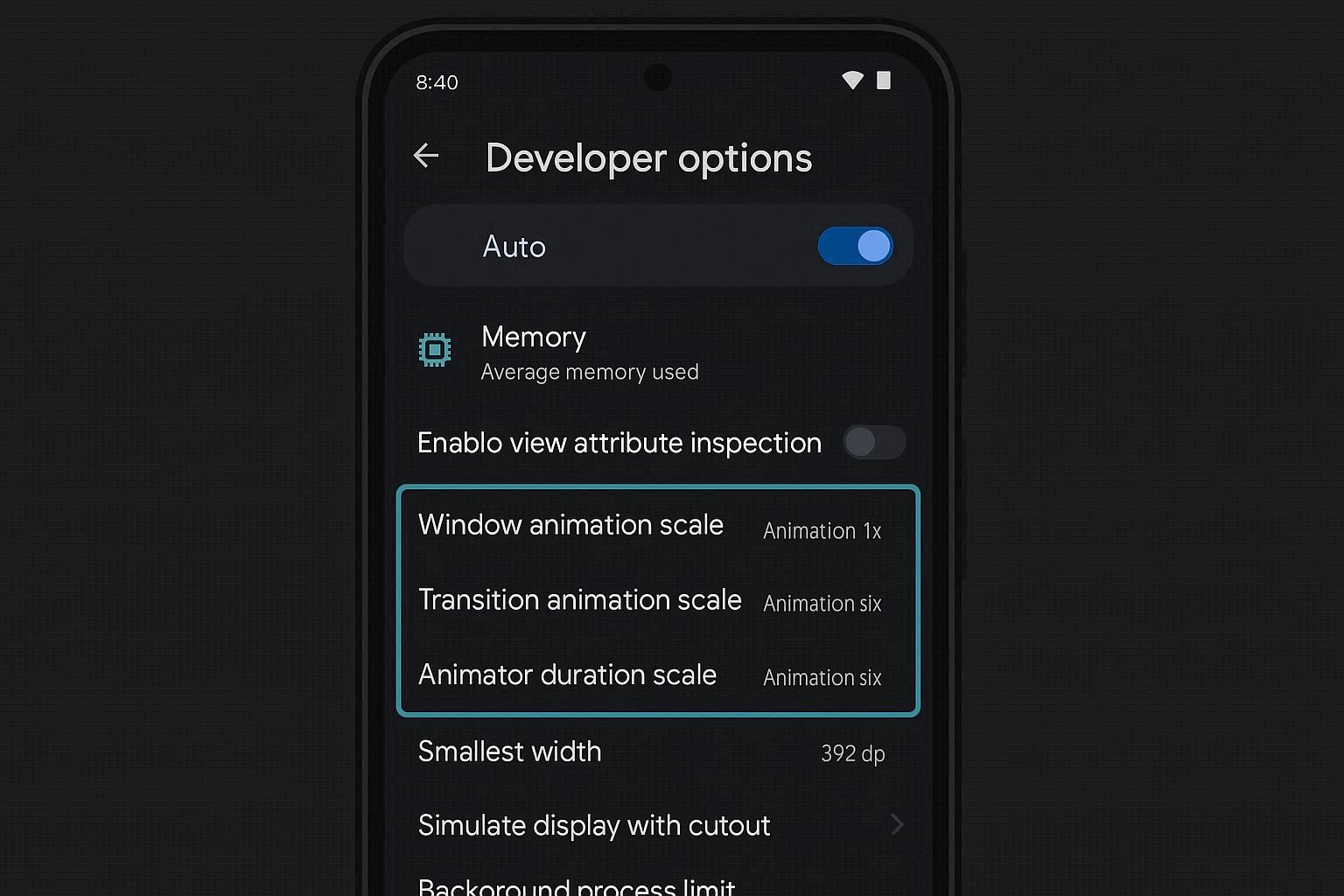
Open Developer Options and find these three settings:
- Window animation scale — controls how app windows animate (opening, closing)
- Transition animation scale — controls how screens transition between each other
- Animator duration scale — controls how UI elements animate within apps
All three default to 1x.
Change all three to 0.5x.
That’s it. Go back to your home screen and start using your phone. Open an app. Go back. Switch apps. Everything happens noticeably faster.
You didn’t make your processor faster. You didn’t free up RAM. You just told Android to spend half as long on visual transitions. The result feels like a phone that’s twice as responsive.
Want it even faster? Set all three to “Animation off.” This skips animations entirely. Every action is instant — no sliding, no fading, no zooming. Some people find this jarring because there’s no visual transition between screens. But if speed is all you care about, this is the fastest your phone will ever feel.
Personally, I set mine to 0.5x. It’s the sweet spot — fast enough to feel snappy, but with enough animation that you can see what’s happening on screen.
The Hidden Memory Drain: Background Process Limit
Your phone keeps recently used apps in memory so they load instantly when you switch back to them. In theory, this is great. In practice, after using fifteen apps throughout the day, all fifteen are sitting in RAM consuming resources even though you only care about two or three of them.
Android manages this automatically, killing old apps when memory gets low. But on phones with less RAM (4-6 GB), “low” happens faster than you’d expect, and the constant loading and killing of apps creates lag.
Set a manual background process limit:
Settings → Developer Options → Background process limit
The default is “Standard limit” which lets Android decide. Change it to:
- At most 4 processes — Good balance. Keeps your four most recent apps alive, closes everything else.
- At most 2 processes — Aggressive. Best for phones with 3-4 GB RAM.
- No background processes — Extreme. Every app reloads from scratch when you open it. Only use this as a diagnostic step.
Will you miss notifications? No. Push notifications come through Google Play Services, which is a system process exempt from this limit. WhatsApp messages, emails, and app alerts all arrive normally. The only difference is that when you open an app that was killed by the limit, it takes an extra second to load instead of resuming instantly.
This is a tradeoff: slightly slower app switching in exchange for more available RAM for the app you’re actively using. On phones with limited memory, this tradeoff dramatically improves the experience.
The Cache Monster: System Apps Eating Gigabytes
Open your phone’s storage settings right now:
Settings → Storage → Apps (sort by size)
Look at the top apps. On most phones that have been used for a few months, you’ll see something like this:
- Google Chrome — 800 MB to 3 GB (cached web pages, images, site data)
- YouTube — 500 MB to 1.5 GB (cached thumbnails, video data)
- Instagram — 1 to 4 GB (cached images and videos from your feed)
- TikTok — 1 to 5 GB (cached video content)
- Google Maps — 500 MB to 2 GB (cached map tiles, Street View images)
- Facebook — 500 MB to 2 GB (cached posts, images, stories)
That’s potentially 10+ GB of cached data from just six apps. On a phone with 64 GB of storage, that’s 15% of your total space consumed by temporary files that your phone can regenerate any time.
Clear the cache:
Settings → Apps → [app name] → Storage → Clear Cache
Do this for every app in the top 10 of your storage list. Don’t tap “Clear Data” unless you want to reset the app completely (which logs you out and removes all settings). “Clear Cache” only removes temporary files.
Set a reminder to do this monthly. Left unchecked, cache accumulates indefinitely.
Pro tip: Chrome is the worst offender because every website you visit gets cached — HTML, CSS, JavaScript, images, cookies. If you use Chrome as your main browser and never clear its cache, it will eventually consume gigabytes. Open Chrome, tap the three-dot menu, go to Settings → Privacy and security → Clear browsing data. Select “Cached images and files” and clear it.
The Startup Tax: Apps That Load at Boot
When your phone starts up, apps with background permissions launch themselves immediately. Social media apps, messaging apps, email clients, weather widgets, cloud storage — they all start running the moment your phone finishes booting.
Each one consumes a slice of RAM and a slice of CPU. Individually, they’re tiny. Collectively, they can consume 2-3 GB of RAM before you even open a single app.
Audit your startup apps:
On Samsung phones:
Settings → Device Care → Memory → Excluded apps
Remove apps from the exclusion list so Samsung’s memory management can close them.
On other Android phones:
Settings → Apps → [each app] → Battery → Background activity → Restrict
This prevents the app from launching at boot and running in the background. The app still works normally when you open it — it just doesn’t run when you’re not using it.
Pre-installed bloatware is particularly wasteful. Phone manufacturers install apps you never asked for and can’t uninstall — carrier apps, manufacturer apps, partner apps. You can’t remove them, but you can disable them:
Settings → Apps → [bloatware app] → Disable
A disabled app doesn’t run, doesn’t consume RAM, doesn’t receive updates, and doesn’t appear in your app drawer. It’s as close to uninstalled as you can get without rooting.
The Diagnostic: Safe Mode
If your phone is still slow after all the above, you need to determine whether the problem is your apps or your system.
Boot into Safe Mode:
Hold the power button → long-press "Power Off" → tap OK to reboot in Safe Mode
“Safe Mode” appears in the corner of the screen. In this mode, only pre-installed system apps run. All third-party apps are disabled.
Use your phone for 10-15 minutes in Safe Mode. Open the browser, check settings, swipe around. If it feels fast and responsive, a third-party app is causing the slowdown.
Boot back to normal mode (just restart normally) and start uninstalling recently installed apps one at a time. After each uninstall, use your phone normally for a while to see if performance improves.
If the phone is slow even in Safe Mode, the problem is deeper:
- Low storage — If your internal storage is more than 85% full, Android struggles. Free up at least 15-20% of your total storage.
- Outdated system — An old Android version running on hardware that’s optimized for the newer version. Check Settings → System → System Update.
- Aging hardware — After 3-4 years, both the flash storage and the processor show their age. Storage cells slow down with accumulated read/write cycles, similar to how SSDs degrade on computers. At this point, a factory reset can help by wiping all accumulated data and giving the phone a fresh start.
The Factory Reset: When Nothing Else Works
If your phone is 2+ years old and genuinely sluggish despite everything above, a factory reset is the most effective single fix.
Settings → System → Reset → Erase all data (factory reset)
Before you do this:
- Back up photos to Google Photos or a computer
- Back up contacts (they should already sync to your Google account)
- Note which apps you use so you can reinstall them
- Export WhatsApp chats if you need them
A factory reset wipes everything and returns your phone to its original out-of-box state. After resetting:
- Only install apps you actively use
- Don’t reinstall the same 50 apps you had before — that’s how you got here
- Set up your background limits and animation scales immediately
- Disable bloatware before it accumulates data
The difference is usually dramatic. A phone that felt unusable before a factory reset often feels fast again afterward. The accumulated months of cached data, background processes, and leftover files are all gone, and the phone runs clean.