
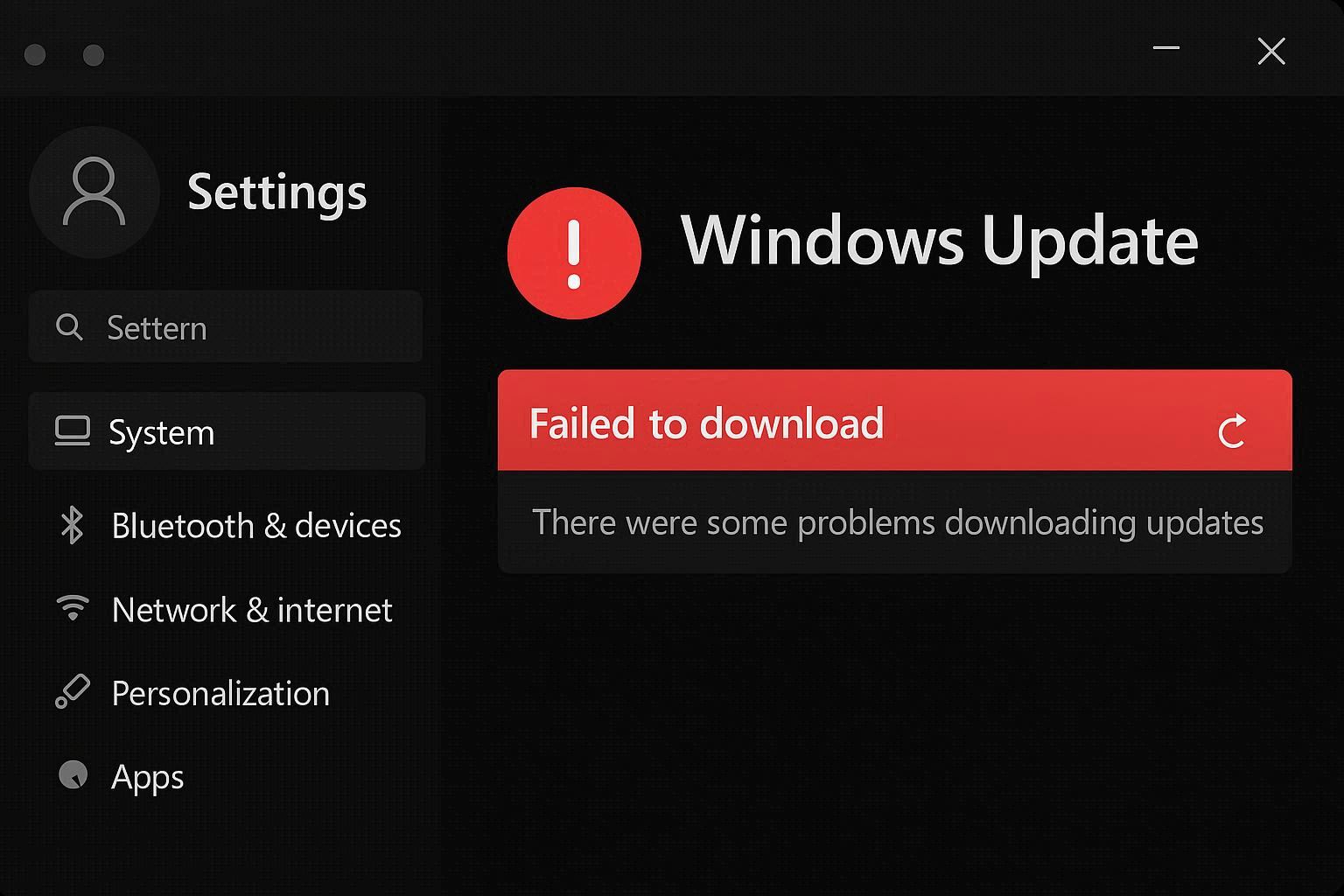
Windows Update fails. It shows an error code — something like 0x80070002 or 0x80073712 — and tells you “We couldn’t install this update, but you can try again.”
So you try again. Same error. You run the Windows Update Troubleshooter. It says “Windows Update components must be repaired,” does something for 30 seconds, and tells you the problem is fixed. You check for updates again. Same error.
This cycle can go on for weeks. I’ve seen people stuck on the same failed update for months, clicking “Retry” every few days hoping something changes. It doesn’t. The troubleshooter is performing the digital equivalent of turning it off and on again — and the problem isn’t that simple.
Here’s what’s actually happening and how to fix it for real.
Why Windows Updates Fail
Windows Update is a surprisingly complex system. When you click “Check for updates,” here’s what happens behind the scenes:
- The Windows Update service contacts Microsoft’s servers
- It downloads a manifest listing available updates
- It downloads the update package to
C:\Windows\SoftwareDistribution\Download\ - It verifies the package integrity using catalog files in
C:\Windows\System32\catroot2\ - It stages the update files
- During restart, it applies the staged files to the system
A failure at any of these stages produces an error code. And here’s the frustrating part — the error code often doesn’t tell you which stage failed. Error 0x80070002 means “file not found,” but it doesn’t tell you which file, or whether the file failed to download, got corrupted during download, or was deleted by antivirus.
The most common root cause? The SoftwareDistribution folder contains corrupted or partially downloaded files from a previous failed attempt. Every retry uses the same corrupted cache, producing the same error. The troubleshooter doesn’t clear this cache properly. You have to do it manually.
Step 1: Read the Real Error Log
The error code Windows shows you is vague. The detailed error log is hidden behind a PowerShell command that nobody tells you about.
Open PowerShell as administrator and run:
Get-WindowsUpdateLog
Wait 30 seconds to a minute. PowerShell converts the binary ETL log files into a readable text file and saves it to your Desktop as WindowsUpdate.log.
Open this file in Notepad. It’s long. Press Ctrl + F and search for FATAL or error (case insensitive).
The entries around the fatal error will tell you exactly what went wrong. For example:
"Hash verification failed"— The downloaded file is corrupted. Clearing the SoftwareDistribution cache will fix this."Insufficient disk space on system partition"— The System Reserved partition (not your C: drive) is full. You need to expand it or clean it."Access denied"— A security program or policy is blocking the update."Network connection lost during download"— The download was interrupted. A fresh retry after clearing the cache usually works.
This step is worth doing before any fix. If you know the actual error, you can skip straight to the right solution instead of trying everything sequentially.
Step 2: The Proper Component Reset
This is the fix that resolves about 80% of persistent update failures. It clears the update cache, resets the services, and forces Windows to download everything fresh.
Important: This isn’t just “restart the service.” You need to stop the services, clear the cache, and restart them — in this specific order. Doing it out of order can leave orphaned files that cause the same problem.
Open Command Prompt as administrator (not PowerShell — some of these commands behave differently in PowerShell).
Stop the four update-related services:
net stop wuauserv

net stop bits

net stop cryptSvc

net stop msiserver
If any of these fail with “The service is not started,” that’s fine. Move on.
Rename the cache folders:
ren C:\Windows\SoftwareDistribution SoftwareDistribution.old

ren C:\Windows\System32\catroot2 catroot2.old
We rename instead of delete. This preserves the old folders as a backup. If something goes wrong, you can rename them back.
Restart the services:
net start wuauserv

net start bits

net start cryptSvc

net start msiserver
Windows will automatically create fresh SoftwareDistribution and catroot2 folders.
Now go to Settings → Windows Update → Check for updates. The update should download from scratch and install successfully.
If it works, you can delete SoftwareDistribution.old and catroot2.old after a week or so, once you’re confident everything is stable.
Step 3: Run DISM Before SFC (The Order Matters)
If the component reset didn’t help, your Windows image itself might be damaged. Here’s where most guides get the order wrong.
SFC (System File Checker) scans your system files and replaces corrupted ones. But it replaces them using a reference stored in the Component Store. If the Component Store is also corrupted, SFC restores files from a corrupt source — fixing nothing.
DISM (Deployment Image Servicing and Management) repairs the Component Store by downloading fresh copies from Microsoft’s servers.
Run DISM first:
DISM /Online /Cleanup-Image /RestoreHealth
This takes 10 to 30 minutes. It contacts Microsoft’s servers, compares your Component Store against the known-good version, and replaces any corrupted files. Let it finish completely — do not interrupt it.
Then run SFC:
sfc /scannow
Now SFC has a clean reference to work from. If it finds and repairs files, restart your PC and try the update again.
Step 4: Download the Update Manually
Sometimes the update itself is the problem — specifically, the download mechanism. Windows Update’s download process can fail due to proxy settings, antivirus interference, content delivery network issues, or a dozen other network-related causes.
The bypass: download the update package directly from Microsoft and install it yourself.
- Go to catalog.update.microsoft.com
- Search for the KB number (shown in Windows Update, like KB5074109)
- Find the version matching your system — usually x64 for most modern PCs
- Click Download, then click the link in the popup
- Save the
.msufile to your Desktop - Double-click it to install
This completely bypasses the Windows Update download pipeline. The installer runs locally and applies the update directly. If the update installs successfully this way but keeps failing through Windows Update, the problem is your network connection or proxy configuration — not the update itself.
Step 5: The Hidden Disk Space Problem
Error 0x800f0922 is special. It means the System Reserved partition doesn’t have enough space. This isn’t your C: drive — it’s a small hidden partition (usually 100 to 500 MB) at the beginning of your disk that contains boot files.
Feature updates in particular need temporary space on this partition. If it’s nearly full, the update fails.
Check it:
Open Disk Management (right-click Start → Disk Management)
Look for a partition labeled “System Reserved” or “EFI System Partition.” Note its size and how much free space it has.
If it’s almost full, don’t try to resize it unless you know what you’re doing — mistakes here can make your system unbootable. Instead, try this workaround:
- Open Command Prompt as administrator
- Run
mountvol S: /sto mount the system partition to drive S: - Run
dir S:\ /a /sto see what’s using space - Old backup boot files from previous Windows versions can sometimes be safely removed
For most users, if the System Reserved partition is the problem, the safest approach is to clean install Windows — which recreates the partition with the correct size for current updates.
Step 6: Block and Replace Problematic Updates
Sometimes a specific update has a known bug that prevents installation on your hardware configuration. Microsoft acknowledges these and usually releases a fix within weeks, but they don’t always pull the broken update from distribution.
If one specific update keeps failing while others install fine:
- Note the KB number
- Search for it at learn.microsoft.com/windows/release-health/ — Microsoft publishes known issues for each update
- If there’s a known issue matching your symptoms, wait for the fix
If you need to block the update temporarily to stop Windows from retrying it every day:
Download Microsoft’s “Show or hide updates” troubleshooter (wushowhide.diagcab) from Microsoft’s support site. It lets you hide specific updates so Windows stops trying to install them. You can unhide them later when a fix is available.
After Fixing: Prevent Future Update Failures
Keep 20 GB free on your C: drive. Windows needs working space to stage updates. Running low on space is one of the most common causes of update failures.
Don’t run disk cleanup during updates. Disk Cleanup can remove files that Windows Update is actively using, causing corruption.
Check for updates weekly, not monthly. Letting updates pile up increases the chance of conflicts. Smaller, more frequent updates are less likely to fail than a backlog of cumulative patches.
If you use third-party antivirus, add Windows Update folders to its exclusion list. Some antivirus programs quarantine Windows Update files during download, causing hash verification failures. Add C:\Windows\SoftwareDistribution\ to your antivirus exclusion list.