
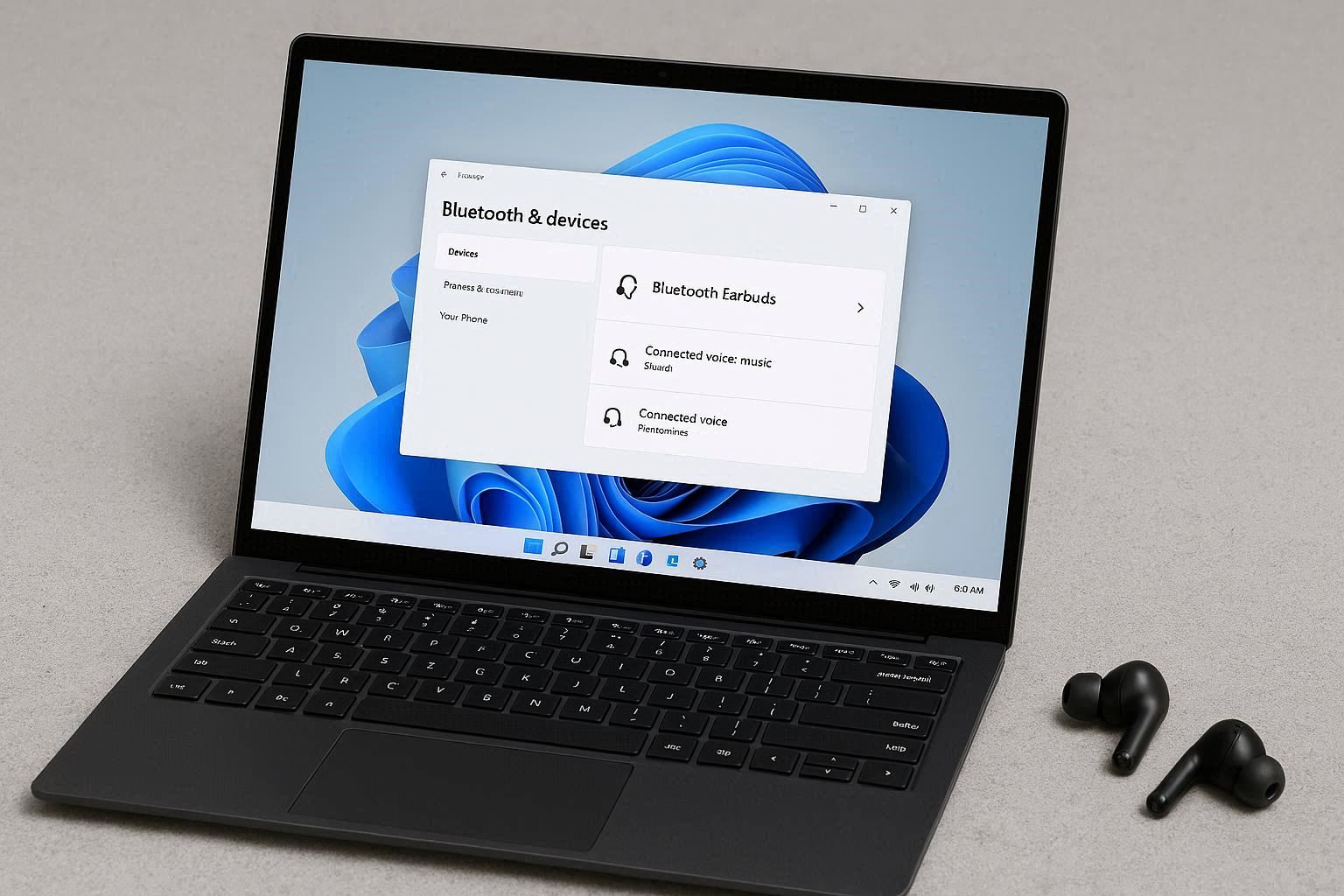
My Bluetooth Earbuds Connect to Windows But Sound Like Garbage
You know that feeling when your AirPods or whatever sound perfect on your phone, then you connect them to your Windows laptop and suddenly music sounds like it’s being played through a tin can full of bees? That happened to me with my Sony WH-1000XM4 — incredible sound on iPhone, absolute garbage on my work PC.
For the longest time I thought my headphones were broken when paired with Windows. Turns out it’s a known Bluetooth audio profile issue that Windows handles really poorly. The good news: the fix is straightforward once you understand what’s going on. The bad news: you’ll have to do it every time you connect, basically. Microsoft hasn’t fixed this in years.
What’s Actually Happening (The HFP vs A2DP Thing)
Bluetooth headphones support two audio modes:
A2DP (Advanced Audio Distribution Profile): This is the high quality stereo mode. Music sounds great. The headphones play 16-bit or higher audio in true stereo. This is what you want.
HFP (Hands-Free Profile) / HSP (Headset Profile): This is the calling mode. It’s mono, low quality, but it enables the microphone for calls. Sounds like a phone call from 2003.
Here’s the problem: Windows tries to be clever and switches between these two modes automatically. The moment any app on your computer thinks it might want to use a microphone, Windows switches your headphones into HFP mode. And once it’s in HFP, music sounds horrendous.
What triggers HFP mode? Lots of stuff:
- Opening Discord (even if you’re not in voice chat)
- Opening Zoom or Teams
- Opening any video call app
- Opening Chrome and visiting a site that has microphone permission
- Sometimes just OPENING the Sound settings menu (no joke)
Once switched to HFP, Windows often doesn’t switch back to A2DP automatically even when the calling app closes. So you’re stuck with bad sound.
How to Tell Which Mode You’re In
Look at your Bluetooth device list in Windows. If your headphones are good A2DP mode, they show up as ONE device named like “Sony WH-1000XM4”. If they’re in HFP mode, they show up as “Sony WH-1000XM4 Hands-Free”.
You can also tell by listening — A2DP is full stereo with bass, HFP sounds compressed and mono.
The Fix (Each Time)
The annoying truth is you have to manually switch back to A2DP mode whenever Windows decides to put you in HFP. Here’s how:
- Right click the speaker icon in the system tray, choose Sound settings (or Sounds)
- Under Output, you should see TWO entries for your headphones: one with “Stereo” or just the name, and one with “Hands-Free”
- Click on the one WITHOUT “Hands-Free”
- That’s it, you’re back in A2DP mode
Welcome to high quality audio land. Until something switches you back to HFP again. Which it will. Probably soon.
The Permanent-ish Fix
You can’t completely prevent Windows from switching to HFP, but you can disable it entirely so the headset profile doesn’t even exist as an option. This means you can’t use the headphone microphone, but you’ll never get accidentally switched to bad audio.
Go to Settings → Bluetooth & devices → Devices. Find your headphones, click the three dots → Device properties. Under Services, you’ll see options like:
- Audio Sink (this is A2DP — keep this on)
- Hands-Free Telephony (this is HFP — turn this OFF)
- Headset (also HFP — turn this OFF)
- Audio Source (keep on)
Uncheck Hands-Free Telephony and Headset services. Click OK. Now your headphones literally cannot enter HFP mode. You’ll always have great audio. The trade-off: when someone calls you on Discord or Teams, you’ll need to use a different microphone (laptop built-in mic works).
For most people who mainly use their headphones for music and watching videos, this is the right trade-off. Use the laptop’s built-in microphone for the rare video call.
Codec Issues (If You Have Fancy Headphones)
If you have headphones that support fancy codecs like aptX, aptX HD, LDAC, or AAC, and Windows is using the default SBC codec, your audio will sound fine but not amazing. Windows by default supports SBC and AAC. Most other codecs (LDAC, aptX HD) require third-party software like Bluetooth LDAC drivers or Alternative A2DP Driver which is a paid tool.
For most people, AAC sounds plenty good. Make sure your headphones connect with AAC if they support it. There’s no easy way to confirm in Windows, but if your audio sounds clearly noticeably worse than when paired with your phone, it’s probably the codec issue.
Driver and Bluetooth Stack Issues
If the audio quality is bad even in A2DP mode (low volume, crackling, dropouts), it might be your Bluetooth driver. Especially common on laptops with Realtek Bluetooth chips.
Go to your laptop manufacturer’s support page (Dell, HP, Lenovo, ASUS, whoever) and download the latest Bluetooth driver for your specific model. Install it. Restart. Sometimes this fixes weird audio issues that look like they’re problems with the headphones.
Do NOT just download generic Realtek or Intel Bluetooth drivers from the chip manufacturer’s site. Use the one your laptop manufacturer provides — it has tweaks specific to your hardware.
Why Microsoft Hasn’t Fixed This
Honestly? I don’t know. The HFP/A2DP switching has been a problem since Bluetooth audio became a thing. Mac handles it gracefully — your AirPods stay in high quality mode unless you’re actively in a call. Linux handles it well too with PipeWire. iOS has nailed this since like 2018.
Windows just… doesn’t. Every Windows version, including 11, has this issue. Windows 11 actually got slightly better in some builds — newer Bluetooth headphones with the LE Audio profile handle this better — but for older headphones or non-LE Audio devices, you’re stuck managing the profiles manually.
It’s annoying but at least now you know what’s happening and how to deal with it.
TL;DR Cheat Sheet
- Bad audio with Bluetooth headphones on Windows = stuck in HFP mode
- Quick fix: Sound settings, pick the non-Hands-Free version of your headphones
- Permanent fix: disable Hands-Free Telephony and Headset services in device properties
- Trade-off: lose the headphone mic, but always have great audio
- Bonus tip: keep laptop driver updated for fewer Bluetooth weirdnesses
Been there. Done that. Now you don’t have to suffer.