
Windows 11 Won’t Let Me Delete a File — “File Is Open in Another Program”
One of the most infuriating Windows messages ever invented:
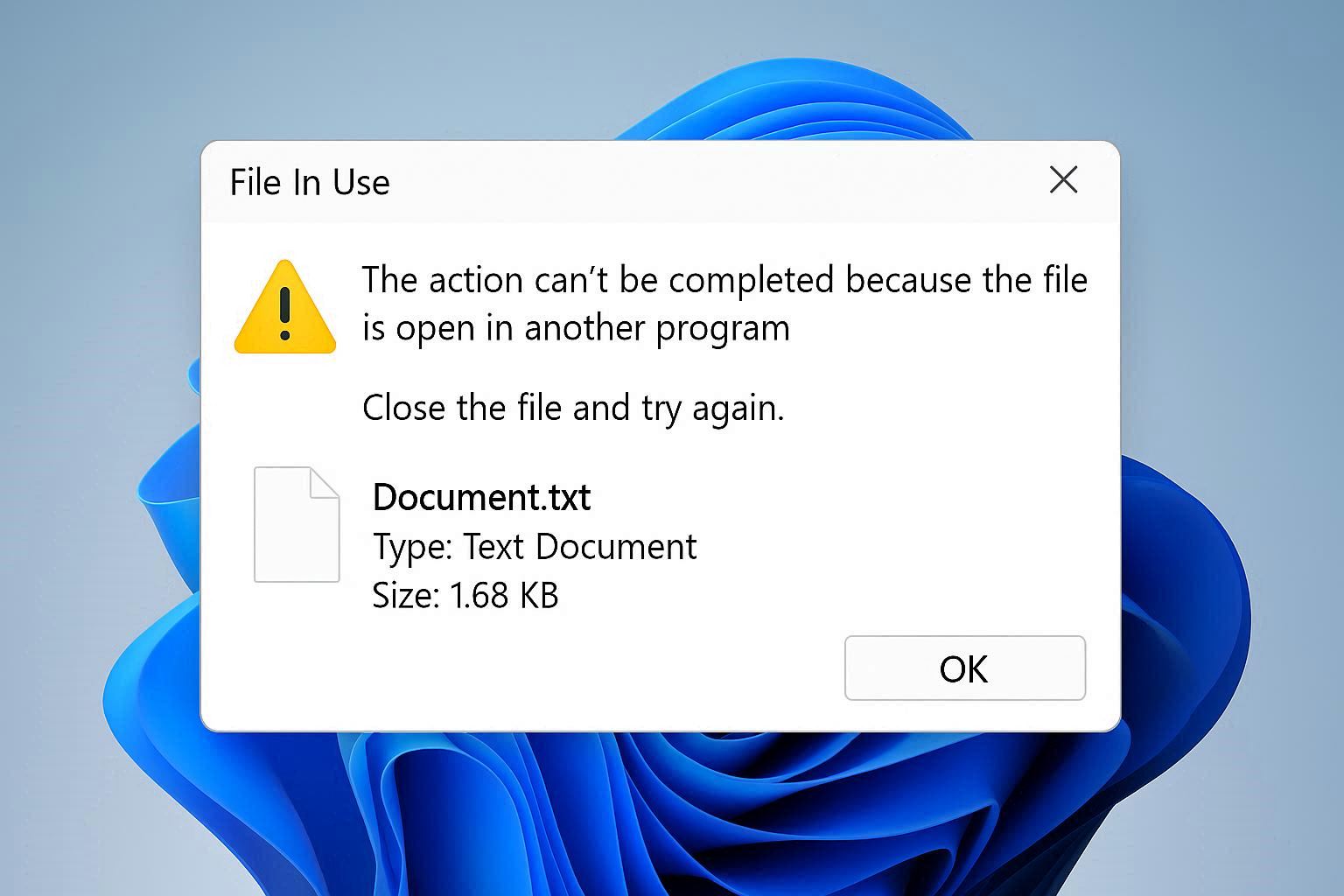
The action can’t be completed because the file is open in another program. Close the file and try again.
What program?? You closed everything. You don’t have anything open. You restarted the computer twice. The file is still “open” somewhere according to Windows. Where??
This was driving me nuts last month when I was trying to clean out an old project folder and one specific PDF refused to delete. I closed every app I could think of. Restarted. Nothing. The file just sat there mocking me.
There are actually a few different things that can cause this, and once you know what they are, the fix is fast.
Why This Happens
When any program reads or writes to a file, Windows puts a “lock” on it. This is to prevent two programs from messing with the same file at the same time and corrupting data. The lock is supposed to release as soon as the program is done with the file. But sometimes:
- A program crashes without releasing the lock
- A background service (you don’t see it as an open window) is still using the file
- Windows itself is holding the file (like the search indexer scanning it)
- The file is in use by your antivirus during a scan
- Microsoft Defender’s controlled folder access is being weird about it
- A thumbnail preview is being generated
The last one is really common with images and videos — the moment you click on a folder containing them, Windows generates thumbnails for the preview pane, and that process locks the files for a few seconds.
The Quickest Fix First
Before going deep, try the easy stuff:
- Close File Explorer completely (right click taskbar → Task Manager → find Windows Explorer → End task)
- Reopen File Explorer (Task Manager → File → Run new task → type “explorer.exe” → Enter)
- Try deleting the file again
This works probably half the time. File Explorer itself often holds onto files for thumbnail generation or preview pane stuff, and restarting it forces it to let go.
When That Doesn’t Work — Find the Process
If the easy fix didn’t work, you need to find which exact program is holding the file. Windows actually has a built-in tool for this called Resource Monitor that most people don’t know about.
Open Task Manager → Performance tab → at the bottom, click Open Resource Monitor. Or just press Win + R and type resmon.
In Resource Monitor, click the CPU tab. Find the section called Associated Handles (it’s collapsed by default — click the arrow). There’s a search box. Type the filename of the file you can’t delete. Resource Monitor will show every process currently holding that file.
Magic, right? Now you can right click the process listed and choose End Process. The file should be deletable immediately after.
Fair warning: if it shows “explorer.exe” or something critical, killing it might cause weird behavior. Restart your computer instead in those cases.
The Nuclear Option
If Resource Monitor shows the file is held by something you absolutely can’t kill (or shows nothing at all and the file STILL won’t delete), there’s one more option that always works.
Open Command Prompt as Administrator (right click the start button, choose Terminal Admin or Command Prompt Admin). Then type:
del /f /q "C:\path\to\your\file.ext"
The /f flag forces deletion even with read-only attribute. The /q flag means quiet mode (no confirmation prompts). This bypasses some of the GUI-level checks Windows does and can delete files that File Explorer refuses to.
If even THAT doesn’t work, the file is held at a kernel level (rare but possible). The only fix then is to boot into Safe Mode and delete it from there. Safe Mode loads minimal Windows so most background processes aren’t running.
Special Case: OneDrive Files
If the file is inside your OneDrive folder, it might be locked because OneDrive is syncing it. Pause OneDrive sync (right click OneDrive icon → Pause syncing → 2 hours), then try to delete. After the deletion succeeds, resume sync and OneDrive will sync the deletion to the cloud.
This was actually my problem with that PDF — OneDrive had been stuck in a sync loop for that specific file for who knows how long. Pausing sync and deleting locally fixed it instantly.
Special Case: Files Used by Services
Some files are used by Windows services that run silently in the background. Things like:
- Antivirus quarantine files
- Printer spool files (locked by Print Spooler service)
- Database files used by indexing services
If Resource Monitor shows the holder is something like svchost.exe, you can’t just kill svchost (it’d crash Windows). Instead:
- Open Services (Win + R, type
services.msc) - Find the related service (like “Print Spooler” if it’s a print job)
- Right click → Stop
- Try to delete the file
- Right click the service → Start to turn it back on
Prevention
For what it’s worth, you can avoid most of these issues by:
- Not editing files inside Windows Defender’s Controlled Folders if you have that enabled
- Closing all your apps before doing big folder cleanups
- Avoiding the Documents and Desktop folders for project files (use a separate drive or folder if possible)
But honestly, this is a Windows annoyance you’ll deal with forever. Bookmark this article — you’ll need it again. I sure did.