
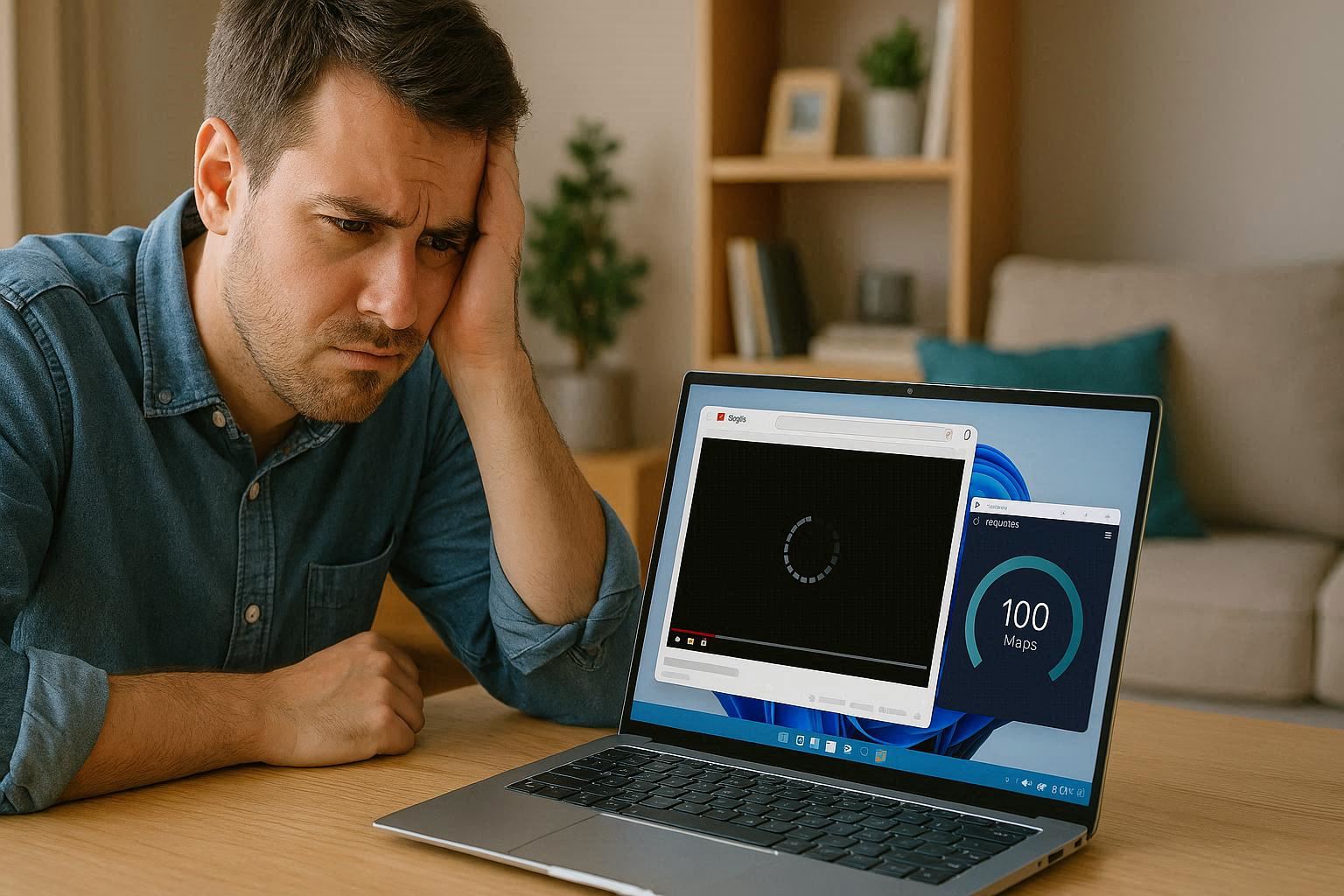
Fix YouTube Buffering on Windows 11 — Network vs Browser Fix That Works
You run a speed test. Ookla says 150Mbps down. When your youtube buffering on windows 11 problem hits, it feels like the end of the world. Fast.com confirms it. Netflix streams 4K without a hiccup. Every other website loads instantly. But YouTube? Every video buffers. The grey progress bar creeps along like it’s 2005. The spinning circle of death taunts you. You drop the quality from 1080p to 720p to 480p — and it STILL buffers. What is going on?
This is one of those problems that makes you question reality. Your internet is objectively fast. Every test proves it. Every other service proves it. But YouTube — one specific website — acts like you’re on dial-up. YouTube buffering on Windows 11 with fast internet is maddening because it makes no intuitive sense. But there’s actually a very specific set of reasons this happens, and they’re almost never about your internet speed.
The core insight most people miss: speed tests measure your connection to a nearby test server, often operated by your ISP. YouTube streams video from Google’s global content delivery network. The network path to speedtest.net can be completely different from the path to YouTube’s CDN edge servers. Your ISP could be throttling YouTube traffic specifically while letting speed tests run at full speed. Your DNS server could be routing you to a YouTube CDN node on the other side of the country. Your browser could be fighting with your GPU driver over how to decode the VP9 codec YouTube uses. None of these show up on a speed test.
Let’s figure out exactly where the bottleneck is and fix it.
First — Is It YouTube, or Is It Everything?
The quickest diagnostic you can do: open three or four completely different video sites. Go to Vimeo. Try Dailymotion. Watch a Twitch stream. Play a video on Twitter. Do they buffer too?
If ALL video sites buffer, your problem is general — it could be your internet connection, your WiFi signal, your router, or a system-wide browser issue — different from Chrome eating too much RAM or general Chrome slowness. If ONLY YouTube buffers and everything else streams fine, the problem is specifically in the chain between your PC and Google’s YouTube servers. That narrows the troubleshooting enormously.
Also test YouTube on your phone, connected to the SAME WiFi network. If YouTube streams perfectly on your phone but buffers on your PC, the problem is something on your PC — not your router, not your ISP, not your internet connection. This single test saves you from wasting hours rebooting routers and calling your ISP about a problem that’s entirely on your computer.
One more quick test: try YouTube in a different browser. If you normally use Chrome, try Edge or Firefox. If YouTube works in one browser but buffers in another, the problem is browser-specific — cached data, an extension, or a browser setting.
Fix 1: Change Your DNS Server — The Most Common Fix for YouTube Buffering on Windows 11
This is the single most effective fix for YouTube-specific buffering, and here’s exactly why.
Google runs YouTube through an enormous content delivery network. When you type youtube.com, your computer asks a DNS server “where is YouTube?” The DNS server looks at your IP address, figures out your approximate geographic location, and returns the IP address of the YouTube CDN node closest to you. At least, that’s how it’s supposed to work.
If your ISP’s DNS server is slow, outdated, poorly configured, or simply doesn’t have good YouTube CDN routing data, it might send you to a CDN node hundreds or thousands of miles away. YouTube still works — the video data still reaches you — but it has to travel across the country or even across an ocean. Every video chunk takes longer to arrive. The player’s buffer empties faster than it fills. You see buffering.
What makes this especially devious: your ISP’s speed test server is almost always on their own network, physically close to you. The speed test shows 150Mbps because you’re testing against a server in your own city. But YouTube is being served from three states away through congested peering points. Different path, different performance.
Switching to a public DNS provider that has excellent YouTube CDN routing often fixes this instantly. Go to Settings > Network & internet > WiFi (or Ethernet if you’re wired) > click your connected network > Hardware properties > find DNS server assignment > click Edit > switch from Automatic to Manual.
Enable IPv4. For Preferred DNS, enter 1.1.1.1 (Cloudflare). For Alternate DNS, enter 1.0.0.1 (also Cloudflare).
Or if you prefer Google: 8.8.8.8 and 8.8.4.4.
Click Save. Then open Command Prompt as Administrator and run ipconfig /flushdns to clear your DNS cache. Restart your browser. Try YouTube again.
I’m not exaggerating when I say this single change eliminated YouTube buffering on my home network entirely. I had 200Mbps internet and YouTube would buffer on 1080p videos. My ISP’s DNS was sending me to a CDN node three states away. Cloudflare’s DNS routed me to a node 50 miles away. The speed test showed the same 200Mbps either way — because the speed test server was also nearby — but the actual YouTube streaming experience went from unwatchable to flawless.
Fix 2: Browser Hardware Acceleration — Friend or Enemy?
Modern browsers use your GPU to decode video through a feature called hardware acceleration. Under ideal conditions, this is fantastic — the GPU has dedicated video decoding hardware that can handle 4K video using a fraction of the power your CPU would need. Your laptop runs cooler, your battery lasts longer, and videos play smoothly.
But here’s the problem: YouTube uses video codecs like VP9 and AV1. These are newer, more efficient codecs that compress video better than the older H.264 standard. If your GPU driver has a bug handling VP9 or AV1 hardware decoding — and this happens more often than GPU manufacturers would like to admit — the decoding process stalls. The video player waits for the GPU to deliver frames. The GPU driver is stuck in an error loop. From your perspective, YouTube is buffering — even though the video data has already been fully downloaded.
The quick diagnostic: disable hardware acceleration temporarily and see if YouTube stops buffering.
Chrome: Settings > System > toggle OFF “Use hardware acceleration when available.” Restart Chrome.
Edge: Settings > System and performance > toggle OFF “Use hardware acceleration when available.” Restart Edge.
Firefox: Settings > General > Performance section > uncheck “Use recommended performance settings” > uncheck “Use hardware acceleration when available.” Restart Firefox.
If YouTube plays smoothly with hardware acceleration turned off, your GPU driver is the bottleneck. The fix is to update your GPU driver directly from NVIDIA, AMD, or Intel’s website — NOT through Windows Update. Windows Update often installs stripped-down driver versions that lack proper video decoding optimization. After updating, re-enable hardware acceleration and test again. If the buffering returns, leave hardware acceleration off. CPU-based video decoding is slightly less efficient but infinitely more stable on problematic hardware configurations.
Fix 3: Clear Your Browser Cache and YouTube-Specific Data
YouTube stores an enormous amount of cached data in your browser — video chunks, thumbnails, user preferences, playback position data, signed-in session tokens. Over weeks and months of use, this cache can become corrupted. The specific type of corruption that causes buffering: a cached video chunk gets damaged, the YouTube player requests it, the chunk fails to decode, the player requests it again, the chunk fails again — this loop looks exactly like buffering from your perspective.
Press Ctrl+Shift+Delete. Set the time range to “All time.” Check “Cached images and files” and “Cookies and other site data.” Click Clear data. Restart your browser. The downside: you’ll be logged out of websites and will need to sign back in. But this forces every site — including YouTube — to download fresh data from scratch instead of using potentially corrupted cached copies.
If you don’t want to clear everything, you can surgically remove only YouTube data. Go to youtube.com. Click the padlock icon in the address bar > Cookies and site data > Manage cookies and site data. Click the trash icon next to each youtube.com and google.com entry. Then go to your browser’s settings and clear only cached images and files (not cookies) for all time.
Also worth doing: while you’re signed into YouTube, go to youtube.com/account > Manage all history > clear your watch history and search history. Corrupted history entries can cause the YouTube player to get stuck trying to restore your playback position from a video that no longer exists or that had its format changed.
Fix 4: Disable Extensions — Ad Blockers Are the Usual Suspect
Browser extensions, particularly ad blockers, are the single most common extension-based cause of YouTube buffering. Here’s why: ad blockers work by intercepting every network request your browser makes. They examine each request, compare it against a list of known ad-serving domains, and either allow or block it. For YouTube specifically, this means the ad blocker is inspecting every single video chunk request before YouTube receives it.
A buggy ad blocker update can introduce a delay in this inspection process. Instead of passing video chunks through in microseconds, it might take 50-100 milliseconds per chunk. Over hundreds of chunks in a video, those delays add up. Or worse, the ad blocker might misidentify a legitimate video chunk request as an ad and block it entirely. YouTube requests the missing chunk again, the ad blocker blocks it again — buffering loop.
Open your extensions page: chrome://extensions or edge://extensions. Toggle OFF every single extension. Every one of them. Restart the browser. Test YouTube. If the buffering stops, you know it’s an extension.
Now re-enable extensions one at a time, testing YouTube after each one. The extension that brings the buffering back is your culprit. The usual suspects in order of likelihood: ad blockers (uBlock Origin, AdBlock, AdGuard, Adblock Plus), privacy extensions (Privacy Badger, Ghostery, DuckDuckGo Privacy Essentials), VPN extensions, and any extension that modifies network requests or page content.
If you find the culprit, check for updates first — the extension developer may have already fixed the bug. If no update is available, check the extension’s settings. uBlock Origin, for example, has extensive filter list options — you might be able to disable specific YouTube-related filters without disabling the entire ad blocker. Some ad blockers also have a “disable on this site” option that lets you whitelist YouTube specifically.
Fix 5: Reset Your Windows Network Stack
If YouTube only buffers on one specific PC on your network — even after trying different browsers and disabling extensions — the Windows networking stack itself may have accumulated corruption. This is especially common after VPN software has been installed and uninstalled (VPNs modify deep network settings and don’t always clean up after themselves), or after major Windows updates that touch networking components.
Open Command Prompt as Administrator. Run these commands one at a time, pressing Enter after each:
netsh winsock reset
netsh int ip reset
ipconfig /flushdns
ipconfig /release
ipconfig /renew
Here’s what each does: netsh winsock reset rebuilds the Windows Socket catalog — the layer that applications use to make network connections. If a VPN corrupted entries in this catalog, Winsock reset fixes it. netsh int ip reset resets the TCP/IP stack to factory defaults. ipconfig /flushdns clears any cached DNS entries that might be pointing to bad YouTube CDN IPs. /release and /renew get you a fresh IP lease from your router.
Restart your PC after running all commands. These are the same network stack reset commands that fix WiFi connected but no internet issues and general network weirdness. A clean slate often resolves selective buffering that nothing else could fix.
Fix 6: Test for ISP Throttling
Some ISPs engage in a practice called traffic shaping or throttling. They detect video streaming traffic and deliberately limit its bandwidth — especially during peak evening hours when everyone is streaming. YouTube and Netflix are the most commonly throttled services because they consume the most bandwidth.
The way ISPs do this — similar to how WiFi connected but no internet problems can be ISP-side: they inspect your traffic, identify data streams coming from known YouTube IP addresses, and artificially cap the speed of those specific connections. Your speed test runs at full speed because the ISP wants it to. YouTube runs at a fraction of that speed because the ISP is deliberately limiting it.
The test: use a VPN. Any VPN will work for this test. Connect to a VPN server — here’s a guide on setting one up — anywhere, then try YouTube. If YouTube streams perfectly through the VPN but buffers without it, your ISP is throttling YouTube. The VPN encrypts your traffic so the ISP can’t tell what you’re streaming and can’t selectively throttle it.
Long-term solutions: continue using a VPN for streaming, switch to an ISP that doesn’t throttle, or in some regions you can file a complaint with your telecommunications regulator if your ISP advertises “unlimited data” while actively throttling specific services (this is illegal in some countries under net neutrality laws).
Bottom Line: YouTube Buffering Is Never About Raw Speed
The next time YouTube buffers while your speed test shows triple-digit Mbps, don’t waste time rebooting your router or calling your ISP about speed. The problem is almost certainly one of the things in this guide: your DNS routing you to a bad CDN node, your browser’s hardware acceleration conflicting with VP9 decoding, corrupted cache data, an ad blocker delaying video chunks, or your ISP throttling YouTube specifically.
The diagnostic order that finds the problem fastest: test on your phone first (confirms it’s a PC issue), change your DNS (the most common fix), toggle hardware acceleration (the easiest to test), clear cache, audit extensions, reset network stack, test with VPN for ISP throttling. One of these will nail it.