
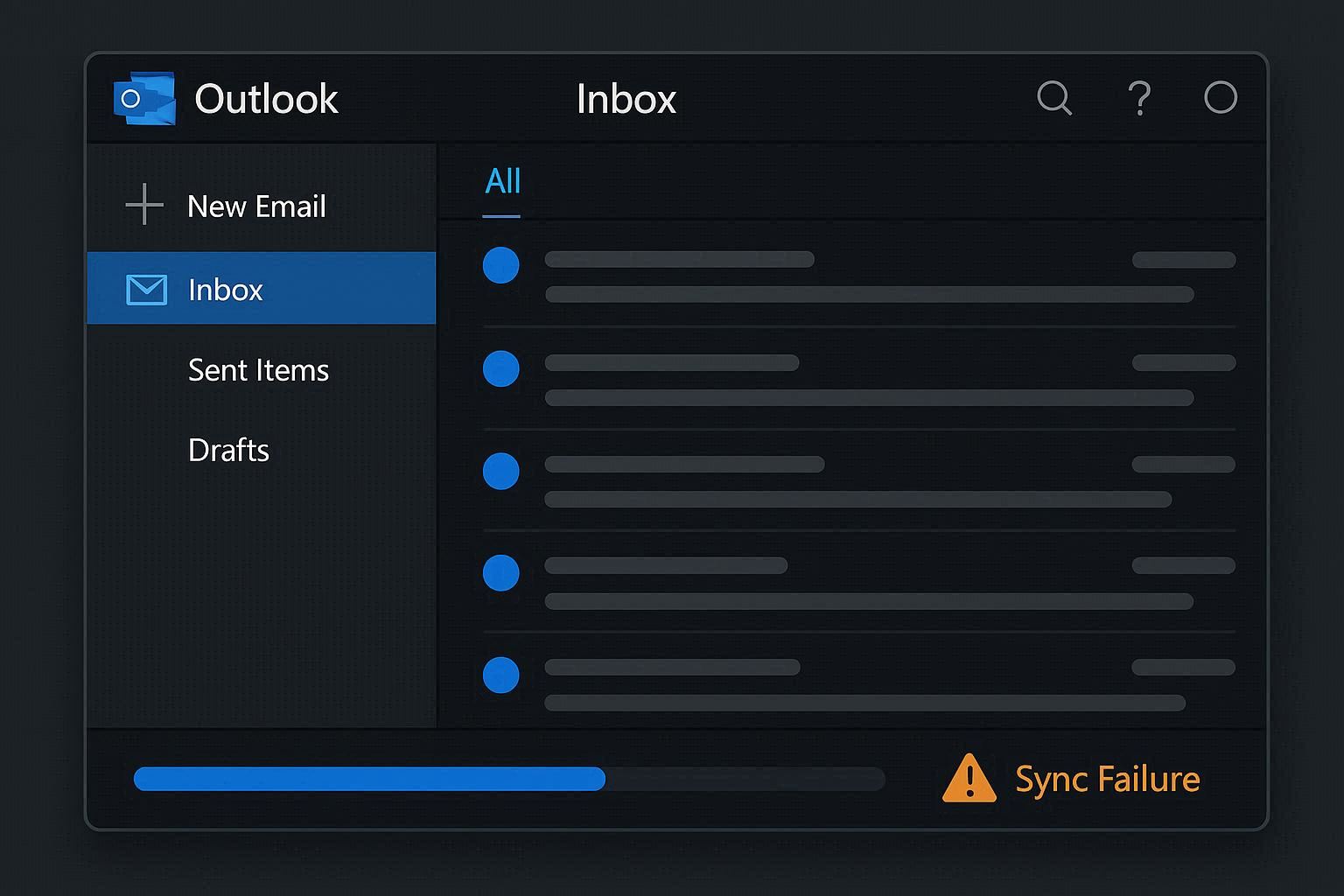
There’s a special kind of anxiety that comes from an Outlook inbox that hasn’t received a new email in two hours.
Is nobody emailing you? Did everyone suddenly forget you exist? Or — the creeping fear — has Outlook been silently failing to sync, and there are 47 unread messages sitting on the server that you can’t see, including that time-sensitive one from your boss three hours ago?
That second scenario happens way more often than it should. Outlook is a powerful email client, but its sync mechanism has several moving parts, and when any one of them fails, the result is the same: emails stop appearing. And Outlook is terrible at telling you something is wrong. It’ll happily show “Connected” in the status bar while actually not syncing a thing.
Let’s figure out what’s actually broken and fix it.
Step 1: Check the Most Embarrassing Possibility First
Look at the very bottom of the Outlook window. The status bar shows your connection state. If it says “Working Offline” — well, there’s your problem.
When Outlook is in offline mode, it doesn’t sync with the server at all. No sending, no receiving, no calendar updates. It just sits there showing you stale data and making you think everything is fine.
To fix it: click the Send / Receive tab in the ribbon, then click Work Offline. The status should change from “Working Offline” to “Connected” or “Trying to connect.”
This happens more than you’d think. You might have accidentally clicked the button. Or Outlook may have automatically switched to offline mode during a brief network interruption — and then never switched back because, well, Outlook.
If the status bar says “Trying to connect…” or “Disconnected” and stays that way, the problem is deeper. Keep reading.
Step 2: Force a Manual Sync and Read the Error
Press F9 or go to Send / Receive → Send/Receive All Folders. This forces Outlook to immediately attempt syncing with the server.
Watch the progress bar at the bottom of the screen. Two things can happen:
The sync completes without errors but still no new emails. This could mean there genuinely are no new emails (check via Outlook web to confirm), or the sync is completing but not pulling down new items due to a filter or stuck state.
An error dialog appears. Write down the error code. Here are the common ones:
0x800CCC0E — Outlook can’t connect to the mail server. Usually a network issue, firewall blocking, or incorrect server settings.
0x800CCC0F — The connection was dropped during sync. Network instability or the server forcefully closed the connection.
0x8004010F — Outlook can’t find the data file. The OST file is missing, moved, or corrupted.
0x80040119 or 0x80040600** — Corrupt local data file. The OST needs to be rebuilt.
0x800401FE — Authentication failure. Your password or authentication token has expired.
If you’re on Microsoft 365 and the error suggests authentication, try signing out and back in: File → Office Account → Sign Out, then sign back in. Microsoft 365 uses modern authentication tokens that expire periodically. Sometimes they don’t refresh properly and need a manual reset.
Step 3: Rebuild the OST File (The Fix That Solves 60% of Sync Problems)
The OST file is Outlook’s local cache of your entire mailbox. Every email, every calendar event, every contact — a copy lives in this file on your hard drive. Outlook uses it to let you work offline and to speed up access to your mail.
Over time — months or years of use, tens of thousands of emails, add-in conflicts, unexpected shutdowns — this file can become corrupted. When it does, sync breaks in subtle and frustrating ways. Emails might arrive hours late, folders might not update, or sync might fail silently with no error at all.
Rebuilding the OST file forces Outlook to throw away the local cache and download everything fresh from the server. It’s like clearing the browser cache, but for your email.
Here’s how:
- Close Outlook completely (make sure it’s not still running in the system tray)
- Open Control Panel → search for “Mail” → click Mail (Microsoft Outlook)
- Click Email Accounts → select your account → click Open File Location (or note the file path shown)
- In the file location, find the .ost file (it’ll be named something like
your.email@company.com.ost) - Rename the file by adding
.oldto the end (e.g.,your.email@company.com.ost.old) - Open Outlook
Outlook will notice the OST file is missing and create a brand new one. It’ll then begin re-downloading your entire mailbox from the server. Depending on mailbox size, this could take anywhere from a few minutes to several hours.
Your data is safe. Everything lives on the Microsoft 365 or Exchange server. The OST file is just a local copy. Rebuilding it is completely non-destructive.
After the re-download completes, check if sync is working normally. Send yourself a test email from another account or from Outlook web and see if it appears in the desktop app within a minute or two.
Step 4: Create a New Outlook Profile
If rebuilding the OST file didn’t fix things, the Outlook mail profile itself might be corrupted. A profile stores your account settings, data file locations, and connection configuration. Corruption here can cause persistent sync failures that no amount of OST rebuilding will fix.
- Close Outlook
- Open Control Panel → search for “Mail” → click Show Profiles
- Click Add to create a new profile
- Give it a name (anything works — “New” is fine)
- Enter your email address and password
- Let Outlook auto-configure the account (it’ll set up server settings automatically for most providers)
- Once configured, select the new profile and click Set as Default
- Open Outlook
If Outlook works correctly with the new profile — emails sync, no errors — the old profile was corrupted. You can safely delete it from the Profiles dialog.
If the problem persists even with a fresh profile, the issue is either with the Outlook installation itself or with the mail server.
Step 5: Repair the Outlook Installation
If a new profile didn’t help, repair the Office installation:
- Open Settings → Apps → Installed apps (or Apps & features on older Windows 11)
- Find Microsoft 365 (or Microsoft Office)
- Click the three dots → Modify
- Select Online Repair (not Quick Repair — Online Repair is more thorough)
- Click Repair and wait for the process to complete
Online Repair downloads fresh Office files from Microsoft’s CDN and replaces any corrupted or missing components. It takes 15-30 minutes and requires an internet connection. Your data, settings, and licenses are preserved.
After repair, open Outlook and test sync again.
Step 6: Check for Server-Side Outages
If none of the local fixes work, Microsoft’s servers might be down. This happens several times a year, and when it does, no local troubleshooting will help.
Check these sources:
- Microsoft Service Health: status.office365.com (or admin.microsoft.com → Service Health if you have admin access)
- DownDetector: downdetector.com/status/outlook — real-time reports from other users
- Microsoft 365 Status on X/Twitter: @MSFT365Status — official updates during outages
If there’s an active incident affecting Exchange Online or Outlook, Microsoft will show it on the Service Health dashboard. In January 2026, a significant Outlook outage affected POP email access and PST file management for several days before Microsoft released an emergency patch.
During outages, use Outlook on the web (outlook.office365.com) as a temporary alternative — it connects directly to the server and is often the last thing to go down during partial outages.
Preventing Future Sync Issues
Keep your OST file healthy. If your mailbox is very large (50,000+ emails), consider archiving older emails. Massive OST files are slower to sync and more prone to corruption. Use File → Cleanup Tools → Archive to move old items to a separate archive file.
Don’t force-quit Outlook. Ending Outlook via Task Manager mid-sync can corrupt the OST file. Always close Outlook normally using File → Exit or the X button, and wait for it to fully close.
Keep Office updated. Go to File → Office Account → Update Options → Update Now. Microsoft releases monthly updates that fix sync bugs and improve reliability.
Watch the status bar. Make it a habit to glance at the bottom of Outlook when you open it. “Connected” means everything is fine. “Working Offline,” “Disconnected,” or “Trying to connect” mean something needs attention.
Outlook sync failures are always solvable — the challenge is diagnosis. Is it offline mode? A corrupted cache? An expired token? A server outage? Now you know how to check each one systematically instead of randomly trying things and hoping for the best.