
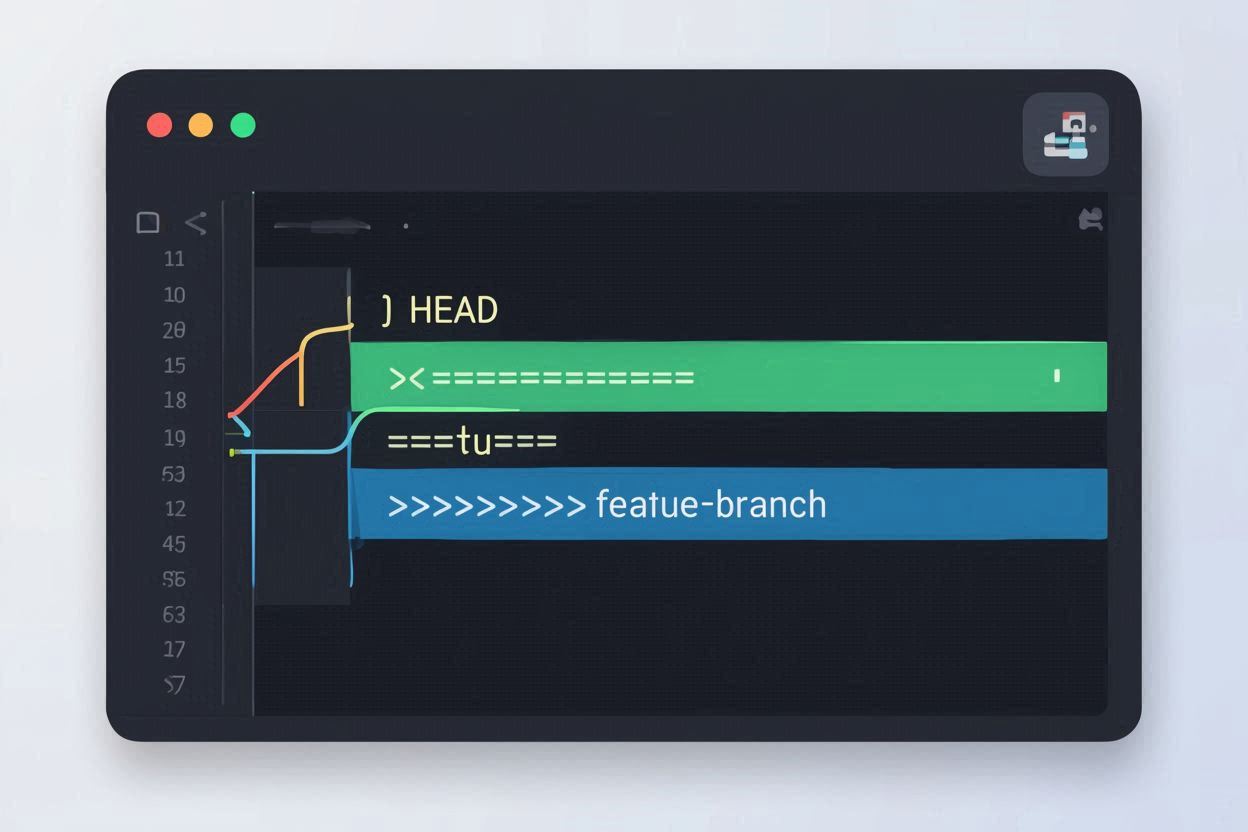
You’re working on a feature branch. You’ve been making solid progress for days. You’re ready to merge your work back into main. You run git merge main to bring in the latest changes, and Git hits you with:
Auto-merging app.js

CONFLICT (content): Merge conflict in app.js

Automatic merge failed; fix conflicts and then commit the result.
You open the file and see this mess:
<<<<<<< HEAD

const port = 3000;

=======

const port = process.env.PORT || 8080;

>>>>>>> main
If your first instinct is to randomly click “Accept Current Change” or “Accept Incoming Change” in your editor, stop. That’s how bugs get shipped to production. Those conflict markers are telling you something specific, and it takes about 30 seconds to understand what they mean.
What the Conflict Markers Mean
Every merge conflict looks the same. Three markers divide the conflict into two sections:
<<<<<<< HEAD

your code (current branch)

=======

their code (incoming branch)

>>>>>>> branch-name
<<<<<<< HEAD — Everything below this line, until the equals signs, is the code from YOUR current branch. This is what you wrote.
======= — The divider between the two versions.
>>>>>>> branch-name — Everything above this line, from the equals signs upward, is the code from the OTHER branch. This is what someone else wrote (or what exists in the branch you’re merging in).
In our example:
<<<<<<< HEAD

const port = 3000;        ← You hardcoded port 3000

=======

const port = process.env.PORT || 8080;  ← Someone else made it configurable

>>>>>>> main
Now you understand the conflict. You wrote const port = 3000. Someone else changed the same line to const port = process.env.PORT || 8080. Git can’t decide which one to keep, so it’s asking you.
The Three Decisions You Can Make
Keep your version: Delete the incoming code and all markers.
const port = 3000;
Keep their version: Delete your code and all markers.
const port = process.env.PORT || 8080;
Combine both (the smart choice): Write new code that incorporates the best of both.
const port = process.env.PORT || 3000;
This keeps the configurable environment variable from the other branch but uses your port 3000 as the default instead of 8080. That’s often the right answer — neither version alone is complete, but together they make something better.
The critical rule: delete ALL conflict markers. Every <<<<<<<, =======, and >>>>>>> must be removed from the file. If you leave even one behind, your code won’t compile.
Step-by-Step Resolution in the Terminal
1. Find all conflicted files:
git status
Look under “Unmerged paths” — those are the files with conflicts.
2. Open each file and resolve the conflict:
Use any text editor — VS Code, Vim, Nano, Sublime, whatever you’re comfortable with. Find the conflict markers, decide what the final code should look like, delete the markers.
3. Test your code:
Before staging, make sure the code actually works. Run your test suite, start the application, or at minimum check that it compiles. Don’t stage broken code.
4. Stage the resolved files:
git add app.js
Or stage everything:
git add .
5. Complete the merge:
git commit
Git opens your editor with a default merge commit message. You can edit it or accept the default. Save and close.
Done. The merge is complete.
Resolving Conflicts in VS Code (The Easy Way)
VS Code makes conflict resolution visual and fast. When you open a file with conflicts, you’ll see:
Green highlight — your code (Current Change)
Blue highlight — their code (Incoming Change)
Above each conflict block, VS Code shows clickable buttons:
Accept Current Change — keeps your code, deletes theirs
Accept Incoming Change — keeps their code, deletes yours
Accept Both Changes — keeps both blocks of code, one after the other
Compare Changes — shows a side-by-side diff
For simple conflicts, clicking one of these buttons is perfectly fine. For complex conflicts where you need to combine code, click inside the conflict zone and edit manually — delete the markers and write the final version.
VS Code’s 3-Way Merge Editor:
For complicated conflicts, VS Code has a powerful merge editor. Look for the “Resolve in Merge Editor” button at the bottom of the file. This opens a three-panel view:
- Top Left: Your code (Current)
- Top Right: Their code (Incoming)
- Bottom: The result
You can check boxes next to specific code blocks to include them in the result, or type directly in the result panel. This is the best tool for conflicts where you need to surgically combine code from both sides.
After resolving, go to the Source Control panel (Ctrl + Shift + G), stage the file (click +), and commit.
Resolving Conflicts on GitHub
If you’re resolving a conflict in a pull request on GitHub:
- Go to the pull request page
- Click “Resolve conflicts” (if available — GitHub can only resolve simple conflicts)
- The web editor shows the conflict markers
- Edit the code to resolve the conflict, removing all markers
- Click “Mark as resolved”
- Click “Commit merge”
If the “Resolve conflicts” button is grayed out, the conflict is too complex for GitHub’s web editor. You need to resolve it locally using the terminal or VS Code.
Resolving Conflicts During a Rebase
Rebasing is different from merging, but the conflict resolution process is almost identical. The difference is in how you finish.
During a merge: resolve → git add → git commit
During a rebase: resolve → git add → git rebase --continue
When you run git rebase main and hit a conflict:
- Resolve the conflict in the file (same as above — remove markers, write final code)
- Stage the file:
git add filename - Continue the rebase:
git rebase --continue
Git applies the current commit and moves to the next one. If there are more conflicts, you’ll resolve them one at a time. Each conflict corresponds to a single commit being replayed.
If you get overwhelmed: git rebase --abort cancels everything and returns to the state before the rebase started.
The Emergency Exit
At any point during conflict resolution, if you want to undo everything and go back to where you were before:
During a merge:
git merge --abort
During a rebase:
git rebase --abort
During a cherry-pick:
git cherry-pick --abort
These commands are safe. They undo the merge/rebase/cherry-pick and leave your branch exactly as it was. No data is lost. Use them whenever you feel lost.
Real-World Conflict Patterns
Pattern 1: Both sides edited the same function.
One person added a parameter. Another person changed the return value. You need to keep both changes — the new parameter AND the new return value.
Pattern 2: One side added code above, the other added code below.
Git marks the whole block as a conflict even though the changes don’t actually overlap. Use “Accept Both Changes” — both additions are probably needed.
Pattern 3: One side deleted a file, the other edited it.
Git can’t merge a deletion with an edit. You need to decide: should the file exist or not? If it should exist, keep the edited version. If it shouldn’t, accept the deletion.
Pattern 4: Package-lock.json or yarn.lock conflicts.
Don’t manually resolve lock file conflicts. Accept either version, then run npm install or yarn install to regenerate the lock file. The lock file will be correct based on the current package.json.
How to Reduce Merge Conflicts
You can’t prevent all conflicts, but you can make them less frequent and less painful:
Pull frequently. Run git pull origin main (or git rebase main) regularly while working on your feature branch. Small, frequent syncs create small, easy conflicts. Waiting two weeks to sync creates massive, painful conflicts.
Keep branches short-lived. A branch that lives for two days has far fewer conflicts than a branch that lives for two weeks. Merge small features often rather than large features rarely.
Communicate. If you know a teammate is working on the same file, coordinate. “Hey, I’m refactoring the auth module this afternoon” prevents a lot of headaches.
Don’t reformat entire files. If you change the indentation of a 500-line file from tabs to spaces, every line is “changed.” Anyone else who edits that file will have conflicts on every single line. Keep formatting changes in separate, dedicated commits.
Merge conflicts are not bugs. They’re not failures. They’re Git’s way of saying “I found two different versions of this code and I’m not smart enough to decide which one is right — you need to make that call.” Once you understand what the markers mean, resolving conflicts becomes routine. It takes 30 seconds for simple ones, a few minutes for complex ones, and you never need to fear them again.