
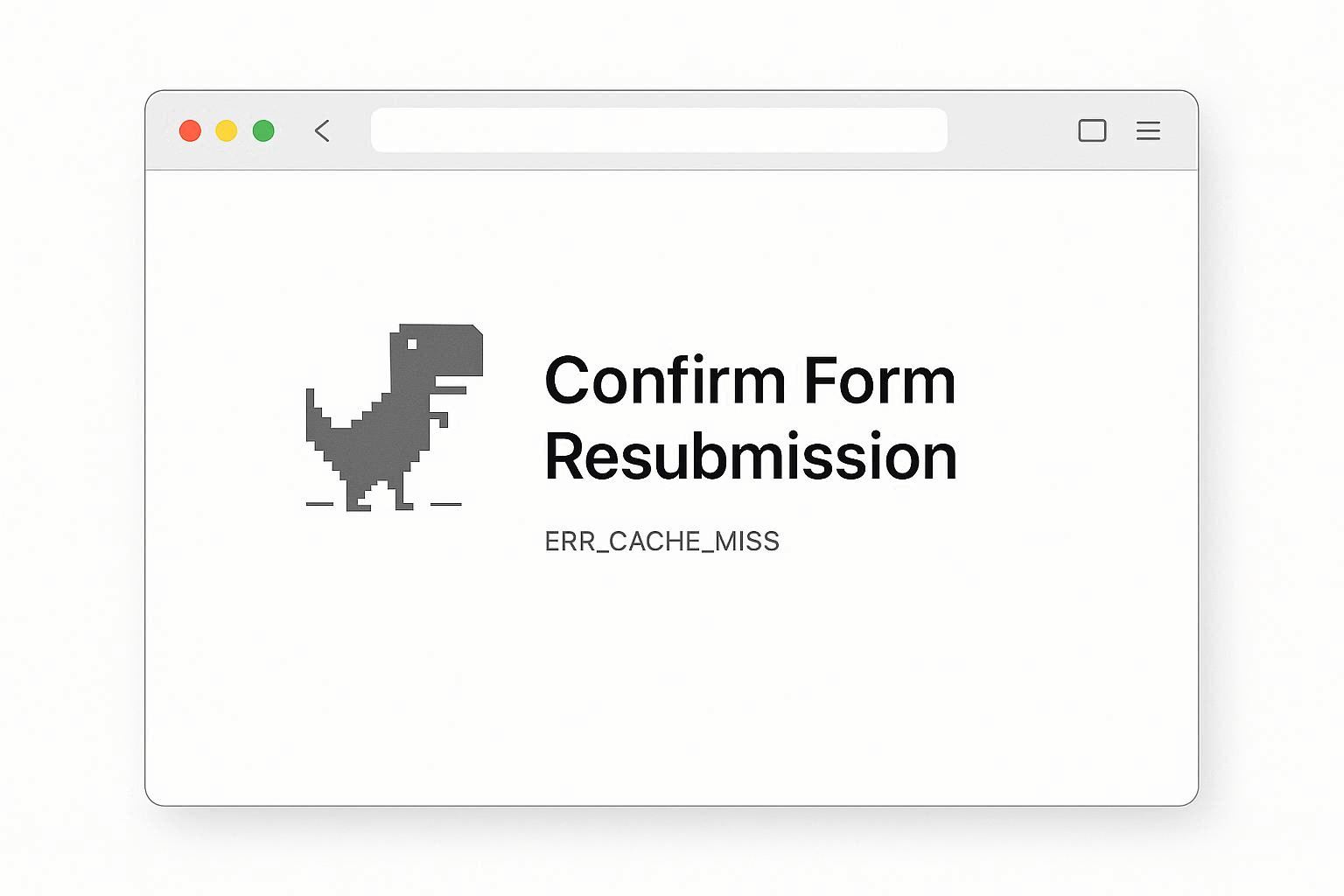
You fill out a form, click Submit, and then press the Back button. Instead of going back, Chrome hits you with: “Confirm Form Resubmission — ERR_CACHE_MISS.”
Or you refresh a page and Chrome refuses to load it, showing the same error with zero explanation.
Every guide you find says “clear your cache.” And sure, that sometimes works. But here’s what nobody tells you: ERR_CACHE_MISS is not actually a cache error. It’s Chrome’s built-in safety mechanism to prevent you from accidentally submitting a form twice.
Understanding this changes how you fix it.
What ERR_CACHE_MISS Actually Means
When you submit a form on a website (login, payment, search, contact form), your browser sends a POST request to the server. POST requests modify data — they log you in, charge your card, or send your message.
When you press the Back button or Refresh after a POST request, Chrome has a dilemma: should it re-send that form data? If it does, you might accidentally pay twice, create a duplicate account, or post the same comment again.
So Chrome blocks the page and shows ERR_CACHE_MISS. It’s saying: “I’d have to resubmit your form data to show this page, and I’m not going to do that without your permission.”
That’s why the full message is usually “Confirm Form Resubmission” — not “cache broken” or “cache corrupted.”
When Is It Actually a Cache Problem?
If ERR_CACHE_MISS appears on random websites where you haven’t submitted any forms — just normal browsing — then yes, it’s a real cache issue. This happens when:
- Your browser cache is corrupted
- An extension is messing with Chrome’s caching behavior
- Your network drops out mid-page-load, corrupting cached data
- Chrome’s profile data is damaged
The fix depends on which scenario you’re dealing with. Let’s go through each one.
Fix 1: Hard Refresh (Bypasses Cache Completely)
If ERR_CACHE_MISS appears on a specific page after using the Back button or Refresh, do a hard refresh:
Windows/Linux: Ctrl + Shift + R or Shift + F5
Mac: Cmd + Shift + R
A hard refresh tells Chrome: “Forget everything you’ve cached for this page. Download everything fresh from the server.” This bypasses the form resubmission check entirely.
Fix 2: Copy the URL and Open in a New Tab
This is the cleanest workaround for the form resubmission variant:
- Look at the address bar — the URL is still there
- Click on it, press
Ctrl + Cto copy - Open a new tab with
Ctrl + T - Paste the URL with
Ctrl + Vand press Enter
Opening the URL in a fresh tab sends a GET request (just viewing the page) instead of a POST request (resubmitting form data). No form resubmission, no error.
Fix 3: Clear Cache and Cookies
If the error appears randomly across multiple websites:
- Press
Ctrl + Shift + Delete - Set time range to All time
- Check “Cached images and files”
- Check “Cookies and other site data” (this will log you out of websites)
- Click Clear data
- Restart Chrome
This wipes all cached data and forces Chrome to download everything fresh from every website you visit.
Fix 4: Disable Extensions
Some extensions interfere with how Chrome handles caching and network requests. The usual suspects:
- Ad blockers (uBlock Origin, AdBlock Plus) — they modify network requests
- Privacy extensions (Privacy Badger, Ghostery) — they block tracking scripts that pages depend on
- VPN extensions — they reroute traffic, sometimes breaking cache behavior
- Data saver extensions — they modify cached content
To test:
- Go to
chrome://extensions/ - Toggle OFF all extensions
- Browse normally for a while
If ERR_CACHE_MISS stops appearing, re-enable extensions one at a time to find the culprit.
Pro tip: You can also test in Incognito mode (Ctrl + Shift + N). Incognito disables all extensions by default, so if the error vanishes in Incognito, an extension is almost certainly the cause.
Fix 5: Flush DNS Cache
A corrupted DNS cache can interfere with page loading and trigger cache-related errors.
Open Command Prompt as Administrator and run:
ipconfig /flushdns
Mac users, open Terminal and run:
sudo dscacheutil -flushcache; sudo killall -HUP mDNSResponder
Also flush Chrome’s internal DNS cache:
- Go to
chrome://net-internals/#dns - Click “Clear host cache”
Fix 6: Disable Cache via DevTools (For Developers)
If you’re a developer and ERR_CACHE_MISS keeps appearing while you’re building or testing a site, you can tell Chrome to completely bypass caching:
- Press
F12to open Developer Tools - Click the Network tab
- Check the “Disable cache” box
- Keep DevTools open while browsing
With this checkbox enabled, Chrome never uses cached files — it downloads everything fresh from the server on every page load. This eliminates any cache-related errors entirely.
Important: This only works while DevTools is open. Close DevTools and caching returns to normal.
Fix 7: Reset Chrome to Default Settings
If nothing else works and ERR_CACHE_MISS persists across many websites:
- Open Chrome Settings
- Scroll down and click “Reset and clean up”
- Click “Restore settings to their original defaults”
- Click Reset settings
This resets all Chrome settings, disables all extensions, and clears temporary data. It does NOT delete your bookmarks or saved passwords (those sync with your Google account).
After resetting, Chrome essentially behaves like a fresh installation.
If You’re a Website Owner
If your visitors are seeing ERR_CACHE_MISS on your forms, here’s what’s happening: your form handling doesn’t include a POST-redirect-GET pattern. After the user submits a form (POST), your server should redirect them to a new URL (GET). This way, if they press Back or Refresh, Chrome loads a GET request — no form resubmission warning.
This is called the PRG (Post/Redirect/Get) pattern, and it’s a standard web development best practice that prevents this exact issue.
Frequently Asked Questions
Is ERR_CACHE_MISS the same as “This site can’t be reached”?
No. “This site can’t be reached” means Chrome couldn’t connect to the server at all (DNS failure, server down, no internet). ERR_CACHE_MISS means Chrome connected fine but is refusing to reload the page because it would need to resubmit form data.
Will clearing cache delete my saved passwords?
No, unless you specifically check the “Passwords” box in the Clear Browsing Data dialog. By default, only cache and cookies are selected. Your saved passwords, bookmarks, and autofill data are separate.
ERR_CACHE_MISS keeps coming back after I clear cache. Why?
If it keeps returning, the issue is likely a browser extension interfering with caching, or a corrupted Chrome profile. Try creating a new Chrome profile: click your profile picture in the top-right → “Add” → create a new profile and test with it.
I see “Document Expired” in Firefox. Is it the same thing?
Yes, exactly the same thing. Firefox calls it “Document Expired” instead of ERR_CACHE_MISS, but the cause is identical — the browser is preventing you from resubmitting form data by pressing Back or Refresh.
The 30-Second Fix
If you just want to get past ERR_CACHE_MISS right now: copy the URL from the address bar, open a new tab, paste it, press Enter. That’s it. No cache clearing needed, no settings to change. You’re just telling Chrome to load the page fresh instead of resubmitting old form data.
Last updated: January 2026 | Tested on Chrome 131, Edge 131 — Windows 10/11, macOS