
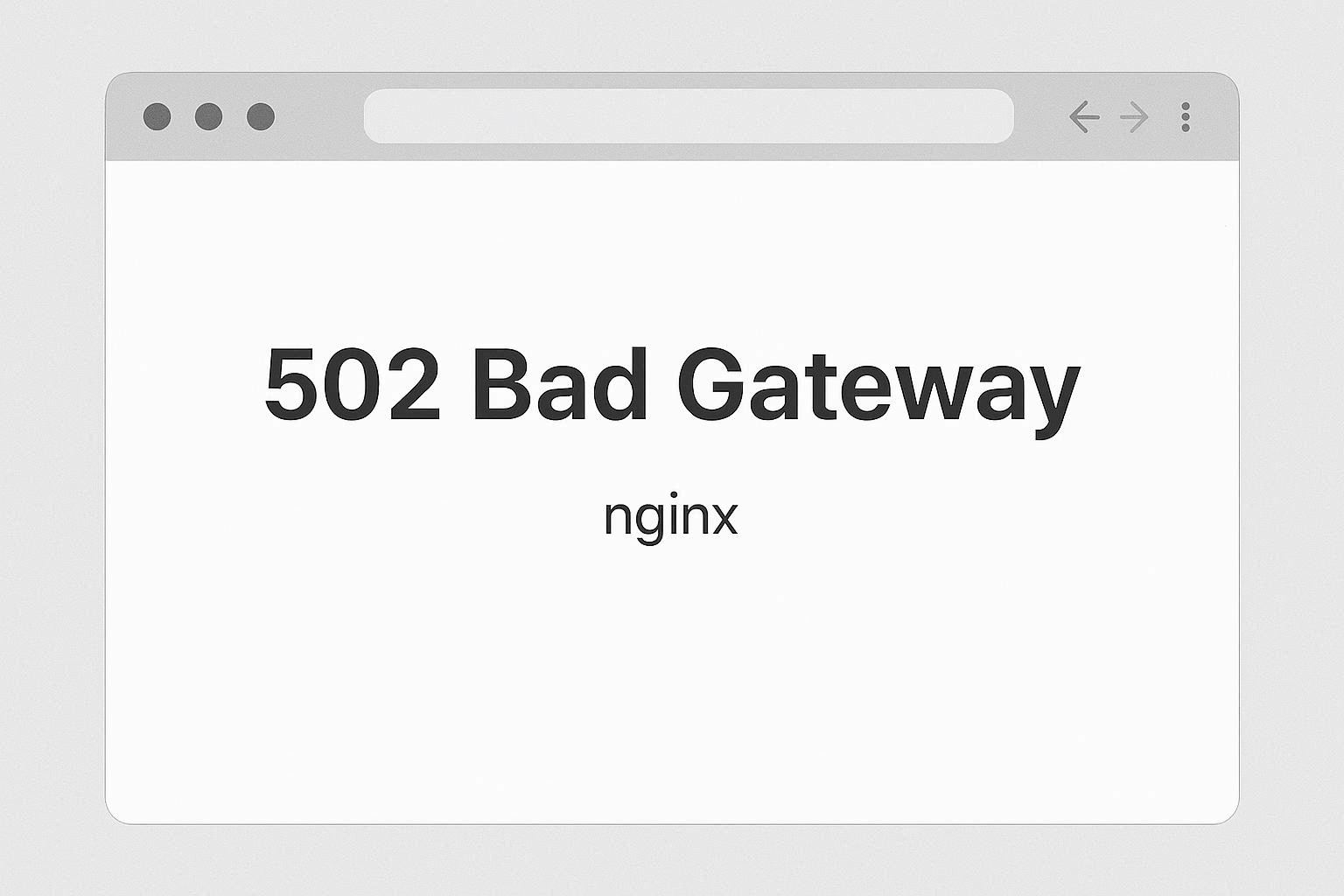
You deploy your website or application. Everything worked fine in development. You open the URL in a browser and see:
502 Bad Gateway
nginx
No helpful details. No explanation. Just a gray page with two lines of text.
If you’ve never debugged a server before, this feels terrifying. But here’s the good news: the Nginx error log tells you exactly what went wrong, and 90% of the time, it’s PHP-FPM.
Step 1: Read the Error Log (This Tells You Everything)
Before anything else, check the Nginx error log:
sudo tail -50 /var/log/nginx/error.log
Look for the most recent entries. The error message will look like one of these:
Case A — PHP-FPM is down:
connect() to unix:/run/php/php8.2-fpm.sock failed (2: No such file or directory)
Case B — PHP-FPM is overloaded:
connect() to unix:/run/php/php8.2-fpm.sock failed (11: Resource temporarily unavailable)
Case C — Socket path mismatch:
connect() to unix:/run/php/php8.1-fpm.sock failed (2: No such file or directory)
(Note the version number — Nginx is looking for 8.1 but you installed 8.2)
Case D — PHP script crashed:
upstream prematurely closed connection while reading response header
Case E — Timeout:
upstream timed out (110: Connection timed out) while reading response header
Each case has a different fix. The error log is your starting point — always read it first.
Fix for Case A: PHP-FPM Is Down
The most common cause of 502 errors. PHP-FPM stopped running, and Nginx can’t forward requests to it.
Check PHP-FPM status:
sudo systemctl status php8.2-fpm
(Replace 8.2 with your PHP version. Run php -v to check.)
If it says inactive (dead) or failed, restart it:
sudo systemctl restart php8.2-fpm
Check the status again to make sure it started:
sudo systemctl status php8.2-fpm
If it says active (running), your 502 should be resolved. Reload your website.
If it won’t start, check why:
sudo journalctl -u php8.2-fpm --no-pager -n 50
The journal log will show the specific error — usually a configuration syntax error, a missing module, or a permissions issue.
Fix for Case B: PHP-FPM Ran Out of Workers
If PHP-FPM is running but returning “Resource temporarily unavailable,” all worker processes are busy and can’t accept new requests.
Check the PHP-FPM pool configuration:
sudo nano /etc/php/8.2/fpm/pool.d/www.conf
Find these settings:
pm = dynamic

pm.max_children = 5

pm.start_servers = 2

pm.min_spare_servers = 1

pm.max_spare_servers = 3
The default pm.max_children = 5 is too low for most websites. This means only 5 PHP requests can be processed simultaneously. During a traffic spike, request #6 gets a 502 error.
How to calculate the right value:
-
Check how much RAM each PHP-FPM worker uses:
ps -eo rss,comm | grep php-fpm | awk '{sum+=$1; count++} END {print sum/count/1024 " MB per worker"}'Typical values: 20-50 MB per worker (varies by application).
-
Check available RAM:
free -mLook at the “available” column.
-
Calculate: available RAM ÷ RAM per worker = max_children
Example: 2048 MB available ÷ 40 MB per worker = 51 workers
Update the configuration:
pm.max_children = 50

pm.start_servers = 10

pm.min_spare_servers = 5

pm.max_spare_servers = 20
Save and restart PHP-FPM:
sudo systemctl restart php8.2-fpm
Fix for Case C: Socket Path Mismatch
This is the sneakiest cause. After a PHP upgrade (say, from 8.1 to 8.2), the socket path changes, but your Nginx configuration still points to the old version.
Check your Nginx site config:
sudo grep fastcgi_pass /etc/nginx/sites-enabled/*
You’ll see something like:
fastcgi_pass unix:/run/php/php8.1-fpm.sock;
Check which PHP-FPM socket actually exists:
ls /run/php/
If it shows php8.2-fpm.sock but Nginx is looking for php8.1-fpm.sock, that’s your problem.
Fix the Nginx config:
sudo nano /etc/nginx/sites-enabled/your-site.conf
Change:
fastcgi_pass unix:/run/php/php8.1-fpm.sock;
To:
fastcgi_pass unix:/run/php/php8.2-fpm.sock;
Test and reload Nginx:
sudo nginx -t

sudo systemctl reload nginx
Pro tip: To avoid this problem during future PHP upgrades, some people use a version-agnostic socket path or symlink. But the most reliable approach is to update the Nginx config whenever you upgrade PHP.
Fix for Case D: PHP Script Crashed
If the error log says “upstream prematurely closed connection,” PHP-FPM is running but the PHP script itself crashed.
Check the PHP-FPM log:
sudo tail -50 /var/log/php8.2-fpm.log
Common causes:
- Allowed memory limit exceeded — the script used more RAM than PHP allows
- Maximum execution time exceeded — the script took too long
- Fatal error in the code — syntax error, undefined function, etc.
Increase PHP memory limit if needed:
sudo nano /etc/php/8.2/fpm/php.ini
Find and change:
memory_limit = 256M       ; default is often 128M

max_execution_time = 300   ; default is 30 seconds
Restart PHP-FPM:
sudo systemctl restart php8.2-fpm
Fix for Case E: Timeout
If Nginx times out waiting for PHP-FPM, you need to increase timeout values. This happens with slow database queries, heavy API calls, or large file processing.
Edit your Nginx server block:
sudo nano /etc/nginx/sites-enabled/your-site.conf
Add or increase these values inside the location ~ \.php$ block:
fastcgi_read_timeout 300;

fastcgi_send_timeout 300;

fastcgi_connect_timeout 60;
If you’re using Nginx as a reverse proxy (with proxy_pass):
proxy_read_timeout 300;

proxy_send_timeout 300;

proxy_connect_timeout 60;
Test and reload:
sudo nginx -t

sudo systemctl reload nginx
Note: Increasing timeouts is a band-aid. The real fix is optimizing the slow PHP script or database query. Use slow query log in MySQL/MariaDB to identify bottleneck queries.
Quick Troubleshooting Checklist
When you see 502 Bad Gateway on Nginx, run through this in order:
- ✅ Read the error log:
sudo tail -50 /var/log/nginx/error.log - ✅ Check PHP-FPM status:
sudo systemctl status php8.2-fpm - ✅ Verify socket paths match between Nginx and PHP-FPM
- ✅ Check PHP-FPM worker count: is
pm.max_childrenhigh enough? - ✅ Check PHP error log:
sudo tail -50 /var/log/php8.2-fpm.log - ✅ Check disk space:
df -h(full disk = PHP can’t write sessions/temp files) - ✅ Check RAM:
free -m(if available RAM is near zero, OOM killer may have killed PHP-FPM) - ✅ Restart everything:
sudo systemctl restart php8.2-fpm nginx
If It’s Not PHP-FPM
Not all 502 errors are PHP-FPM. Nginx can also proxy to other upstream servers:
Node.js / Python / Go application:
If Nginx proxies to a backend application (using proxy_pass), check if that application is running:
sudo systemctl status your-app

# or check the process directly

ps aux | grep node

ps aux | grep gunicorn

ps aux | grep uvicorn
If the application crashed, restart it and check its logs for the error.
Upstream server on a different machine:
If Nginx proxies to another server over the network, check:
- Is the remote server up? (
ping remote-server-ip) - Is the port open? (
telnet remote-server-ip 8080) - Is there a firewall blocking the connection? (
sudo ufw status)
502 vs 503 vs 504 Quick Reference
| Error | Meaning | Common Cause |
|---|---|---|
| 502 Bad Gateway | Invalid response from upstream | PHP-FPM down, socket mismatch, app crashed |
| 503 Service Unavailable | Server can’t handle requests right now | Server overloaded, maintenance mode |
| 504 Gateway Timeout | Upstream took too long to respond | Slow DB query, script timeout, network lag |
If You Found This Guide Helpful
Check out our other troubleshooting resources:
- How to Fix “Permission Denied” on Linux — file permissions explained
- How to Fix “Could Not Get Lock /var/lib/dpkg/lock” on Ubuntu — stuck apt/dpkg fix
- How to Fix No Sound on Ubuntu Linux — PulseAudio & PipeWire troubleshooting
Frequently Asked Questions
PHP-FPM keeps crashing every few hours. How do I find out why?
Check the systemd journal with sudo journalctl -u php8.2-fpm -f (the -f flag follows the log in real-time). Common causes of repeated crashes: running out of memory (OOM killer terminates the process), pm.max_children set too high for available RAM, or a PHP script creating memory leaks. Also check dmesg | grep -i kill to see if the Linux kernel killed PHP-FPM due to memory pressure.
I upgraded PHP and now I get 502. What happened?
The PHP-FPM socket path changed to the new version (from php8.1-fpm.sock to php8.2-fpm.sock), but your Nginx configuration still points to the old path. Update the fastcgi_pass line in your Nginx site config to match the new socket path, test with nginx -t, and reload Nginx.
How do I test if PHP-FPM is working independently from Nginx?
Use cgi-fcgi or curl to communicate directly with PHP-FPM. Alternatively, create a simple test: check if the socket file exists (ls -la /run/php/php8.2-fpm.sock), verify it’s owned by the correct user (www-data), and confirm PHP-FPM can process requests by checking php-fpm8.2 -t for configuration validation.
My Node.js app shows 502 through Nginx. Is it the same fix?
The diagnostic approach is the same — read the Nginx error log first. But the fix differs. For Node.js, check if the application is running (pm2 status or systemctl status your-app), verify the proxy_pass port matches the port your app listens on, and check the application’s own logs for crash reasons. The socket/FPM concepts don’t apply to Node.js.
Last updated: February 2026 | Tested on Ubuntu 24.04 LTS, Debian 12, AlmaLinux 9 — Nginx 1.26, PHP-FPM 8.2/8.3