
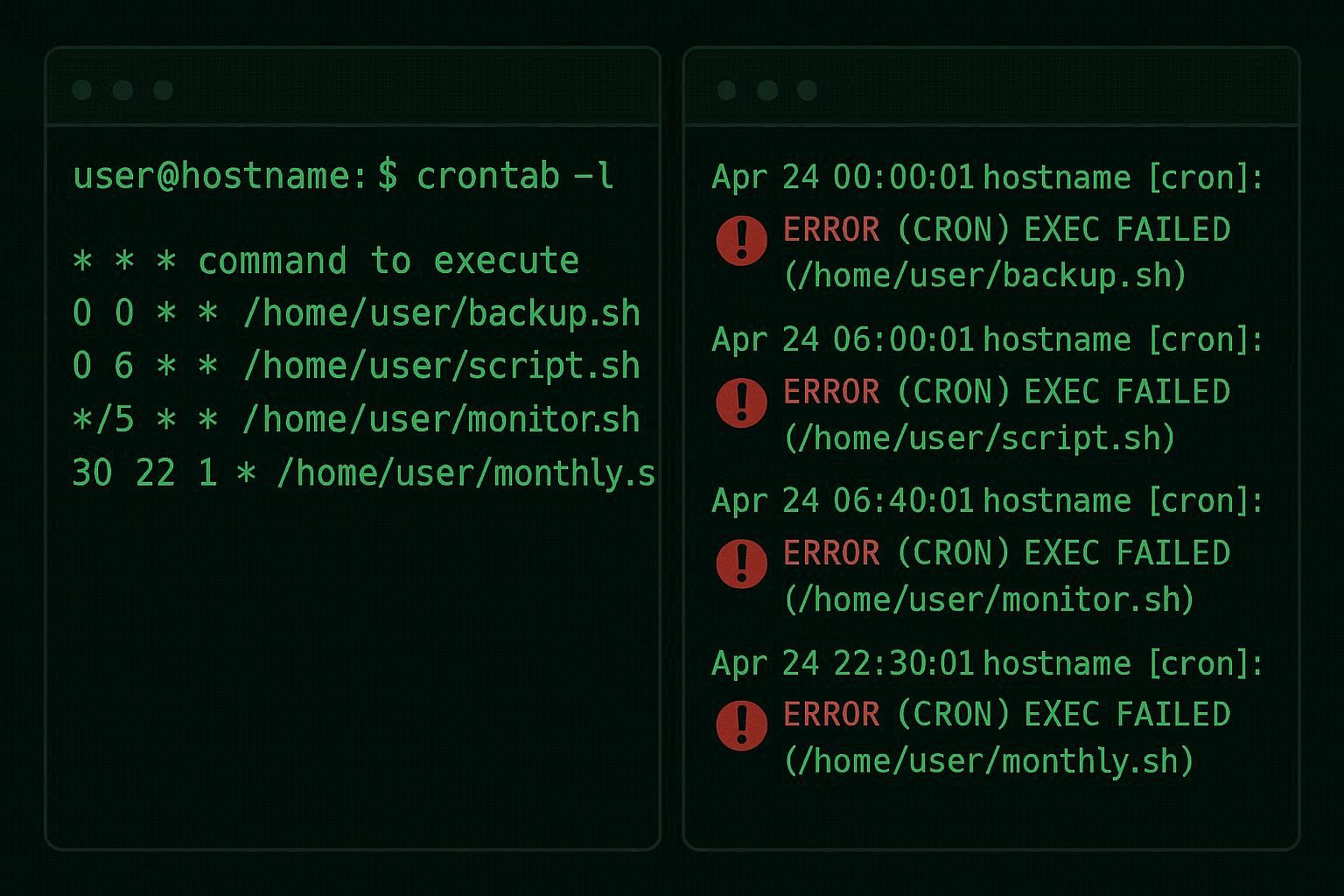
You wrote a perfectly good bash script. You tested it in the terminal. It ran flawlessly. You added it to crontab, set it to run every night at 2 AM, and went to bed feeling productive.
The next morning, nothing happened. The backup wasn’t made. The report wasn’t generated. The database wasn’t cleaned up. The script that worked perfectly five minutes ago just… didn’t run.
No error message in your inbox. No log entry. Nothing in the output. Just silence. Like your cron job fell into a black hole.
This is one of the most common and most frustrating problems in Linux system administration. And the cause is almost always the same: cron runs your command in a completely different environment than your terminal, and nobody tells you this until you’ve wasted three hours staring at a script that’s perfectly correct.
Why Cron Is Not Your Terminal
When you open a terminal and type a command, your shell goes through an elaborate setup process. It reads ~/.bashrc, ~/.bash_profile, ~/.profile, and sometimes other files. These files set your PATH variable (which tells the shell where to find programs), define environment variables, load aliases, configure your prompt, and more.
Your terminal knows where python3 is, where node is, where docker is, and where your custom scripts live — because your PATH includes all those directories.
Cron does none of this.
When cron executes your job, it runs with a brutally minimal environment. The PATH is typically just /usr/bin:/bin — that’s it. No /usr/local/bin, no /snap/bin, no /home/you/.local/bin, no nothing. Any command that’s installed outside of /usr/bin or /bin is invisible to cron.
This means your script that calls python3 might fail because the Python you installed is at /usr/local/bin/python3 and cron doesn’t look there. Your script that calls docker fails because Docker is at /usr/bin/docker on some systems and /snap/bin/docker on others. Your script that calls pg_dump fails because PostgreSQL tools are at /usr/lib/postgresql/15/bin/ and cron has no idea that path exists.
The script is fine. The schedule is fine. Cron is running. It’s just running your command in a world where half the tools don’t exist.
Step 1: Make Sure Cron Is Actually Running
Before blaming the environment, verify that the cron daemon itself is alive:
systemctl status cron          # Debian, Ubuntu

systemctl status crond         # CentOS, RHEL, Fedora
You should see active (running). If it’s stopped or failed:
sudo systemctl start cron

sudo systemctl enable cron     # Start on boot
Then verify your job is in the crontab:
crontab -l                     # Current user's jobs

sudo crontab -l                # Root's jobs
If your job doesn’t appear in the output, it was never saved. Run crontab -e to add it. Make sure you save and exit properly — if you’re using vi as the editor, press Esc, type :wq, and press Enter. If you prefer a different editor, set it with export VISUAL=nano before running crontab -e.
Step 2: Check the Cron Log
Cron logs every execution attempt to the system log. This is your forensic evidence.
On Debian/Ubuntu:
grep CRON /var/log/syslog | tail -20
On CentOS/RHEL:
tail -20 /var/log/cron
You’re looking for lines that match the time your job should have run. A successful cron trigger looks like:
Apr 4 02:00:01 server CRON[12345]: (username) CMD (/home/user/scripts/backup.sh)
If you see this line, cron did execute your command. The problem is that the command failed silently. The fix is in Steps 3-5.
If you don’t see any entry for your job at the expected time, cron didn’t recognize the schedule. The most common syntax errors:
Wrong number of fields. Crontab needs exactly 5 time fields (minute, hour, day-of-month, month, day-of-week) followed by the command. Missing or extra fields break the entire line silently.
Using ranges incorrectly. 1-5 in the day-of-week field means Monday through Friday, but 0 is Sunday (and so is 7 on some systems). Mixing these up shifts your schedule by a day.
Trailing whitespace. Some older cron implementations choke on trailing spaces after the command. Make sure each line ends cleanly.
Use crontab.guru to verify your expression — paste your 5 time fields and it’ll tell you in plain English when the job will run. It also warns about common mistakes.
Step 3: Fix the PATH (This Is the Fix 90% of You Need)
If the cron log shows your job was triggered but nothing happened, the PATH is almost certainly the problem.
Option A: Set PATH at the top of your crontab.
Run crontab -e and add this as the very first line, before any job entries:
PATH=/usr/local/sbin:/usr/local/bin:/usr/sbin:/usr/bin:/sbin:/bin:/snap/bin
This gives cron the same PATH your terminal uses. Now all your commands will be found.
Option B: Use absolute paths in every command.
Instead of:
0 2 * * * python3 /home/user/scripts/backup.py
Use:
0 2 * * * /usr/bin/python3 /home/user/scripts/backup.py
Find the absolute path of any command with which:
which python3    # Shows /usr/bin/python3 or /usr/local/bin/python3

which docker     # Shows /usr/bin/docker or /snap/bin/docker

which pg_dump    # Shows /usr/lib/postgresql/15/bin/pg_dump
Option A is easier to maintain. Option B is more explicit and portable. Both work.
Important: if your script internally calls other programs (e.g., a bash script that runs curl, then jq, then aws), each of those commands also needs to be found via PATH. Setting PATH at the top of the crontab fixes this globally. Or you can add export PATH=/usr/local/sbin:/usr/local/bin:/usr/sbin:/usr/bin:/sbin:/bin at the top of the script itself.
Step 4: Add Output Logging (Stop Debugging Blind)
By default, cron tries to email the output of each job to the user who owns the crontab. On most modern servers, there’s no mail transfer agent configured, so this email goes nowhere. Your script’s error messages, stack traces, and diagnostic output vanish into the void.
Fix this immediately by adding output redirection to every cron job:
0 2 * * * /usr/bin/python3 /home/user/scripts/backup.py >> /home/user/logs/backup.log 2>&1
Breaking this down:
>>appends standard output to the log file (use>to overwrite each time)2>&1redirects standard error to the same file as standard output
Create the log directory first:
mkdir -p /home/user/logs
Now when the job fails, the error message is captured in the log file. Check it after the next scheduled run:
cat /home/user/logs/backup.log
Common errors you’ll discover:
- “command not found” — PATH issue (see Step 3)
- “Permission denied” — script doesn’t have execute permission or is trying to write to a directory it can’t access
- “No such file or directory” — the script uses relative paths that don’t resolve correctly from cron’s working directory
- Python ImportError or ModuleNotFoundError — cron is using a different Python installation than the one you installed packages into (common with virtual environments)
Step 5: Fix Permissions and File Paths
Execute permission. Your script must be executable:
chmod +x /home/user/scripts/backup.sh
Without this, cron can’t run the script directly. You can work around this by calling the interpreter explicitly (/bin/bash /home/user/scripts/backup.sh), but it’s better practice to make the script executable and include a proper shebang.
Shebang line. The first line of your script must tell the system which interpreter to use:
#!/bin/bash          # For bash scripts

#!/usr/bin/env python3   # For Python scripts

#!/usr/bin/env node      # For Node.js scripts
Without this, cron may try to interpret a Python script as shell commands, producing bizarre errors.
Working directory. When you run a script from your terminal, the working directory is wherever you’re currently standing (cd’d into). When cron runs a script, the working directory is typically / or the home directory of the crontab owner.
If your script uses relative paths like ./data/input.csv or output/report.pdf, those will resolve relative to cron’s working directory — not your script’s directory. They’ll point to the wrong location or a nonexistent path.
Fix by using absolute paths everywhere inside your scripts, or add a cd at the beginning:
#!/bin/bash

cd /home/user/projects/myapp || exit 1

./process_data.sh
The || exit 1 ensures the script stops if the cd fails (e.g., if the directory doesn’t exist) instead of running commands in the wrong location.
Virtual environments. If your Python script runs inside a virtual environment, cron doesn’t activate it. You need to call the Python binary from inside the venv directly:
0 2 * * * /home/user/myproject/venv/bin/python /home/user/myproject/script.py
This uses the venv’s Python (with all its installed packages) without needing to activate the environment.
Step 6: The crontab vs cron.d vs cron.daily Confusion
There are multiple places cron jobs can live, and mixing them up causes subtle failures:
crontab -e (per-user crontab) — the most common. Each user has their own crontab. Format: 5 time fields + command.
0 2 * * * /home/user/backup.sh
/etc/crontab (system-wide crontab) — has an extra field for the username. If you put a user crontab entry here without the username field, or put a system crontab entry in your personal crontab with the extra field, the job will fail.
0 2 * * * root /opt/scripts/system-backup.sh
/etc/cron.d/ (system cron fragments) — same format as /etc/crontab (includes username field). Files here are read by cron automatically. File names must not contain dots or other special characters, or cron will ignore them silently.
/etc/cron.daily/, /etc/cron.hourly/, etc. — scripts placed here run at the specified interval via anacron. No crontab syntax needed — just the script. But scripts must be executable and must not have file extensions. A script named backup.sh in /etc/cron.daily/ might be ignored because of the .sh extension depending on the run-parts configuration.
If your job works in crontab -e but not in /etc/cron.d/, you probably forgot the username field. If it works nowhere, the PATH and permission issues from Steps 3-5 are the culprit.
The Cron Job Testing Template
Don’t wait 24 hours to find out your nightly backup didn’t work. Use this template to test any cron job quickly:
# Run every minute (for testing — change back after confirming it works)

* * * * * /usr/bin/python3 /home/user/scripts/backup.py >> /home/user/logs/backup.log 2>&1
Set this, wait 1-2 minutes, then check the log file:
tail -f /home/user/logs/backup.log
If the log file has output (success or error), the job is running. Fix any errors you see. Once everything works, change the schedule to what you actually want (e.g., 0 2 * * * for 2 AM daily).
Then add a lock file to prevent overlapping runs if the job could potentially take longer than its interval:
0 2 * * * /usr/bin/flock -n /tmp/backup.lock /usr/bin/python3 /home/user/scripts/backup.py >> /home/user/logs/backup.log 2>&1
flock is a simple but powerful tool that prevents multiple instances of the same job from running simultaneously. The -n flag makes it exit immediately if the lock is already held, instead of waiting.
Your cron job isn’t broken. It’s working exactly as designed — in an environment that’s radically different from your terminal. Once you understand that difference and account for it with explicit PATHs, absolute file paths, proper permissions, and output logging, cron becomes the most reliable automation tool on any Linux server.