
How to Fix an External Hard Drive Not Showing Up on Windows 11 — Check Disk Management Before You Panic

By Adhen Prasetiyo

Wednesday, April 8, 2026 • 10 min read

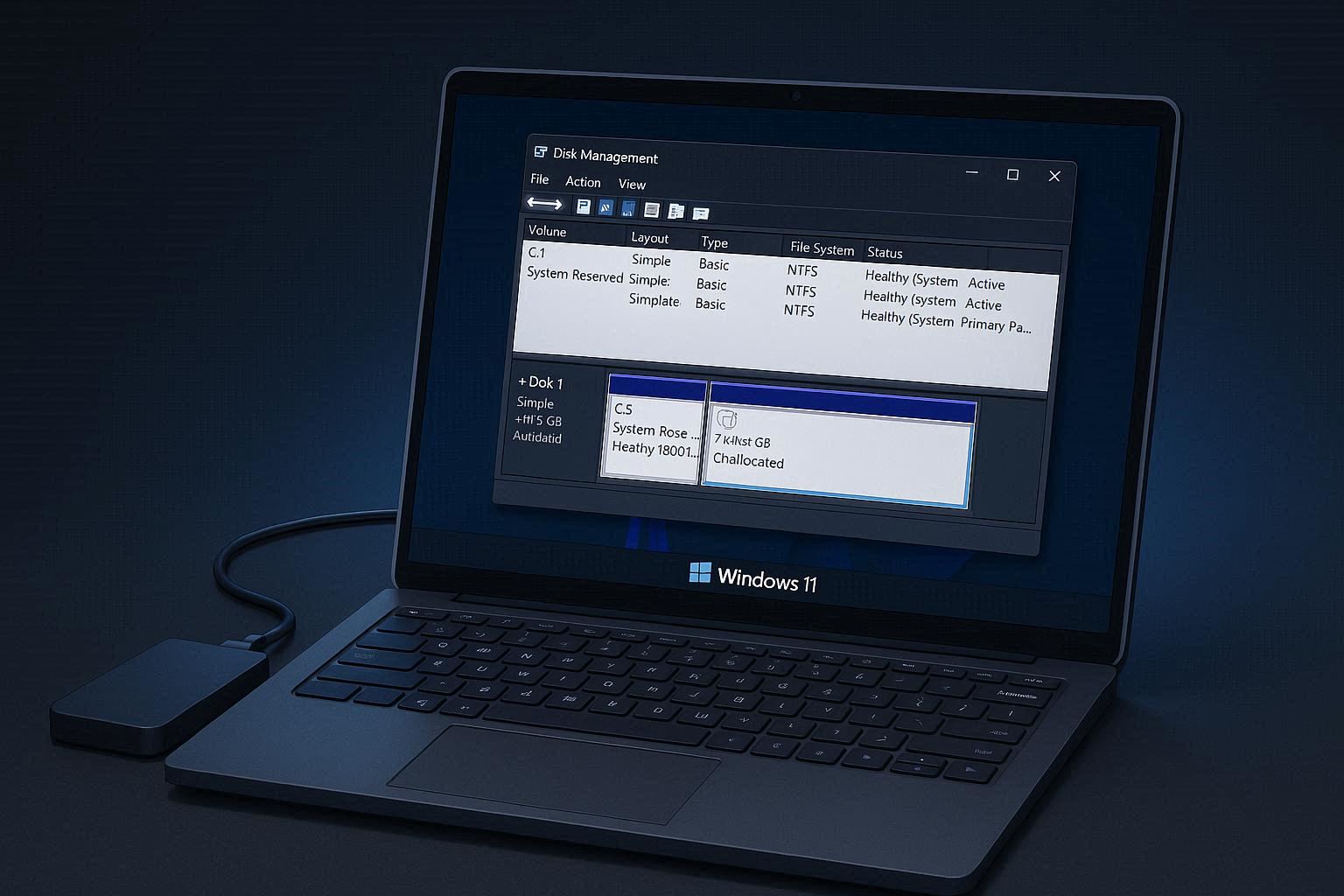
Windows 11 Disk Management showing external drive with no drive letter assigned

You plug in your external hard drive. Windows makes the little USB connection sound — the reassuring “doo-doo” that tells you something was detected. You open File Explorer expecting to see your drive with all your files.

It’s not there.

You check under “This PC.” Nothing. You look in the sidebar. Nothing. You unplug the drive, plug it back in, hear the sound again, and check File Explorer again. Still nothing. Your heartbeat starts accelerating because this drive has years of photos, work files, and backups on it.

Before you start catastrophizing: in the vast majority of cases, your data is perfectly fine. The drive is connected, Windows knows it’s there — it just isn’t showing it to you in File Explorer because of a software issue that’s usually fixable in under two minutes.

The tool that reveals the truth is Disk Management. And once you see what it shows, you’ll know exactly whether this is a two-minute fix or a genuine problem.

Open Disk Management — The Truth Detector

Right-click the Start button (or press Windows + X) and select Disk Management. This utility shows every storage device connected to your computer, including ones that File Explorer hides.

Look at the bottom pane. Your internal drive will be Disk 0. Your external drive will typically be Disk 1 or Disk 2. Find the one that matches the size of your external drive.

What you see next to the drive determines the fix. Here are the possible states and what each one means:

State 1: Healthy partition with a volume but NO drive letter. This is the most common scenario and the easiest fix. The drive is perfectly fine — Windows just failed to assign it a letter.

State 2: “Not Initialized” with “Unallocated” space. The drive has no partition table. Either it’s brand new out of the box, or its partition table got corrupted.

State 3: Partition shows as “RAW” instead of NTFS or exFAT. The file system is corrupted. Windows can see the drive but can’t read its contents.

State 4: The drive doesn’t appear in Disk Management at all. This is a physical connection issue — USB port, cable, or the drive itself.

Let’s fix each one.

Fix 1: Assign a Missing Drive Letter (30-Second Fix)

If Disk Management shows your external drive with a healthy, blue-bar partition but no letter (like E: or F:) next to it — congratulations, this is the simplest fix in all of tech support.

  1. Right-click on the partition (the blue bar in the bottom pane)
  2. Select Change Drive Letter and Paths
  3. Click Add
  4. Select a letter from the dropdown (any available letter works)
  5. Click OK

Done. Open File Explorer. Your drive is there. All your data is intact. Total time: about 15 seconds.

Why does this happen? Windows assigns drive letters automatically, but it can get confused when multiple drives, card readers, network drives, or cloud storage mount points compete for letters. If you’ve ever connected several USB drives in the past, Windows may have reserved letters for devices that are no longer connected, skipping your current drive. It can also happen after a Windows update that resets certain mount point configurations.

Fix 2: Initialize a Disk (For New or Corrupted Drives)

If Disk Management shows the drive as “Not Initialized” with a black bar labeled “Unallocated”, the drive doesn’t have a partition table that Windows can read.

If the drive is brand new — it needs to be initialized and formatted before first use. This is normal.

  1. Right-click where it says “Not Initialized” (or on “Disk 1” or whatever number)
  2. Select Initialize Disk
  3. Choose GPT (GUID Partition Table) — this is the modern standard. Only choose MBR if you need compatibility with very old systems.
  4. Click OK
  5. Now right-click on the Unallocated space
  6. Select New Simple Volume
  7. Follow the wizard — assign a letter, choose NTFS (for Windows-only use) or exFAT (for Windows + Mac compatibility), and give the volume a name
  8. Click Finish

The drive will be formatted and appear in File Explorer, ready to use.

If the drive previously had data — stop. Don’t initialize it. Initializing a drive that had data writes a new partition table over the old one, which can make existing data harder to recover.

Instead, try TestDisk — a free, open-source tool that can scan the drive for lost partitions and rebuild the partition table without erasing data. It’s a command-line tool that looks intimidating but has excellent step-by-step documentation. If TestDisk can find and restore the partition, your drive will appear in File Explorer with all data intact.

If TestDisk can’t find the partition, commercial recovery software like Recuva (free for basic use) or R-Studio (paid, more powerful) can scan the raw drive and recover individual files.

Fix 3: Deal with a RAW File System

If Disk Management shows the drive’s partition as RAW instead of NTFS or exFAT, the file system has become corrupted. This typically happens due to an unsafe eject (pulling the drive out without using “Safely Remove Hardware”), a power interruption during a write operation, or gradual storage degradation.

Windows knows there’s a partition with data on it, but it can’t interpret the file system structure. That’s why the drive appears in Disk Management but not in File Explorer — or it appears in File Explorer but when you click on it, Windows asks “Do you want to format this disk?”

Do NOT format it if you want to keep the data.

Instead, try these approaches in order:

Option A: Run chkdsk. Open Command Prompt as Administrator and run:

chkdsk X: /f

Replace X: with your drive letter (if one was assigned). Chkdsk can sometimes repair the file system and make the drive readable again. If it succeeds, your data will be accessible immediately.

If chkdsk says “The type of the file system is RAW. Chkdsk is not available for RAW drives,” it couldn’t repair the corruption. Move to Option B.

Option B: Use TestDisk. Download TestDisk and use its partition recovery feature. TestDisk can often rebuild the file system metadata from the data on the disk, effectively un-RAWing the partition.

Option C: Recover files and reformat. If neither chkdsk nor TestDisk can repair the file system, use Recuva or PhotoRec (included with TestDisk) to scan the RAW drive and recover individual files to a different drive. Once your data is safely recovered, format the drive in Disk Management to create a fresh file system.

Fix 4: The Drive Doesn’t Appear in Disk Management at All

If Disk Management doesn’t show the drive — it’s a physical issue. The software layer is working fine; the hardware connection isn’t.

Try these in order:

Different USB port. Use a port directly on the motherboard — typically on the back of a desktop or on the sides of a laptop. Front panel USB ports and USB hubs sometimes don’t deliver enough power for external hard drives, especially 3.5-inch desktop drives that draw more current.

Different cable. USB cables fail silently — they can provide power (the drive lights up) but fail to transmit data. If you have another compatible cable, swap it.

Check power. Some external drives, particularly larger 3.5-inch desktop models, require an external power adapter. Make sure it’s plugged in and the drive’s power indicator is lit. Some drives have a physical power switch — check that it’s on.

Listen to the drive. For mechanical hard drives (HDDs), put your ear close to it:

  • Spinning sound — the drive is receiving power and the motor is working. The issue is likely the data connection.
  • Clicking or grinding — the drive has a mechanical failure. Power it off immediately. Every second it runs risks further damage to the platters. If the data is important, contact a professional data recovery service. Do not attempt DIY recovery on a mechanically failing drive.
  • Silence — the drive is not receiving power or the motor has completely failed.

Check Device Manager. Open Device Manager and expand Disk drives and Universal Serial Bus controllers. Look for your drive or any device with a yellow warning triangle (⚠️). Right-click it and select Uninstall device. Then unplug the drive, wait 10 seconds, and plug it back in. Windows will reinstall the USB drivers fresh, which often resolves detection issues caused by corrupted driver state.

If the drive appears in Device Manager under Disk drives but not in Disk Management, there’s a driver conflict. Try updating the USB controller drivers: expand Universal Serial Bus controllers, right-click each entry labeled USB Root Hub or Generic USB Hub, and select Update driver.

Fix 5: The “Safely Remove Hardware” Sermon

You’ve probably heard this a million times and probably ignore it most of the time. But “Safely Remove Hardware” exists specifically to prevent the problems described in this article.

When you write data to an external drive, Windows doesn’t always write it immediately. It buffers the data and writes it in the background for performance reasons. If you pull the drive out while data is still in the buffer, the last write operation is incomplete. This can corrupt the file system, turning a healthy NTFS partition into a RAW nightmare.

Before removing an external drive:

  1. Click the “Safely Remove Hardware” icon in the system tray (the little arrow at the bottom-right of the taskbar)
  2. Select your drive
  3. Wait for the “Safe to Remove Hardware” notification
  4. Then physically unplug it

Or right-click the drive in File Explorer and select Eject.

If Windows says the drive “is currently in use,” close any programs that might have files open on the drive. If you can’t figure out what’s using it, close File Explorer windows that are browsing the drive, wait 30 seconds, and try again.

Taking the two seconds to safely eject prevents the hours of troubleshooting you’d face if the file system gets corrupted. It’s one of those tiny habits that pays for itself the one time it matters.

When the Drive Is Actually Dead

If you’ve tried every fix above — multiple ports, multiple cables, multiple computers — and the drive still isn’t detected anywhere, the drive itself has likely failed. For mechanical drives, this usually means a motor failure, head crash, or controller board failure. For SSDs, it could be flash memory cell degradation or controller failure.

If the data on the drive is irreplaceable, do not attempt further DIY recovery. Every failed power-on attempt with a mechanically damaged drive risks permanent data loss. Professional data recovery services like Secure Data Recovery, DriveSavers, or Ontrack have cleanroom facilities and specialized equipment to recover data from physically damaged drives. These services are expensive ($300-$1500+ depending on the damage), but they can often recover data from drives that seem completely dead.

If the data isn’t critical, the drive is recyclable electronics waste. Don’t throw it in the regular trash — find an e-waste recycling center in your area.

The takeaway: external drives are not permanent storage. They fail. All of them, eventually. Keep your important data in at least two places — an external drive AND cloud backup — so that when (not if) one fails, you still have a copy somewhere else.

Step-by-Step Guide

1

Open Disk Management to see if Windows detects the drive

Right-click the Start button or press Windows plus X and select Disk Management. This utility shows every storage device connected to your computer even if it does not appear in File Explorer. Look at the bottom pane for your external drive which will typically appear as Disk 1 or Disk 2. The status shown next to the drive tells you exactly what the problem is. If the drive appears here but not in File Explorer the fix is software based and your data is likely safe. If the drive does not appear in Disk Management at all the issue is physical meaning the USB connection cable or drive itself has a problem.

2

Assign a missing drive letter

If Disk Management shows the drive with a healthy partition but no letter next to it this is the most common and easiest fix. Right-click on the partition in the bottom pane and select Change Drive Letter and Paths. Click Add then select a letter from the dropdown menu and click OK. The drive will immediately appear in File Explorer with all your data intact. This happens because Windows sometimes fails to automatically assign a letter especially when multiple drives have been connected and disconnected or when a letter conflict occurs with a network drive or card reader.

3

Initialize a new or unknown disk

If Disk Management shows the drive as Not Initialized with unallocated space the drive either is brand new and has never been formatted or its partition table has become corrupted. For a new drive right-click where it says Not Initialized and select Initialize Disk. Choose GPT for modern systems. Then right-click the unallocated space and select New Simple Volume. Follow the wizard to assign a letter and format the drive. Warning if the drive previously had data and now shows as Not Initialized do not initialize it because that will overwrite the existing partition table. Instead use data recovery software like Recuva or TestDisk to attempt recovering the data before making any changes to the drive.

4

Fix a RAW file system partition

If Disk Management shows the drive as RAW instead of NTFS or exFAT the file system has become corrupted. Windows can see the drive but cannot read its contents. If the drive contains important data do not format it. Download TestDisk which is free and open source from cgsecurity.org. TestDisk can scan the drive for lost partitions and repair the file system without erasing data. If the data is not important or has been backed up you can right-click the RAW partition in Disk Management and select Format. Choose NTFS for Windows-only use or exFAT for compatibility with both Windows and Mac. Quick format takes a few seconds and makes the drive usable again.

5

Troubleshoot USB connection and driver issues

If the drive does not appear in Disk Management at all try a different USB port preferably one directly on the motherboard rather than a front panel port or USB hub. Try a different USB cable as cables fail more often than drives. If the drive has an external power adapter make sure it is plugged in and the power light is on. If the drive still does not appear open Device Manager and expand Disk drives and Universal Serial Bus controllers. Look for any devices with yellow warning triangles. Right-click the device and select Uninstall device then unplug and reconnect the drive to force Windows to reinstall the driver. If the drive works on another computer but not yours the issue is with your USB drivers or ports not the drive itself.

Frequently Asked Questions

Can I recover data from an external drive that shows as RAW?
Yes in most cases. RAW status means the file system metadata is corrupted but the actual data is usually still on the drive. Free tools like TestDisk can often repair the file system and restore access to all your files without data loss. Commercial tools like Recuva or R-Studio can recover individual files from RAW drives. The critical rule is to not format the drive before attempting recovery because formatting overwrites the file system metadata that recovery tools need to find your data.
Why does my external drive work on one computer but not another?
This usually indicates a USB driver issue on the non-working computer rather than a drive problem. Different computers may have different USB controller drivers and some may be outdated or corrupted. Try updating the USB controller drivers in Device Manager on the non-working computer. Another possibility is that the non-working computer has a group policy or USB restriction that blocks external storage devices which is common on corporate or school managed computers.
Should I use NTFS or exFAT when formatting an external drive?
Use NTFS if the drive will only be used with Windows computers. NTFS supports large files unlimited partition sizes file permissions and encryption. Use exFAT if the drive needs to work with both Windows and Mac computers or with devices like game consoles and smart TVs. exFAT supports large files and is universally compatible but lacks advanced features like file permissions and journaling. Avoid FAT32 unless you specifically need compatibility with very old devices because it has a 4GB maximum file size limit.
Can a failing external drive be saved?
If a drive is making clicking or grinding sounds it has a mechanical failure and should not be powered on anymore. Each power cycle risks further damage to the platters and makes data recovery harder or impossible. For important data contact a professional data recovery service. If the drive appears in Disk Management but shows incorrect capacity or constantly disconnects it may have a failing controller board. In some cases replacing the enclosure or connecting the bare drive directly via a SATA dock can bypass the faulty controller and give you access to the data. SSDs that are failing typically become read-only before dying completely giving you a window to copy data off.
Adhen Prasetiyo

Research Bug bounty at javahack team

Research Bug bounty Profesional

Web Development Research Bug Hunter
View all articles →