
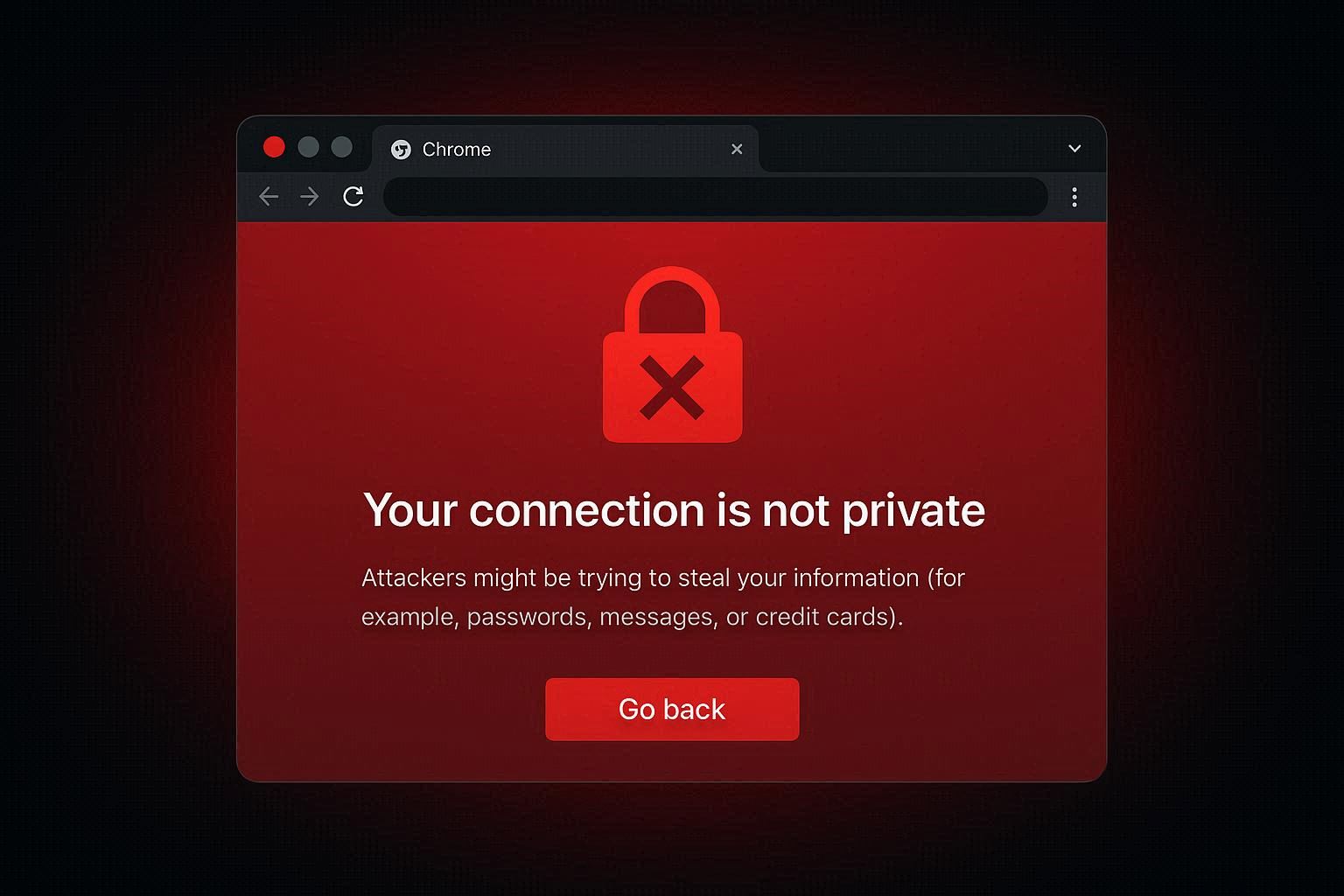
You try to visit a website and Chrome throws up a full-page red warning:
“Your connection is not private. Attackers might be trying to steal your information.”
Below it, there’s an error code — something like NET::ERR_CERT_DATE_INVALID or ERR_CERT_AUTHORITY_INVALID. There’s no way to continue to the website without clicking through a hidden “Advanced” option.
Most people see this and assume one of two things: either the website is dangerous and they should leave, or their browser is broken and they need to fix it. The truth is more nuanced. Sometimes the website has a real security problem. Sometimes your computer is causing false alarms on perfectly safe websites. The error code tells you which scenario you’re in.
Let me show you how to read the error, when to fix it, and when to walk away.
What This Error Actually Means
Every time you visit a website that starts with HTTPS, your browser performs a security check. It verifies that the website’s SSL certificate is valid, issued by a trusted authority, not expired, and actually belongs to the domain you’re visiting. If any of these checks fail, Chrome blocks the connection and shows the “Your connection is not private” warning.
This isn’t Chrome being paranoid. Without a valid certificate, the connection between your browser and the website isn’t properly encrypted. Anyone sitting between you and the website — on the same WiFi network, at your ISP, or anywhere along the route — could potentially read or modify the data you’re sending and receiving. That includes passwords, credit card numbers, and personal information.
The error code on the warning page tells you exactly which check failed. Here’s what each one means:
NET::ERR_CERT_DATE_INVALID — The certificate’s dates don’t match your system clock. Either the certificate expired (website’s fault) or your computer’s date/time is wrong (your fault).
ERR_CERT_AUTHORITY_INVALID — The certificate was issued by an authority that Chrome doesn’t trust. This can happen with self-signed certificates, antivirus HTTPS interception, or genuinely untrusted issuers.
ERR_CERT_COMMON_NAME_INVALID — The certificate was issued for a different domain than the one you’re visiting. Like having an ID card with someone else’s name.
NET::ERR_CERT_REVOKED — The certificate was revoked by the issuing authority, usually because it was compromised. This is a serious warning — don’t bypass it.
ERR_SSL_PROTOCOL_ERROR — The browser and server can’t agree on a secure connection method. Often caused by outdated SSL/TLS versions.
Fix 1: Check Your System Clock (Fixes ERR_CERT_DATE_INVALID on Every Site)
This is the number one cause of certificate errors appearing on every HTTPS website simultaneously. SSL certificates have a “valid from” and “valid to” date. If your computer’s clock says it’s 2024 but the certificate is valid for 2025-2026, the check fails.
This happens more often than you think — dead CMOS batteries on desktops cause the clock to reset, time zone changes can shift your clock, and sometimes Windows just gets confused after sleep/hibernation.
Right-click the clock in your taskbar → Adjust date/time
Make sure both “Set time automatically” and “Set time zone automatically” are ON. If the time still looks wrong, click “Sync now” under “Additional settings.”
If the time refuses to sync, the Windows Time service might be stopped:
Press Windows + R → type services.msc → Enter

Find "Windows Time" → right-click → Start (or Restart)

Then try syncing again
After fixing the clock, close and reopen Chrome. The certificate errors should be gone on all websites.
Fix 2: Test in Incognito Mode (Isolate Extensions and Cache)
Ctrl + Shift + N → visit the same website
If the error disappears in Incognito, the problem is one of your browser extensions or your cached certificate data. Extensions are disabled in Incognito by default, so this test instantly tells you whether an extension is interfering.
Go back to normal mode, disable all extensions (chrome://extensions), and turn them on one by one. Privacy-focused extensions, ad blockers with HTTPS filtering, and VPN extensions are the most common culprits.
If no extension is the cause, clear your browsing data:
Ctrl + Shift + Delete → Time range: All time → check "Cached images and files" → Clear data
Also try clearing the SSL state specifically:
Chrome Settings → Privacy and Security → Security → Manage certificates
Or on Windows:
Control Panel → Internet Options → Content tab → Clear SSL State
This removes cached certificates that might be outdated or corrupted.
Fix 3: Disable Antivirus HTTPS Scanning
This is the sneaky one. Many antivirus programs — Avast, Kaspersky, Bitdefender, ESET, Norton — have a feature called “HTTPS scanning” or “SSL inspection” or “Web Shield.” What this does is intercept every HTTPS connection, decrypt it, scan the content for malware, then re-encrypt it using the antivirus’s own certificate.
The problem: Chrome doesn’t trust the antivirus’s certificate. So every HTTPS website shows ERR_CERT_AUTHORITY_INVALID because the certificate Chrome receives belongs to your antivirus, not to the actual website.
How to fix it by antivirus:
Avast: Settings → Protection → Core Shields → Web Shield → uncheck “Enable HTTPS Scanning”
Kaspersky: Settings → Network Settings → uncheck “Scan encrypted connections”
Bitdefender: Protection → Online Threat Prevention → Encrypted Web Scan → OFF
ESET: Advanced Setup → Web and Email → SSL/TLS → uncheck “Enable SSL/TLS protocol filtering”
Norton: Settings → Firewall → General → HTTPS Scanning → OFF
After disabling, restart Chrome and test. If the errors disappear, your antivirus was the cause. You can leave HTTPS scanning disabled — Chrome and Windows Defender already provide adequate protection against malicious websites.
Fix 4: Update Chrome and Windows
Outdated root certificates can cause legitimate websites to show as untrusted. Chrome and Windows both maintain lists of trusted certificate authorities, and these lists get updated regularly.
Update Chrome:
Menu → Help → About Google Chrome → update automatically
Update Windows:
Settings → Windows Update → Check for updates
Root certificate updates come through Windows Update. If your system is severely behind on updates, it might not trust newer certificate authorities, causing errors on recently secured websites.
Fix 5: Check the Website (When It’s Not Your Fault)
If the error only appears on one specific website and your clock is correct, the website itself has a certificate problem. This isn’t something you can fix — the website administrator needs to:
- Renew the expired certificate
- Install the certificate correctly (including intermediate certificates)
- Make sure the certificate matches the domain
How to check: Click “Advanced” on the warning page, then click “Proceed to [website] (unsafe)” to see the certificate details. Or use an online SSL checker like ssllabs.com — enter the domain and it will show exactly what’s wrong with the certificate.
What to do:
- If it’s a small business website or blog, contact them and let them know their certificate expired
- If it’s a major website (Google, Facebook, Amazon) showing this error, the problem is definitely on your end — major sites don’t let their certificates expire
- If it’s a website you don’t know, walk away. The warning might be protecting you from a genuine attack
When to Bypass the Warning (And When Not To)
Clicking “Advanced → Proceed to [website]” bypasses the security warning. This is sometimes appropriate and sometimes dangerous.
Safe to bypass:
- Websites on your local network (like your router’s admin page at 192.168.1.1)
- Development/testing servers with self-signed certificates
- A website you trust where you know the certificate recently expired and they’re fixing it
- Any website where you’re just reading content and not entering any personal data
Never bypass:
- Banking or financial websites
- Any login page where you enter a password
- Shopping sites where you enter payment information
- Email providers
- Any website where you’re entering personal or sensitive information
If a banking website or major service shows this error, something is seriously wrong — either your system is compromised, you’re on a network that’s intercepting traffic, or there’s a DNS hijacking attack. Don’t proceed. Try accessing the site from a different network (switch from WiFi to mobile data) and see if the error persists.
The Network-Level Cause
One scenario that catches people off guard: the error only appears when connected to a specific WiFi network (like a hotel, airport, or coffee shop). This can mean:
Captive portal interference. The WiFi network requires you to log in through a web page before it grants internet access. Until you do, it intercepts all HTTPS requests, which causes certificate errors. Open any HTTP (not HTTPS) website to trigger the login page, or look for a “sign in to WiFi” notification.
Network-level interception. Some corporate or public networks route HTTPS traffic through a proxy that inspects the content. This is similar to what antivirus does but at the network level. If you’re on a corporate network, this might be intentional and approved by your IT department. On a public network, this is suspicious.
DNS hijacking. An attacker (or a compromised router) has changed the DNS responses to redirect you to a fake website. The certificate error appears because the fake site can’t produce a valid certificate for the real domain. This is exactly the kind of attack the warning is designed to protect you from. Don’t bypass it.
If you’re getting certificate errors only on a specific network, the safest option is to use a VPN to encrypt your traffic before it reaches the network, or switch to mobile data.